Connect an Email Sender (Mailbox)
Connect any IMAP / SMTP provider, Google Workspace or Outlook 365 for outbound campaigns.
Written By Kevin Lawrie
Last updated About 1 month ago
Mailboxes are how you send native email from Campaigns. Every connection is BYO SMTP and IMAP, using your own credentials or an app password.
You'll need the mailbox's credentials and host information for SMTP and IMAP connectivity. For Google Workspace or Microsoft 365 email accounts, you will need to generate an App Password which requires 2FA setup for your account.
💡 Tip: If you're on Microsoft 365 and the connection fails, SMTP AUTH being disabled at the tenant level is the most common cause. That's a setting your IT admin controls, not something fixable from your end alone.
Connecting a mailbox
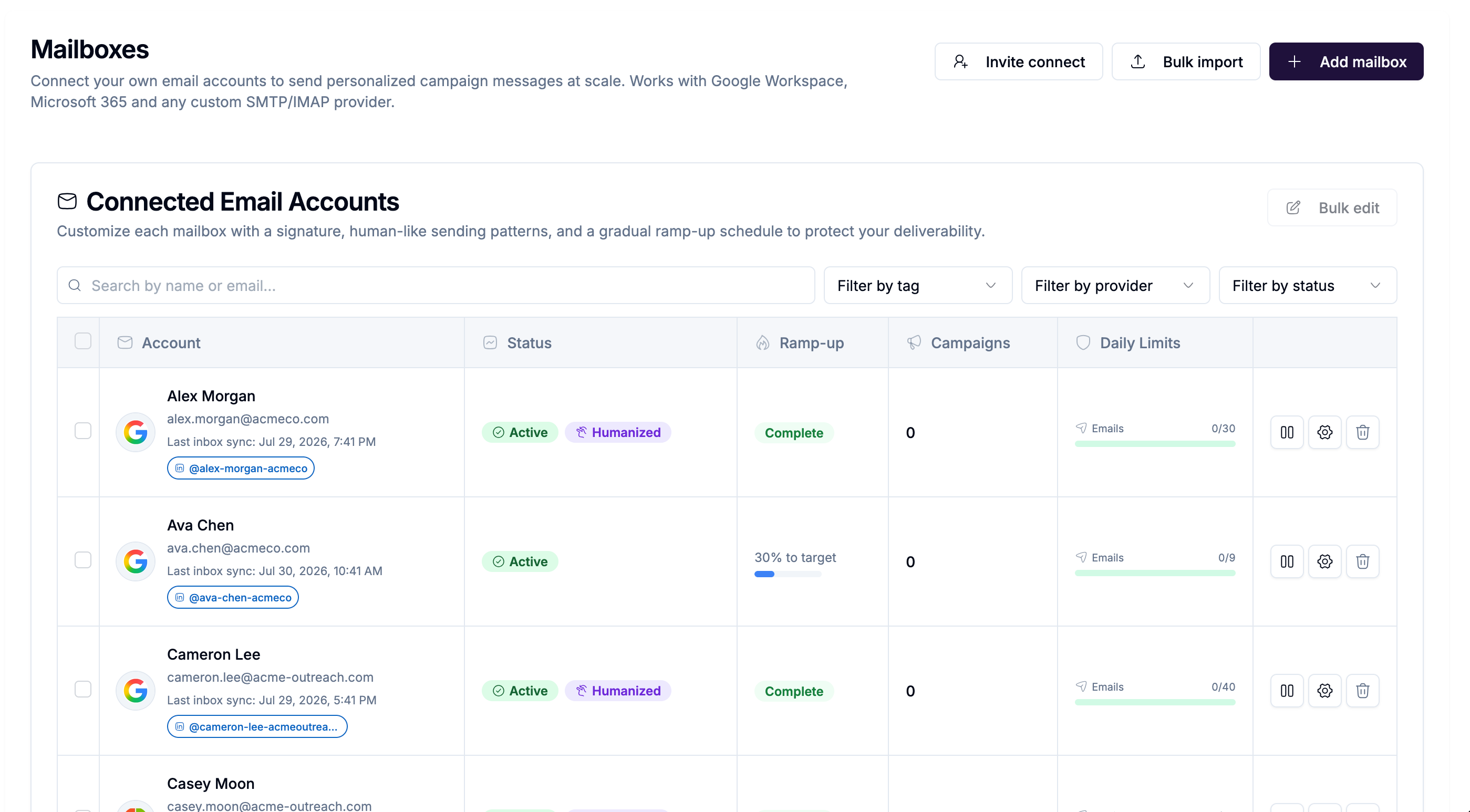
Go to Mailboxes.
Click Add mailbox.
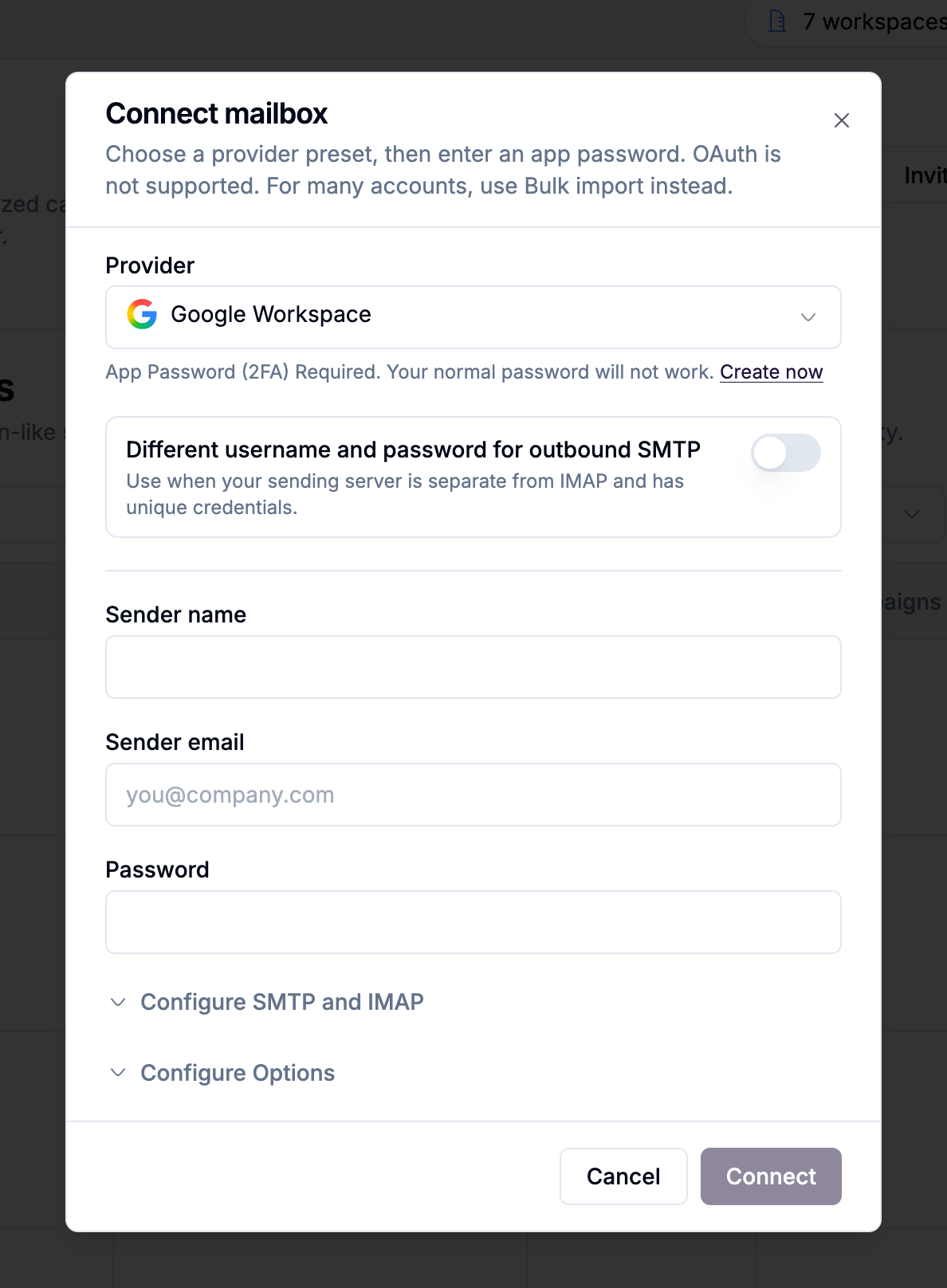
Choose a provider preset, Google Workspace, Outlook 365, Zoho, Fastmail, Yahoo, or Custom.
Enter:
Email address
From name, the display name recipients will see
Password or app password
Optional separate SMTP username and password, only if your provider requires different credentials for sending than for receiving
Provider presets fill in the standard hosts and ports automatically (for example, Google's
smtp.gmail.comandimap.gmail.com). Confirm these, or enter your own for a Custom connection.Configure sending and sync settings. See [Mailbox settings reference].
Optionally set a Default Linked Social Sender, which prefills pairing later if you use this mailbox in a Social + Email campaign.
Save.
A successful connection shows as Active. If something's wrong, you'll see Needs Reconnect or Error, at which point double-checking the password or app password is the usual fix.
Inviting a teammate to connect their own mailbox
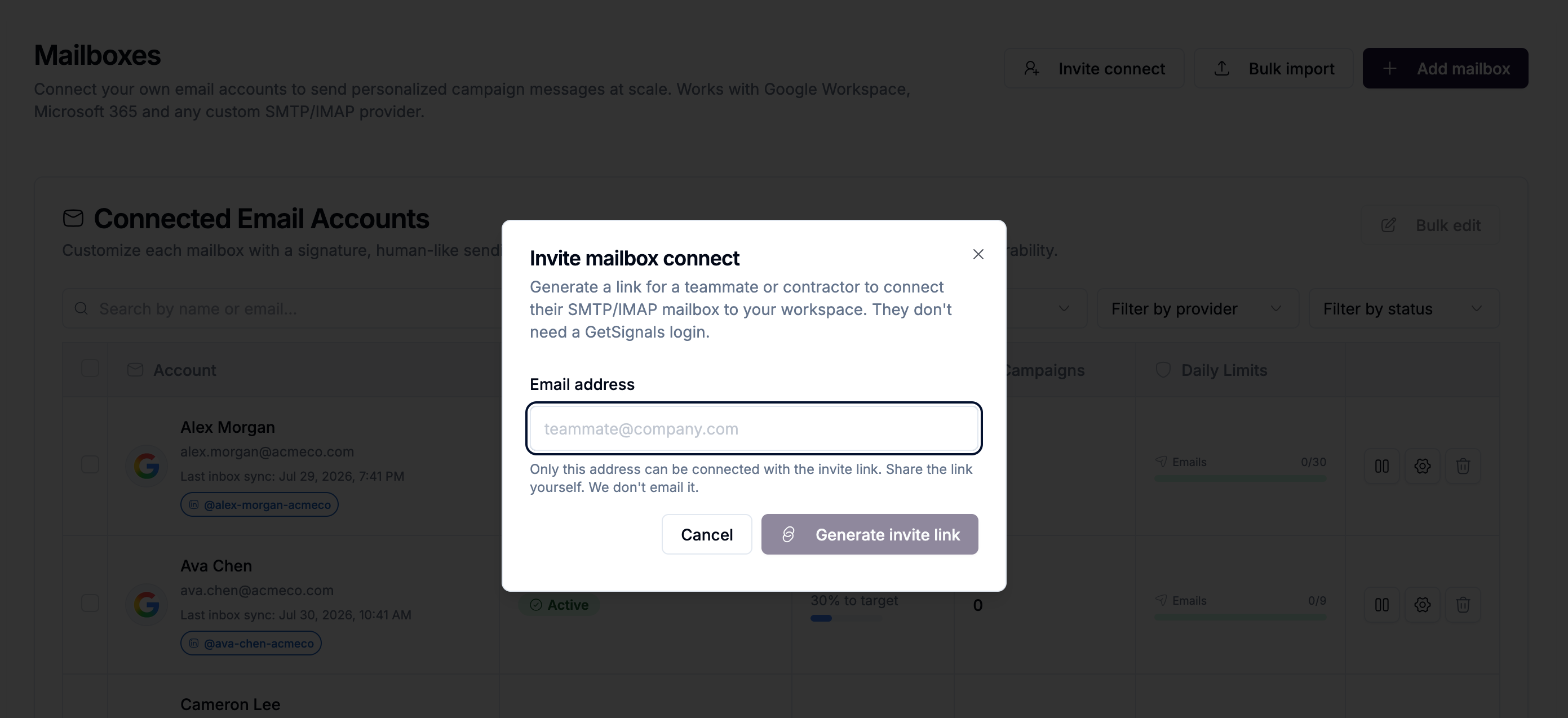
If you want a colleague's mailbox added without asking for their password directly (do not recommend) and without making them a getsignals user, now you can:
From Mailboxes, click Invite.
Enter their email address.
Share the generated link with them.
The link is valid for about 72 hours. Your teammate enters their own credentials on that page, so their password never passes through you. This allows the user to securely connect their mailbox without requiring a getsignals login / user account of their own.
Bringing in several mailboxes at once
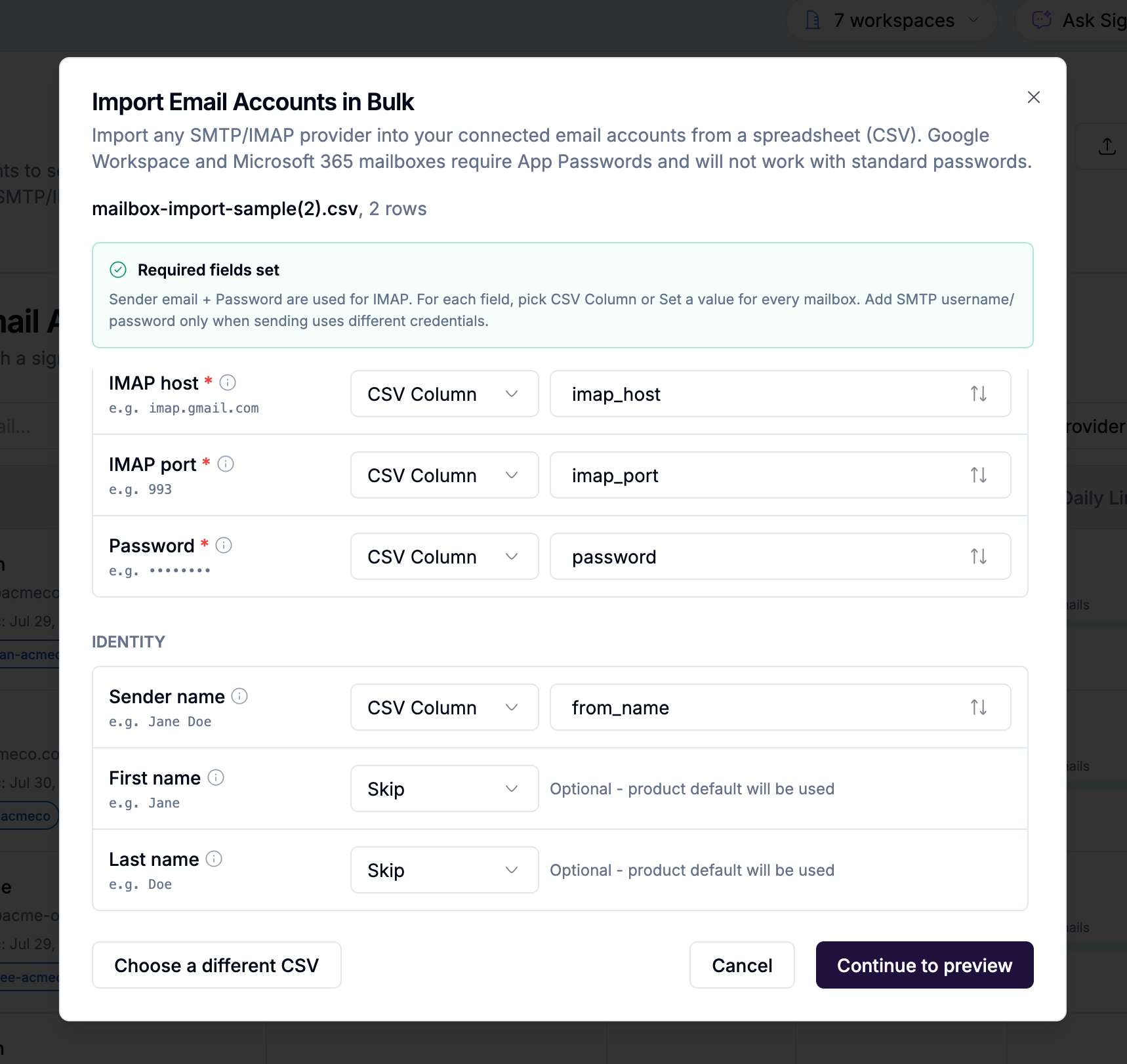
If you're connecting more than a handful of mailboxes, use Bulk import with a CSV rather than adding them one at a time. See [Import email accounts in bulk from a CSV] for the full walkthrough, including field mapping, sample files, and troubleshooting.
Mailbox statuses
Pausing, reconnecting, or removing a mailbox
Pause stops a mailbox from sending without disconnecting it or losing its settings and ramp-up progress. Use this when you need to hold off temporarily.
Remove disconnects the mailbox and deletes its stored credentials entirely. Any campaigns actively using it will need a replacement sender assigned before they can continue. If you're unsure whether you'll need the mailbox again, Pause is the safer choice.