Build a custom AI Reply Agent

Build a customize an AI Reply Agent (or many) to handle every campaign use case.

Written By Kevin Lawrie

Last updated About 1 month ago

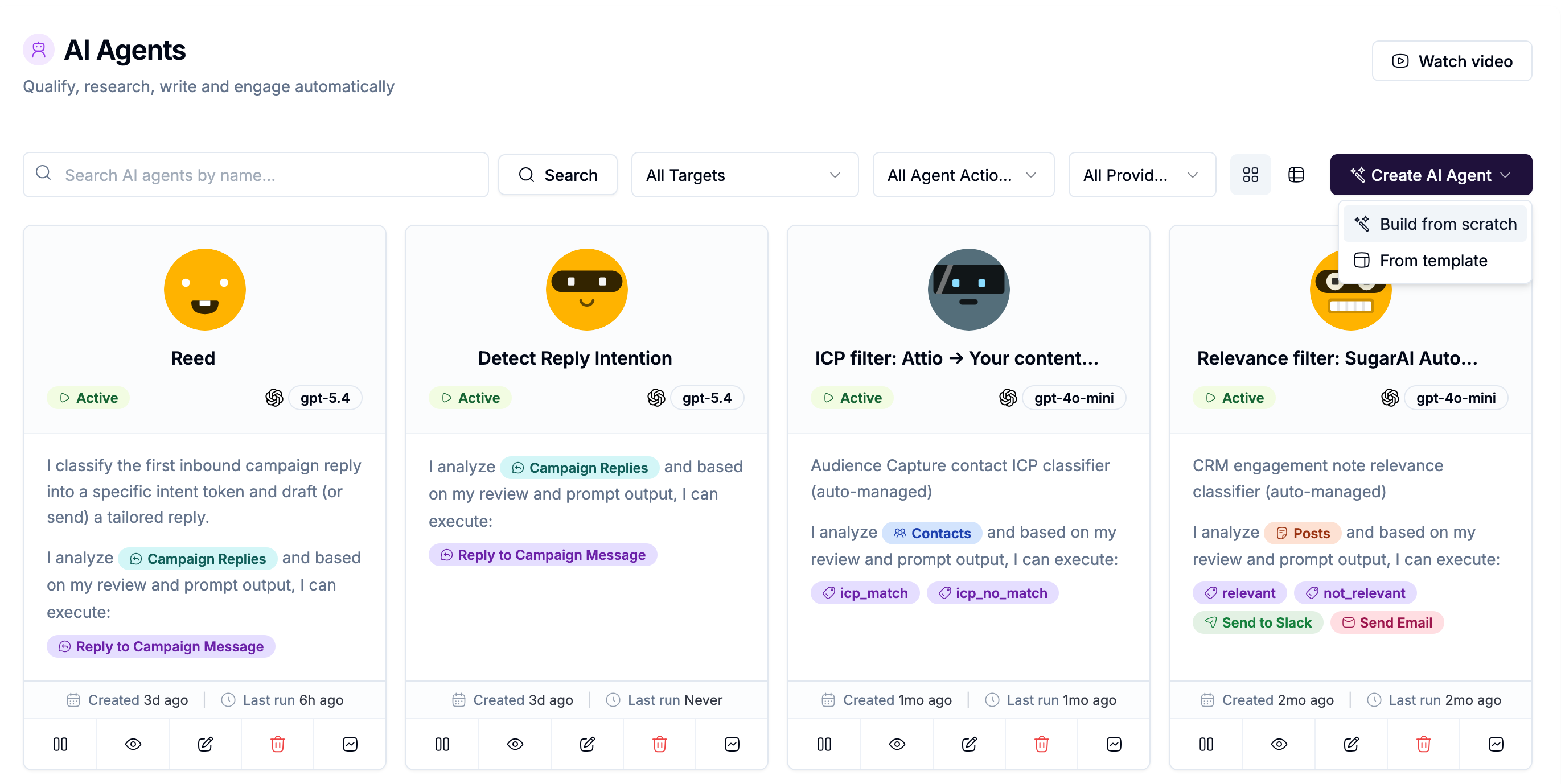
Reed uses two separate editors that look similar but do very different jobs. Confusing them is the single most common mistake when customizing a Reply Agent. This article explains the difference clearly, and lists exactly which tags belong where.
Two editors, two jobs

Editor

Job

What comes out

Prompt template (the agent's Prompt step)

Classify the inbound reply into one intent token

A single word, like meeting_request or unclear, nothing else

Conditional action, Reply to Campaign Message

Draft or send the actual reply for that token

The message the prospect may receive

Both editors work from the same lead and thread data. The difference is entirely in what they're asked to produce.


How they connect

  1. The Prompt runs first, and its output becomes the classification token, available as {{output}} or {{llm_response}}.

  2. Your conditional actions compare that token against a value, for example, does {{llm_response}} equal meeting_request.

  3. Whichever row matches runs its campaign_reply action, using that row's own reply template.

  4. In Suggest mode, the draft waits in the Unified Inbox for review. In Full Autopilot, it can send automatically.

⚠️ Don't confuse the two. The Prompt is a classifier. Its output is a short token, not customer-facing text. The reply template, usually wrapped in an [[AI:...]] block, is what the prospect may actually receive.

{{output}} and {{llm_response}} belong in your conditions, comparing against a token value. They're deliberately hidden from the reply template's Personalize menu, so you don't accidentally paste a classification token into an email.

{{firmographics}} is always your own product and ICP, in both editors, never a stand-in for the prospect's company.


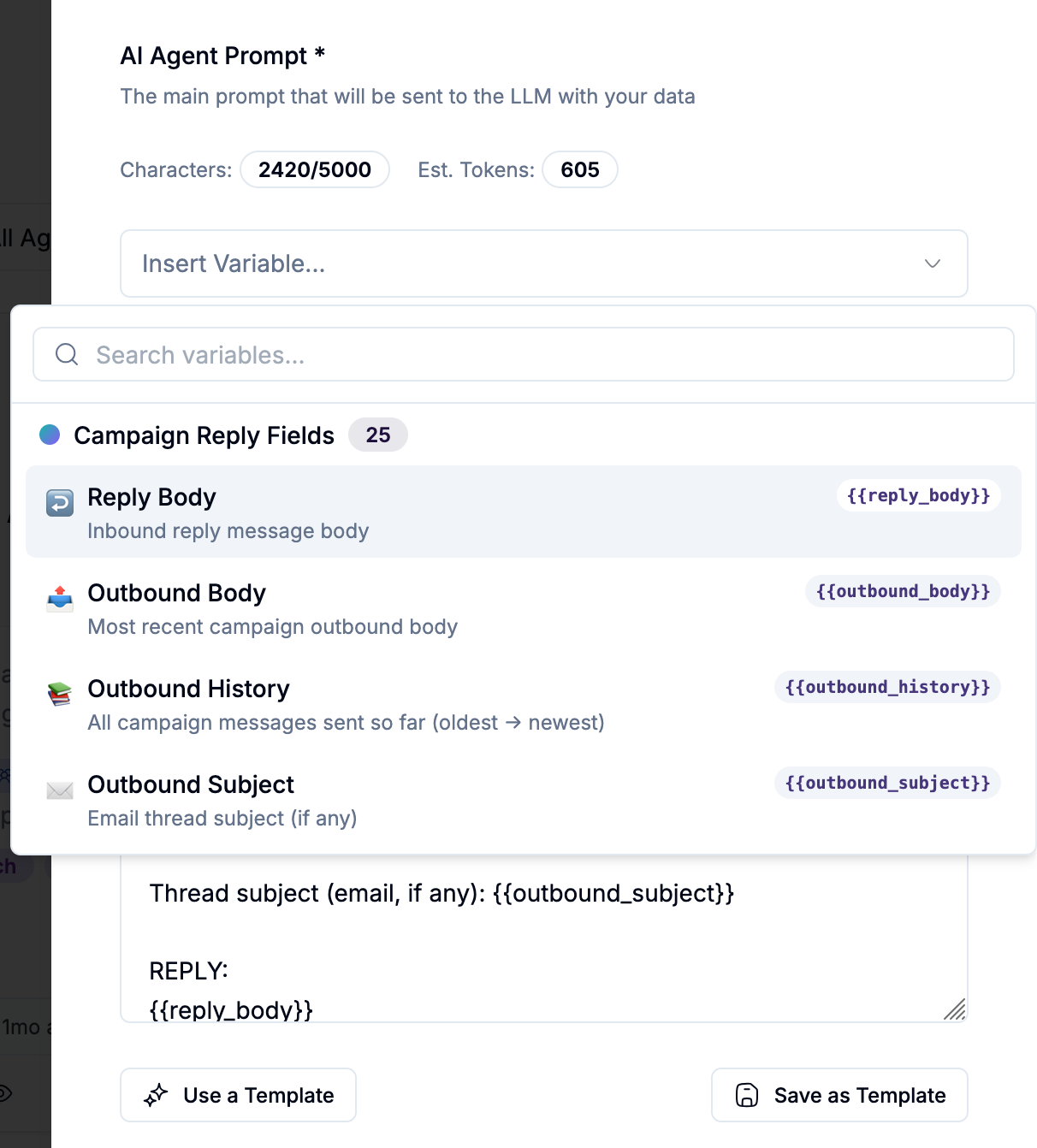
Tags available in the Prompt (classifier)

Insert these via the Prompt builder's variable menu when the agent's data target is campaign replies.
Tag

What it fills

{{reply_body}}

The text of the inbound reply

{{outbound_history}}

Every campaign message sent so far, oldest to newest

{{outbound_body}}

Just the most recent outbound message

{{outbound_subject}}

The email thread's subject line, where applicable

{{reply_cc}}

Anyone Cc'd on the inbound reply

{{channel}}

linkedin or email

{{campaign_name}}

The campaign's name

{{first_name}} / {{last_name}} / {{full_name}}

The lead's name

{{company_name}} / {{company}}

The lead's company (both refer to the same value)

{{email}}

The lead's email address

{{job_title}}

The lead's job title

{{firmographics}}

Your workspace's product and ICP

{{sender_first_name}} / {{sender_last_name}} / {{sender_full_name}}

The sender, whether a Social Sender seat or a mailbox

{{sender_company}} / {{sender_title}}

Sender's company or headline, where available

{{sender_email_address}}

The mailbox's from-address, on email replies

{{mailbox_signature}}

The mailbox's plain-text signature

{{prospect_analysis_brief_json}}

The AI Research Brief, only meaningful inside an [[AI:...]] writer block, not typically used in a classify prompt

{{output}} / {{llm_response}}

This run's model output, the token once classification finishes, used for condition matching


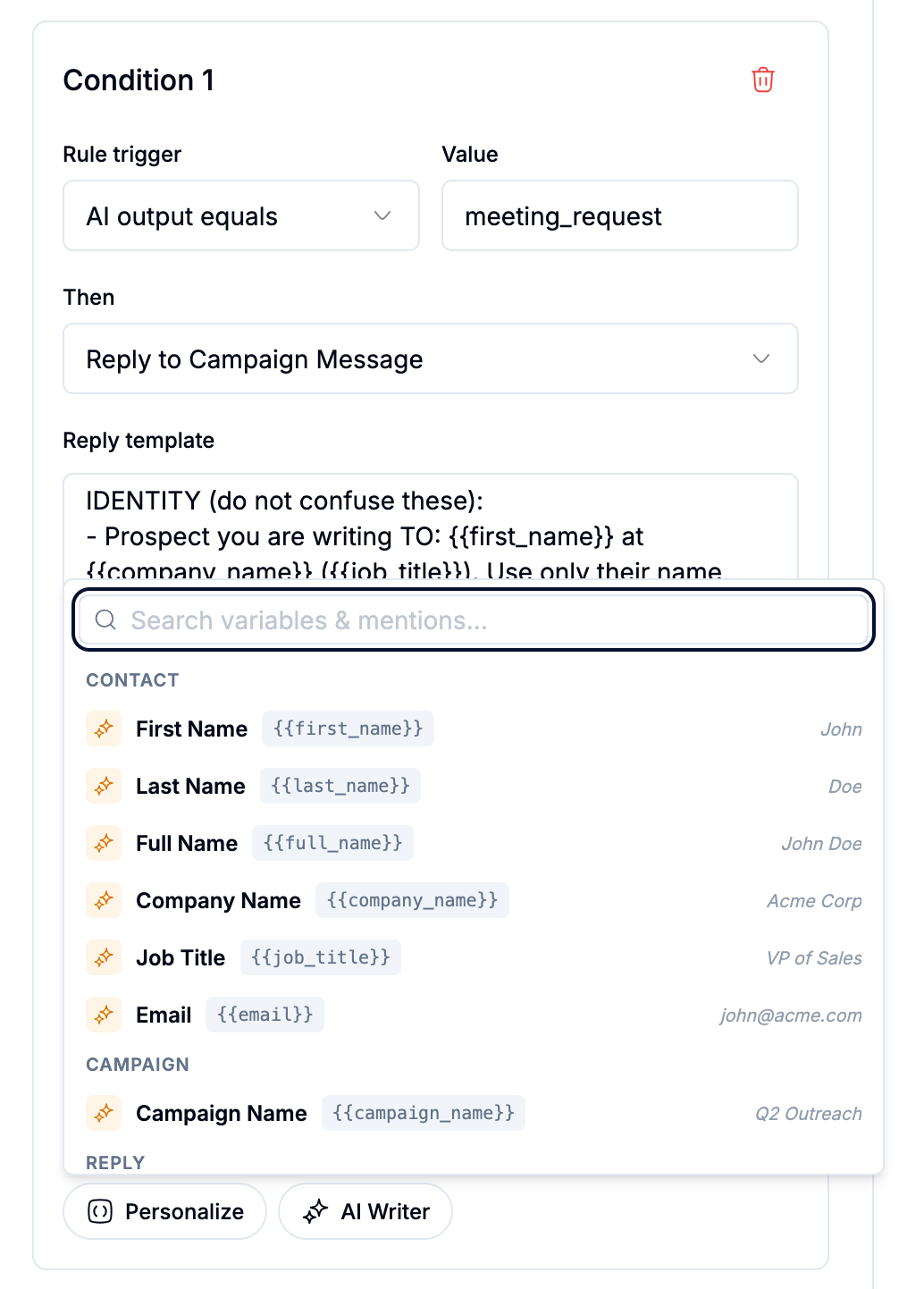
Tags available in reply actions (the AI blocks that write the message)

Each intent's row is a Reply to Campaign Message action with its own reply template, usually one [[AI:...]] block written specifically for that intent.
Tag

What it fills

Typical use

{{first_name}} / {{last_name}} / {{full_name}}

The lead's name

Greeting, identity

{{company_name}}

The lead's company

Identity only, never described using firmographics

{{job_title}}

The lead's title

Role-aware phrasing

{{email}}

The lead's email

Rarely needed in the body itself

{{campaign_name}}

The campaign's name

Optional context

{{reply_body}}

Their inbound text

"Their reply was..." inside the AI block

{{outbound_history}}

The full prior send trail

Primary context for tone and prior asks

{{outbound_body}}

Just the last outbound message

When the full history is more than needed

{{outbound_subject}}

Email subject line

Email-channel context

{{channel}}

linkedin or email

Channel-aware wording

{{reply_cc}}

The Cc list

Referral and authority intents

{{firmographics}}

Your product and ICP

Product facts only, labeled clearly as your own offer

{{prospect_analysis_brief_json}}

The research brief

Optional, if you want a deeper research pass before this specific reply

{{sender_first_name}} / {{sender_last_name}} / {{sender_full_name}}

The sender

Sign-off and voice

{{sender_company}} / {{sender_title}}

Sender profile

Optional

{{sender_email_address}}

The mailbox's from-address

Email replies

{{sender_signature}} / {{mailbox_signature}}

The mailbox signature

Both refer to the same value

Not available here: {{output}} and {{llm_response}}. Classification tokens stay in your conditions, not in customer-facing copy.


Editing tip

If you want to change how Reed, or a custom agent, responds to a specific intent, change the instructions inside that intent's [[AI:...]] block directly. Keep the identity rules intact (prospect facts vs. your own firmographics), keep replies short, and skip em dashes in generated copy, Reed's stock prompts already ask for this.

Example shape, for meeting_request: one [[AI:...]] block that states who you're writing to, includes {{firmographics}} labeled clearly as sender product, pulls in {{outbound_history}} and {{reply_body}} for context, then asks for a short thank-you and a scheduling question.