How integrations work — setup, Signal assignment, and AI Agent routing
Integrations connect your external tools to the platform. Each integration is connected once and then available at three points: the Signal configure step for automatic pushing, the Contacts manager for manual bulk actions, and AI Agent actions for intelligent routing.
Written By Kevin Lawrie
Last updated 6 months ago
Connecting an integration
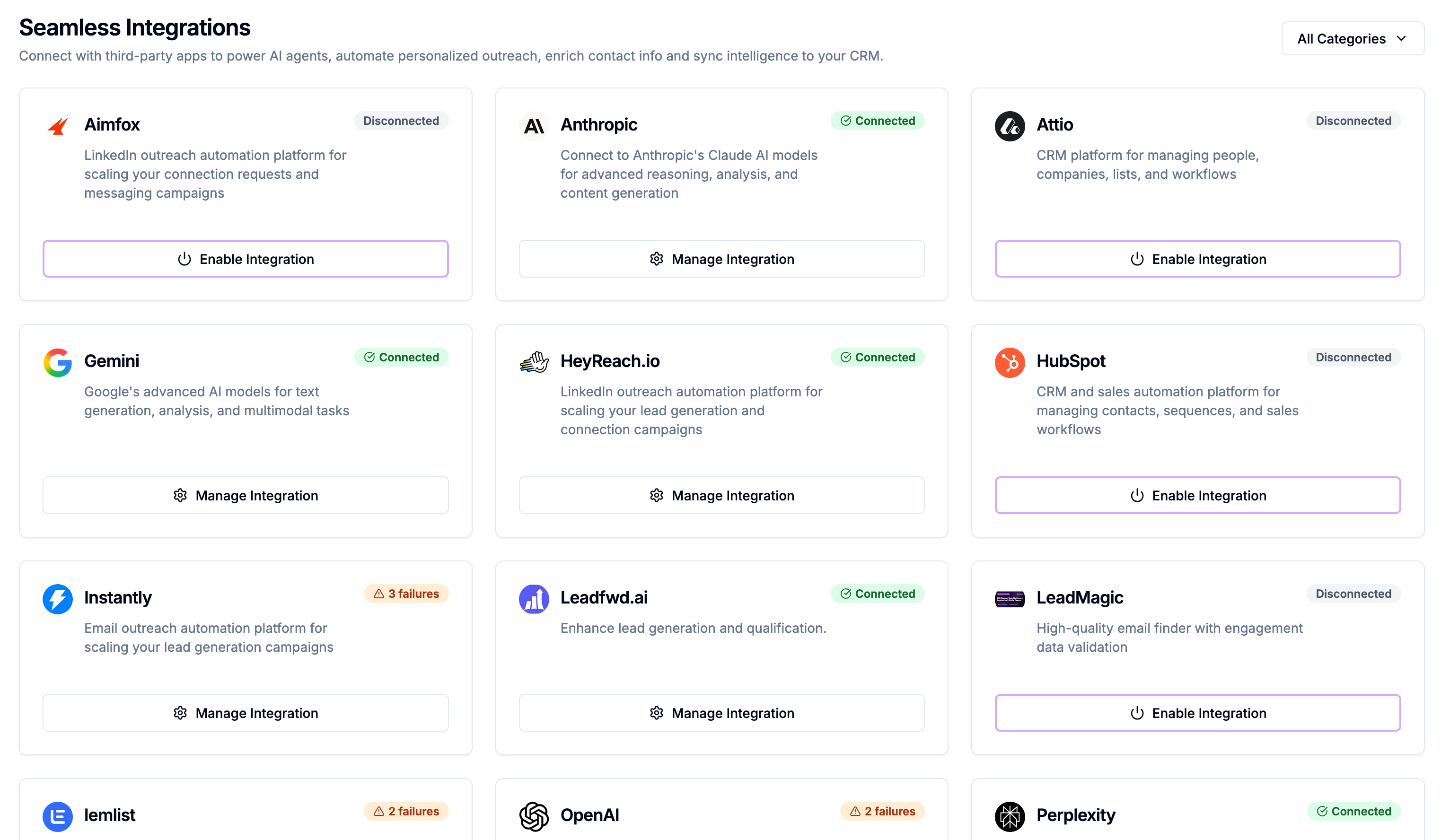
All integrations are connected from Integrations in the left sidebar. Find the integration you want to connect, click Configure, and follow the setup steps — either entering an API key or completing an OAuth flow.
Once connected, the integration becomes available everywhere in the platform that accepts that integration type.
The three integration points
Understanding where integrations plug in is the key to getting the most out of them.
1. Signal configure step — automatic pushing
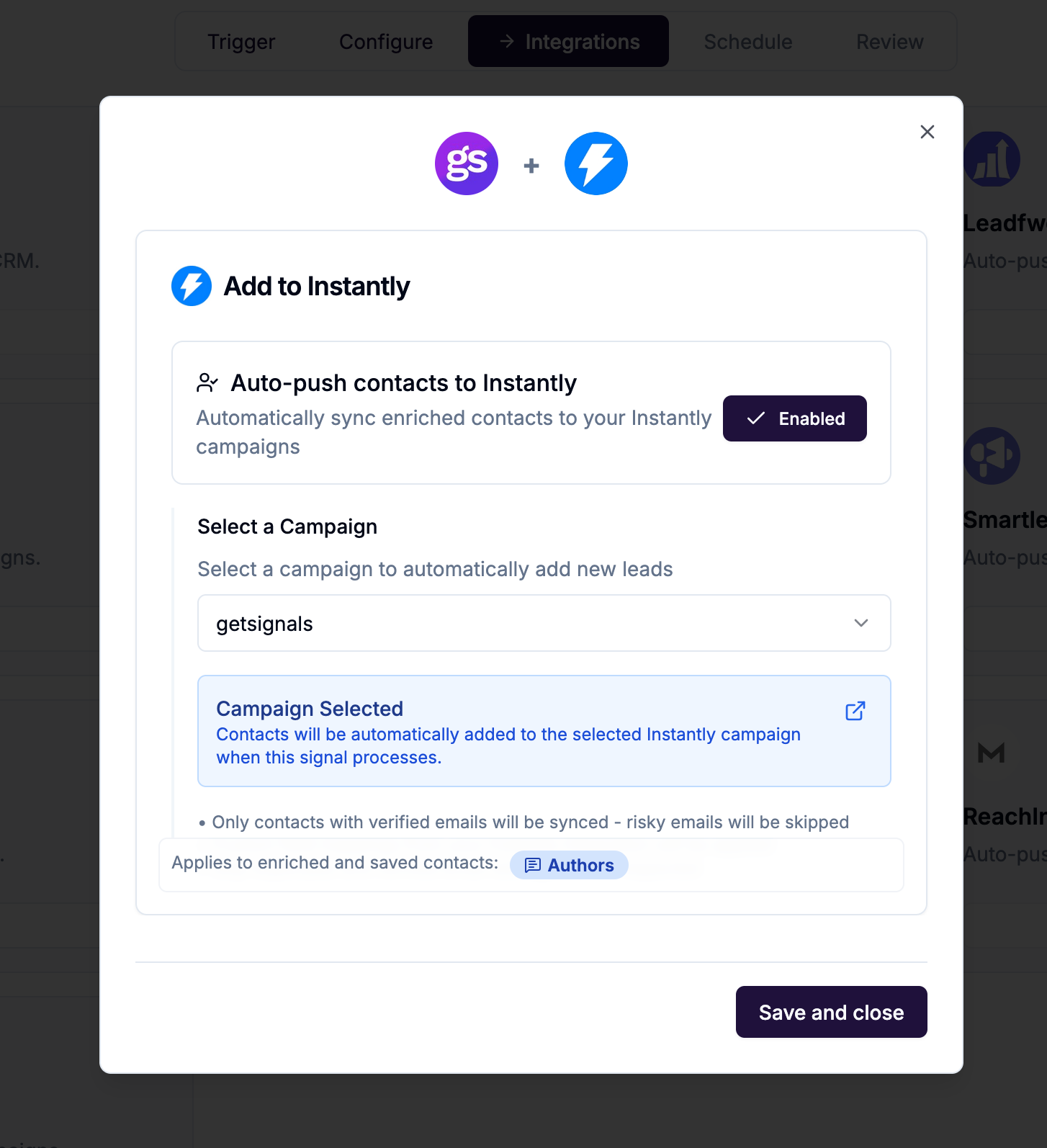
When creating or editing a Signal, the Configure step lets you connect integrations directly. Contacts enriched by that Signal are pushed to your chosen destination automatically on every run — no manual action needed.
This is the set-and-forget approach. Configure it once and every relevant contact goes straight to your CRM or outreach tool as soon as they're enriched.
2. Contacts manager — manual bulk actions
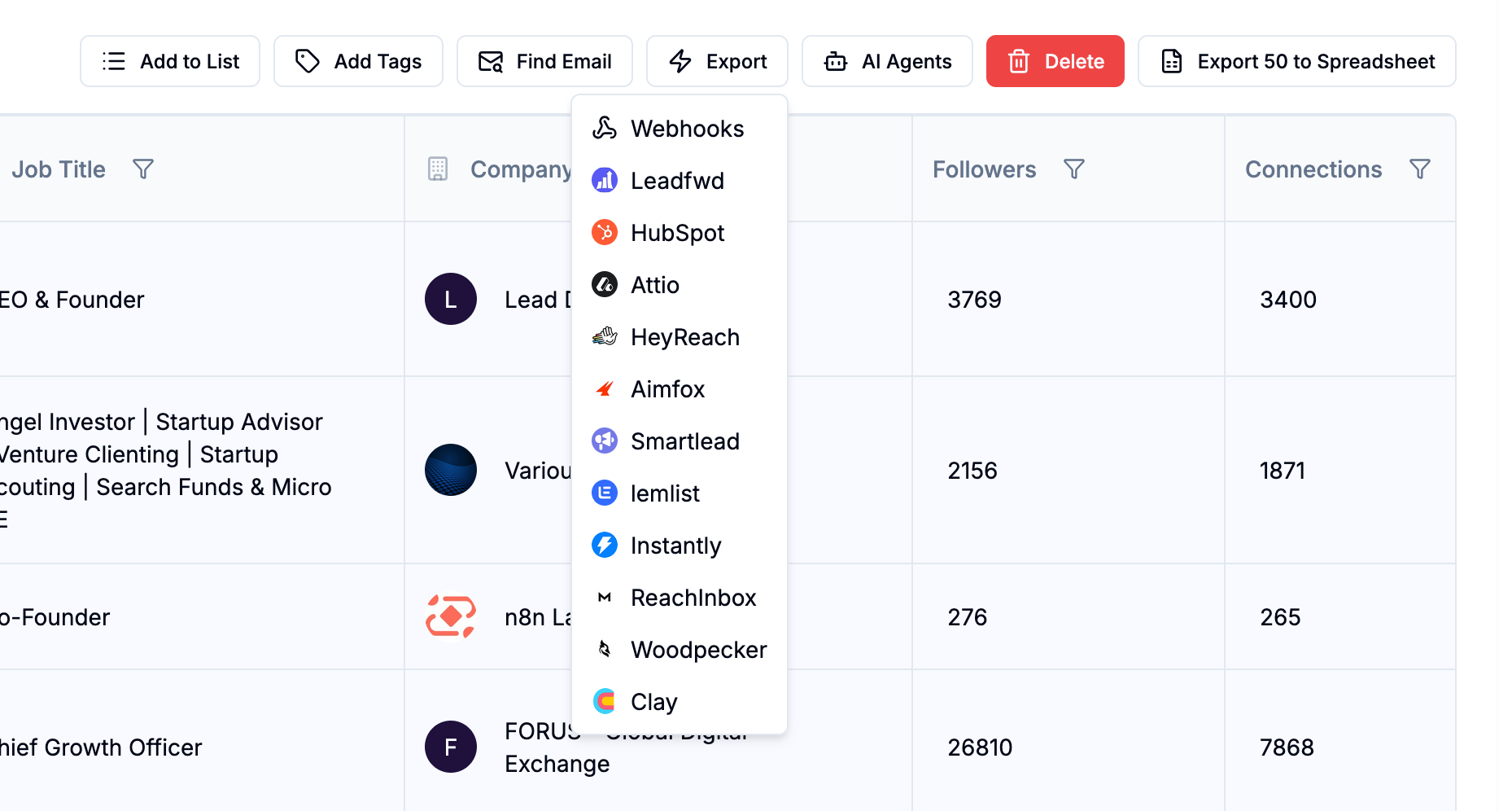
From the Contacts manager, select any contacts and use the Export button to push them to a connected integration. Useful for:
One-time pushes of existing contacts
Sending contacts from multiple Signals to a single destination
Re-pushing contacts after updating a campaign or sequence
3. AI Agent actions — intelligent routing
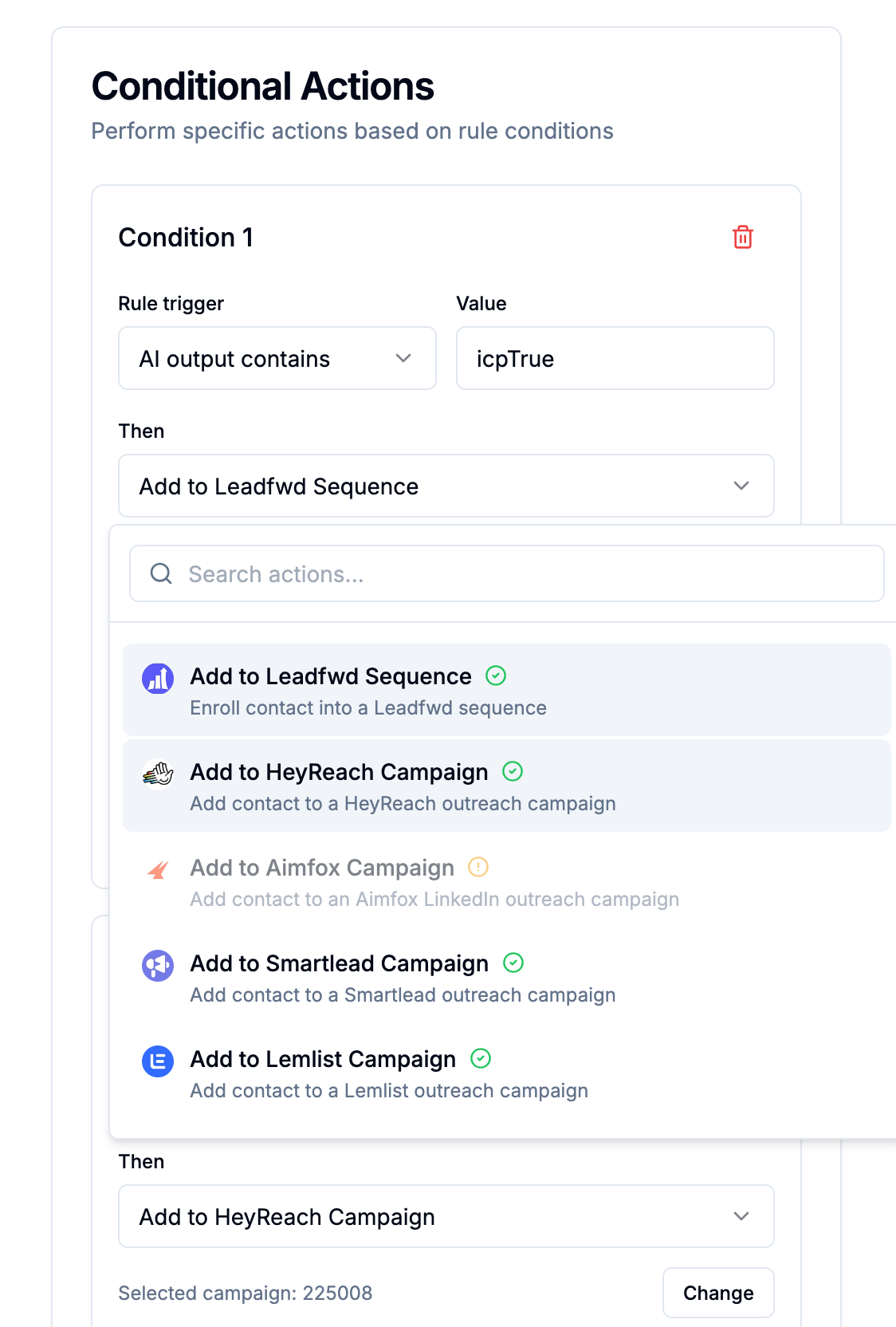
AI Agents can push contacts to integrations conditionally — only when the agent's output matches a rule. This is the most powerful integration point because the AI decides who gets sent where.
Example: An ICP Verifier agent processes contacts. If output equals TRUE → push to Instantly campaign. If output equals FALSE → skip. Only verified ICP fits ever reach your outreach tool.
Integration categories
What requires a contact to be enriched first
All outreach and CRM integrations require an enriched contact — a record that has been saved through the enrichment process (2 credits). You cannot push raw reaction or comment data directly to an outreach tool.
Webhooks are the exception — they can receive raw posts, reactions, and comments before any enrichment has occurred.
Checking integration status
From the Integrations page you can see the connection status of every integration — Connected, Disconnected, or Error. If an integration shows an error, click Configure to re-enter credentials or re-authenticate.