Mailbox Settings and Options

Manage sending limits, ramp-up mode, human-like patterns and more.

Written By Kevin Lawrie

Last updated About 1 month ago

Identity
Setting

What it does

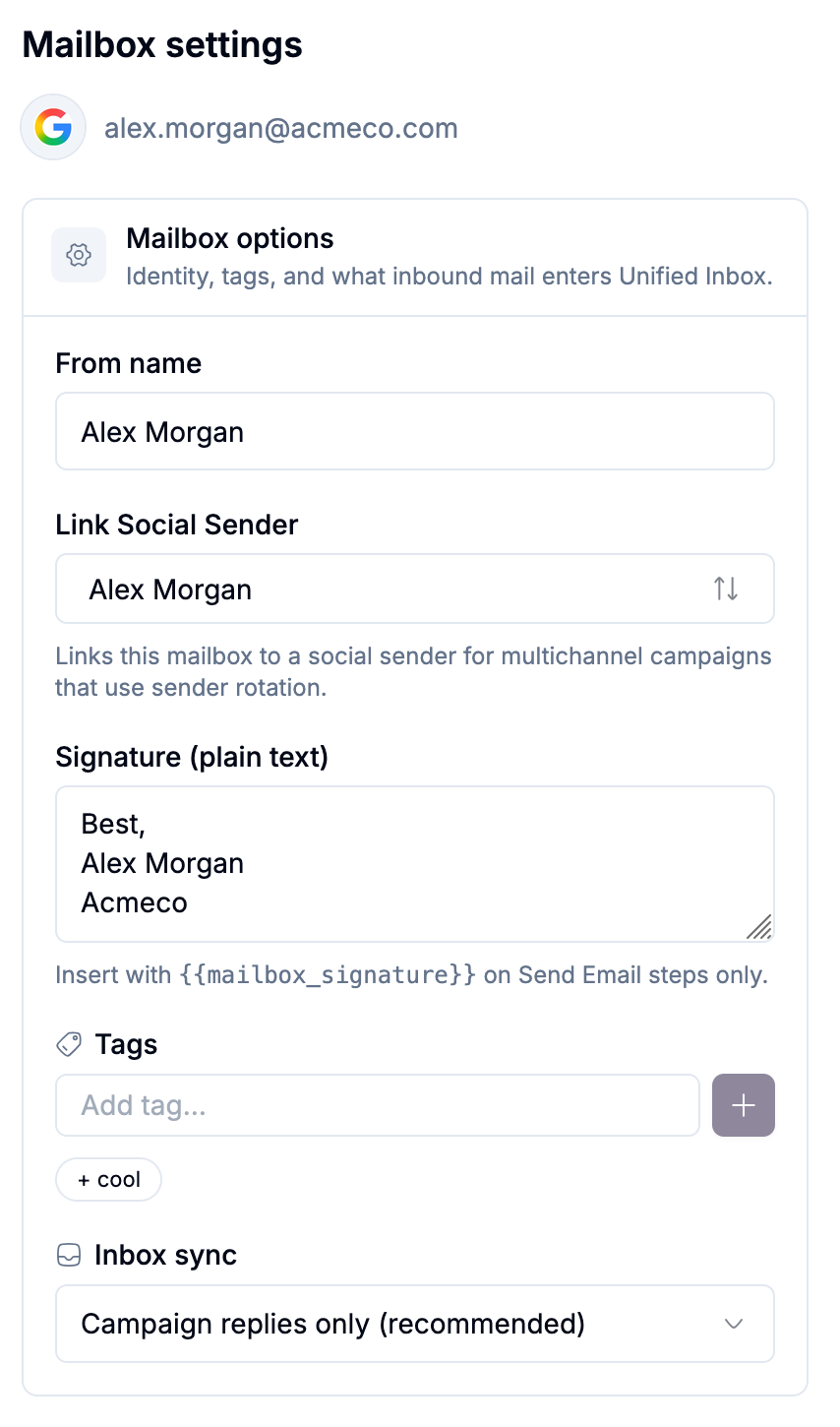
From name

The display name recipients see on outbound email

Signature

A plain-text signature, inserted into any email step with {{mailbox_signature}}

Tags

Freeform labels to help you find and filter mailboxes when assigning senders to a campaign


Sending volume

Setting

What it does

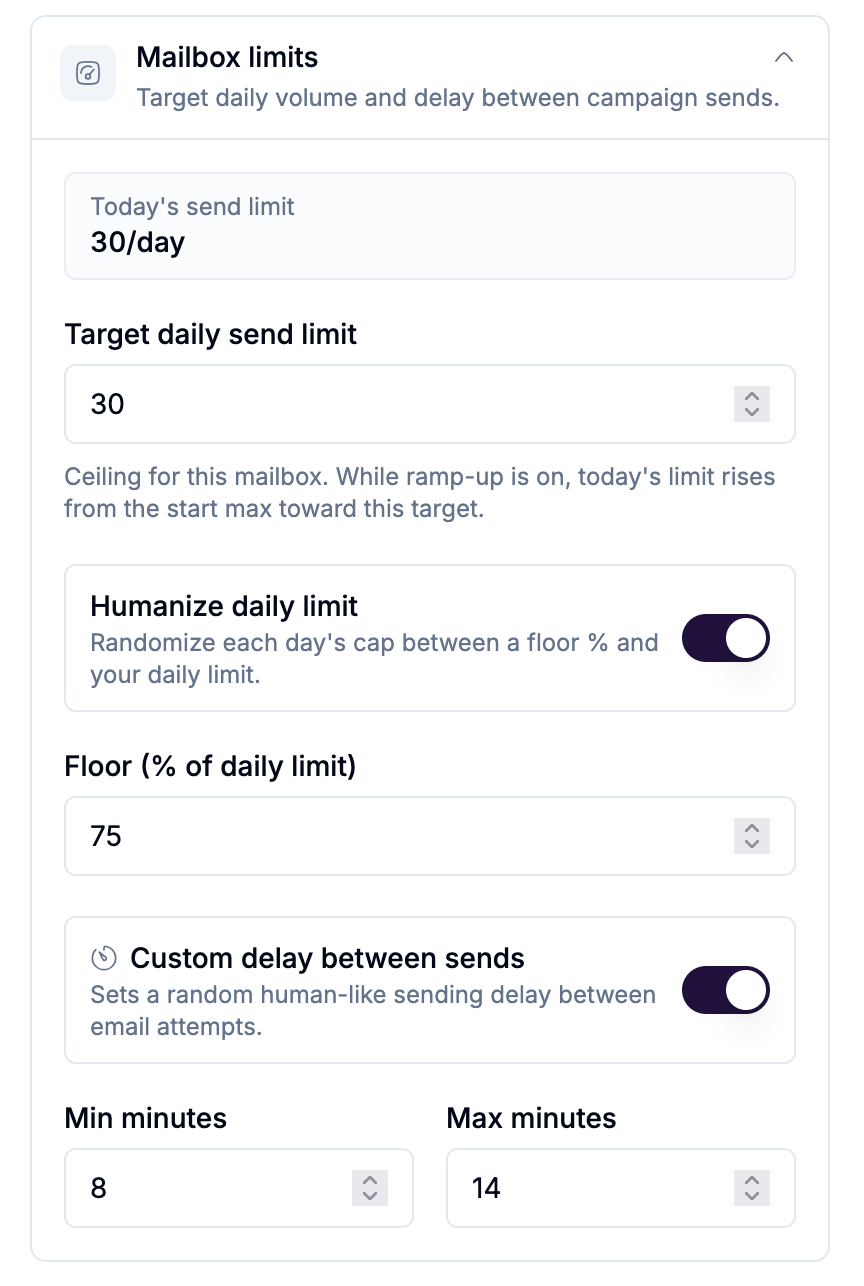
Daily send limit

The target maximum emails this mailbox sends per day. Typical default: 30.

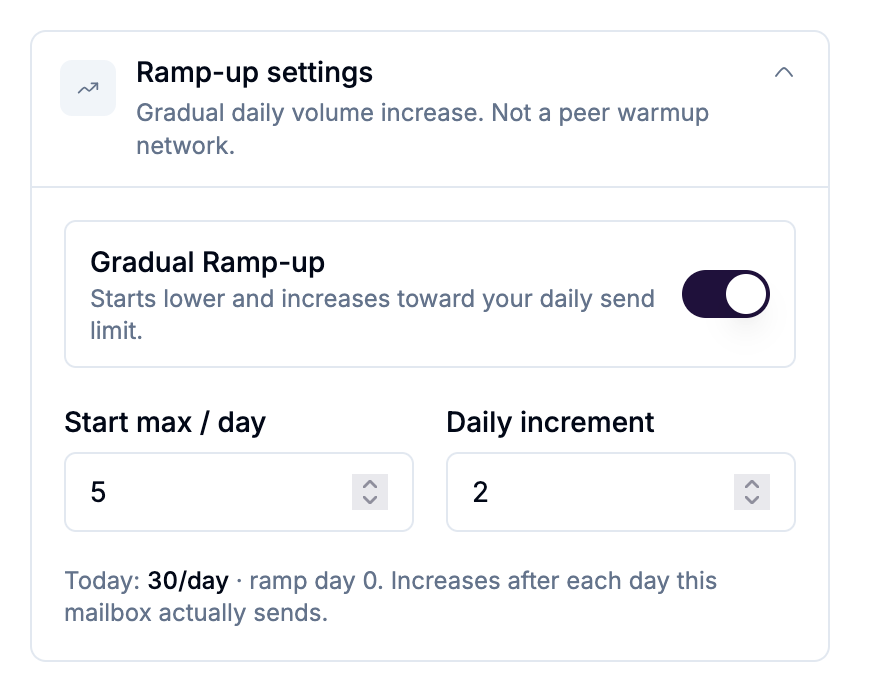
Gradual Ramp-up

Starts a new mailbox below its daily limit and increases automatically each day until it reaches the target. This is a volume ramp, not a peer-to-peer warmup network.

Humanize daily limit

Randomizes each day's effective cap between a floor percentage and the daily limit, so volume doesn't look identical day to day.

Custom pacing

Minimum and maximum minutes between individual sends from this mailbox.

⚠️ Note: Gradual Ramp-up and Humanize work together but do different jobs. Ramp-up controls how fast a new mailbox climbs toward its target. Humanize controls day-to-day variance once it's there. Use both.


Inbox and reply behavior

Setting

What it does

Inbox sync

Campaign replies only (recommended) shows just campaign-linked mail in your Unified Inbox. All inbound mail brings in everything that hits this mailbox.

Default Linked Social Sender

Prefills the pairing when this mailbox is used in a Social + Email campaign.


Mailbox lifecycle

Setting

What it does

Pause / Resume

Stops or resumes sending without deleting credentials or losing ramp-up progress

Remove

Disconnects the mailbox and deletes its stored credentials permanently


Status reference

Status

Status Meaning

Active

Connected and sending normally

Paused

Connected, sending temporarily stopped

Needs Reconnect

Credentials need to be re-entered

Disconnected

Removed from the workspace

Error

Connection attempt failed

💡 Tip: When a mailbox is missing its Signature, Tags, or Default Linked Social Sender, that's expected right after a bulk import. These three settings aren't available during bulk import and need to be set individually afterward. See [Import email accounts in bulk from a CSV].