Monitoring, troubleshooting and audit logs
The Activity tab shows everything that has happened across your SugarAI integration. This article covers how to read the activity log, access per-note API logs, resolve common errors, and what data getsignals stores from your SugarAI instance.
Written By Kevin Lawrie
Last updated 2 months ago
The Activity tab
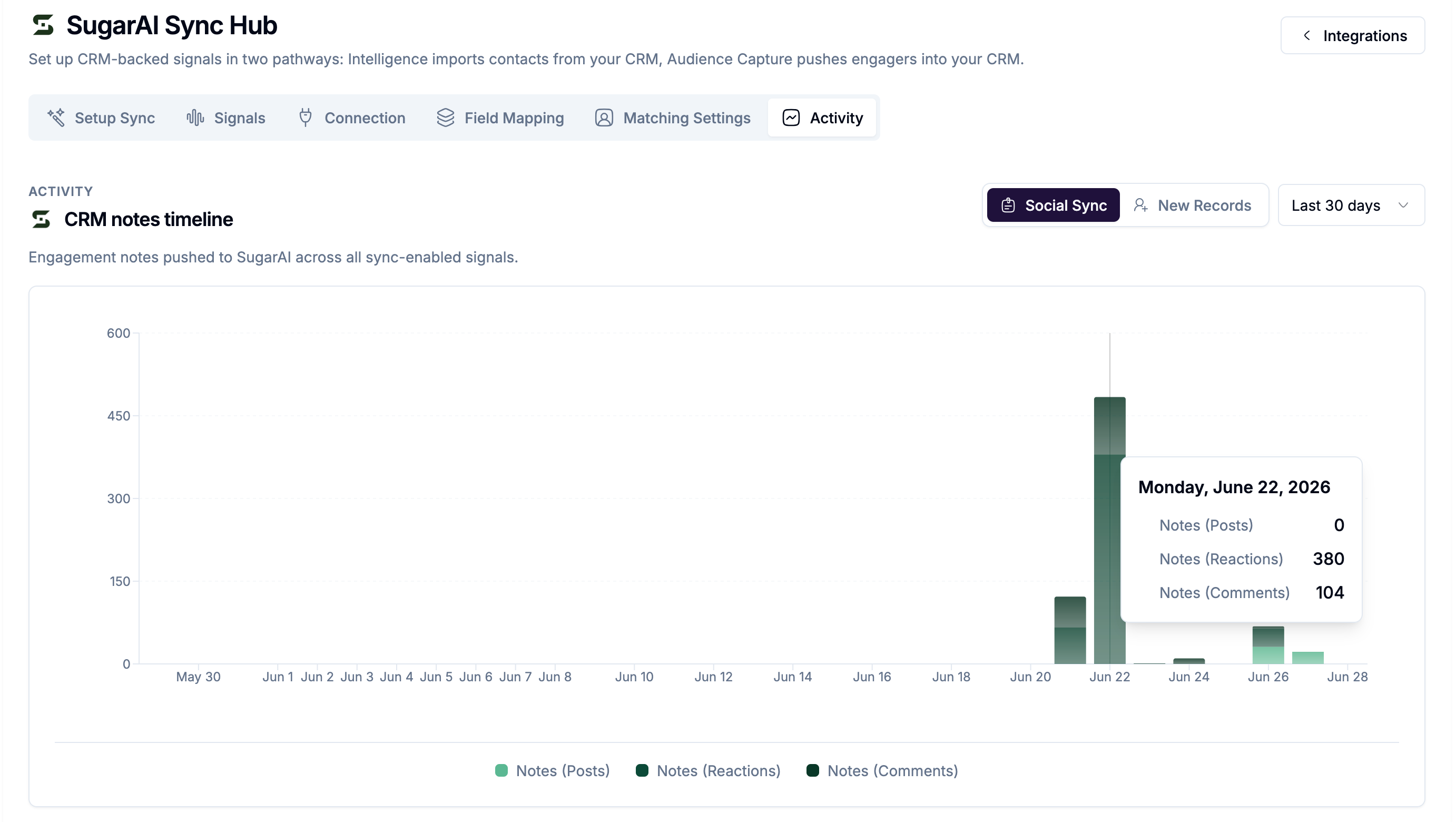
Go to Integrations then SugarAI then the Activity tab.
The Activity tab has two sections:
Notes timeline: a chart showing engagement notes pushed to SugarAI over time across all sync-enabled Signals. Use this to confirm syncs are running and activity is flowing into your CRM.
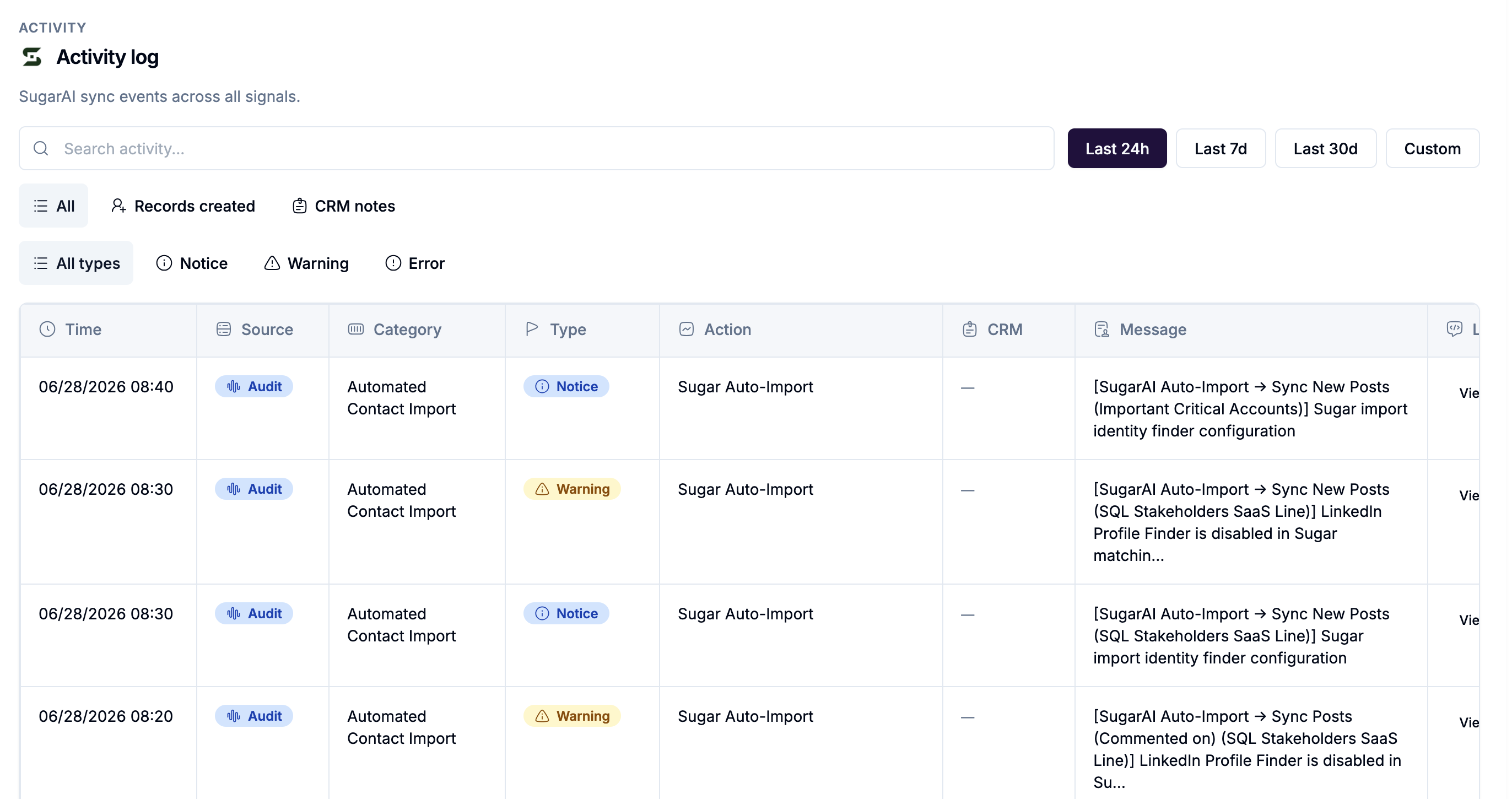
Activity log: a searchable, filterable log of all SugarAI sync events. Filter by:
Time range: Last 24 hours, Last 7 days, Last 30 days, or Custom
Source: All, Records created, CRM notes
Search by keyword to find specific events, Signal names, or record identifiers.
Per-note API logs
For granular troubleshooting, getsignals logs the raw API call made to SugarAI for each note written. To view them:
Open a Signal and go to the Targets view.
Find the target record you want to inspect.
Look for the SugarAI badge in the CRM column.
Click the badge to open the API Logs dialog.
The dialog shows the payload sent to SugarAI and the response received. This is the fastest way to diagnose why a specific note did or did not appear on a record.
Verifying your connection
If you suspect a connection issue, go to the Connection tab and click Verify connection. A success toast shows the connected username. If verification fails, click Update credentials and re-enter your API password.
Common errors and fixes
Bulk push from the Contacts page
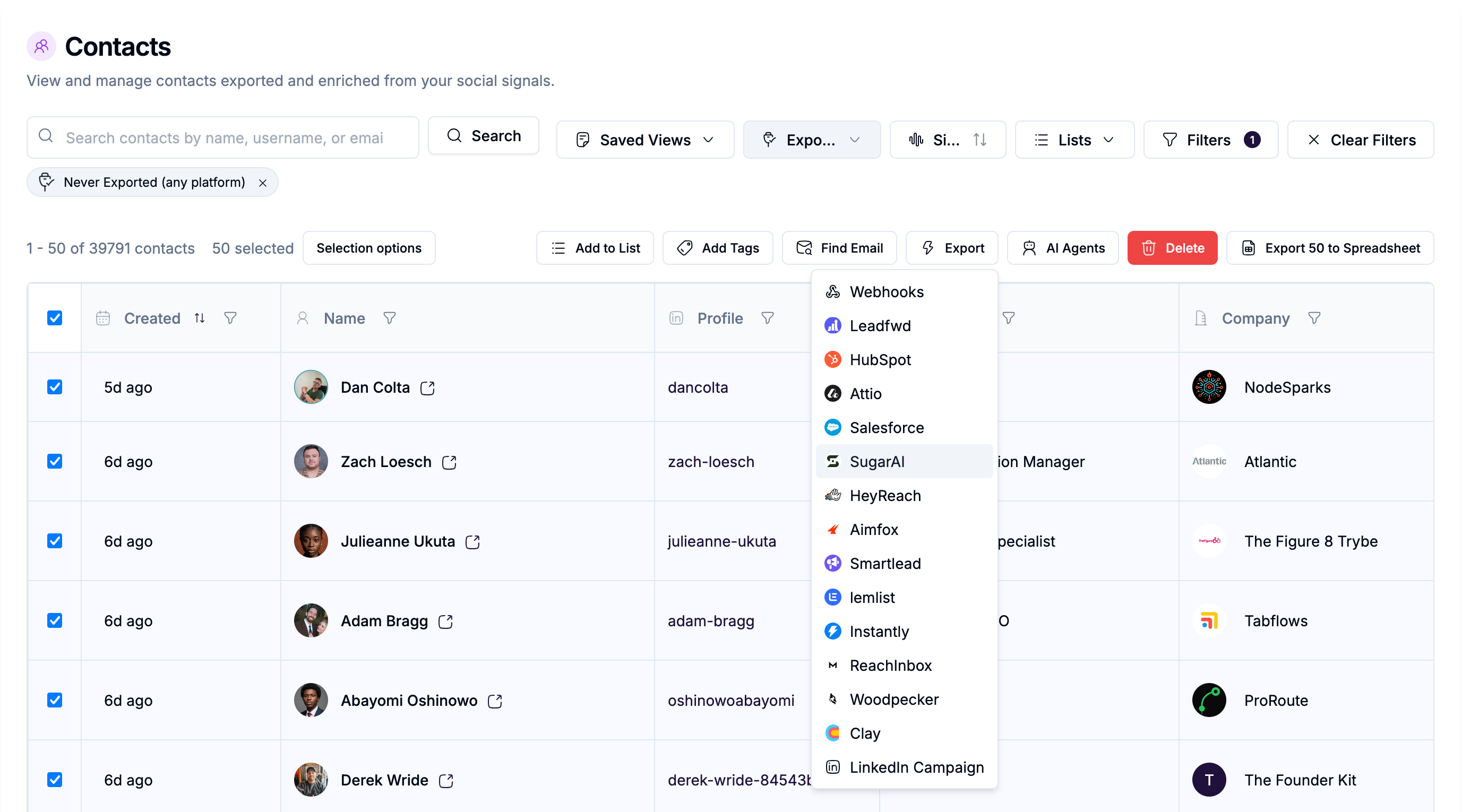
You can push any enriched contacts from getsignals to SugarAI manually:
Go to Contacts in the left sidebar.
Select the contacts you want to push.
Click Export then SugarAI.
Choose the SugarAI module (Target, Lead, or Contact).
Confirm.
After the push, a summary shows how many records were created, updated, and failed.
Data access and what we store
getsignals accesses only what is needed to do the job.
What we read from SugarAI:
LinkedIn profile URL or username fields (for matching only, not retained after matching)
Email fields (for duplicate detection only, not retained)
Target List names and internal IDs (for list selection in the UI)
Module field schema (for field mapping configuration)
What we store from SugarAI:
The internal SugarAI record ID for each record we create or monitor
The internal Note ID for each note we write (for audit purposes)
LinkedIn username (to maintain the monitoring relationship)
We do not retain contact properties, email addresses, or any personal data from your SugarAI records beyond what is listed above. We never replicate your CRM database.
Audit logs: All SugarAI integration activity is logged and visible in the Activity tab. Logs are automatically rotated every 30 days.