Connecting your SugarAI workspace
Connecting SugarAI requires an admin step inside your SugarAI instance before entering credentials in getsignals. This takes about five minutes and only needs to be done once.
Written By Kevin Lawrie
Last updated 2 months ago
Step 1: Register the API platform in SugarAI
Before connecting, a SugarAI admin needs to register getsignals as an API platform in your SugarAI instance.
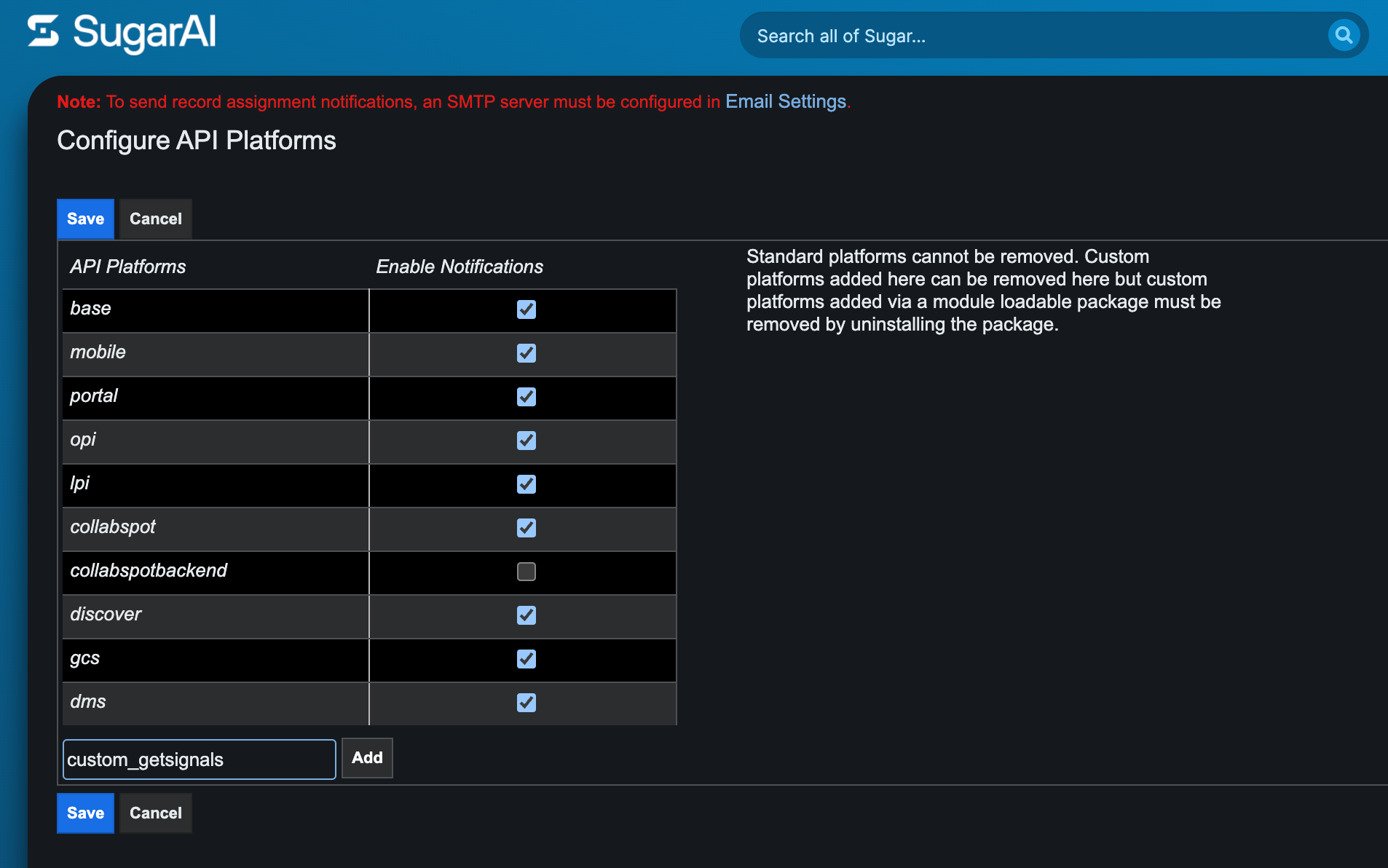
Log in to SugarAI as an admin.
Go to Admin then Configure API Platforms.
Add
custom_getsignals(exact spelling, lowercase, with underscore).Click Add then Save.
If this step is skipped, the connection will fail.
💡 Tip: Use a dedicated integration user with API access rather than a personal admin login. This keeps the connection stable if admin credentials change.
Step 2: Connect in getsignals
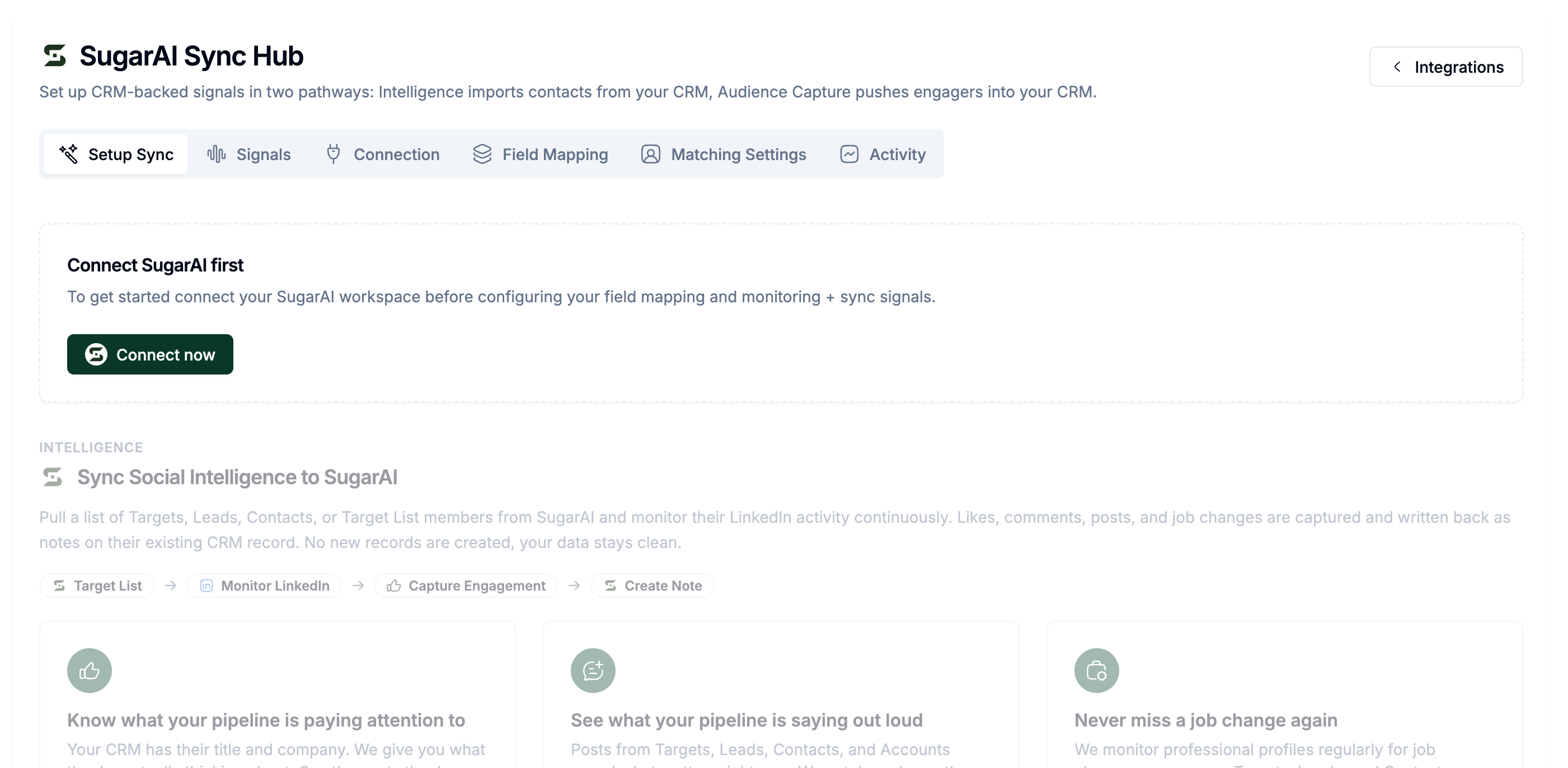
Go to Integrations in the left sidebar.
Find SugarAI and click Enable Integration. You land on the Sync Hub.
From the Connection tab.
Enter your credentials:
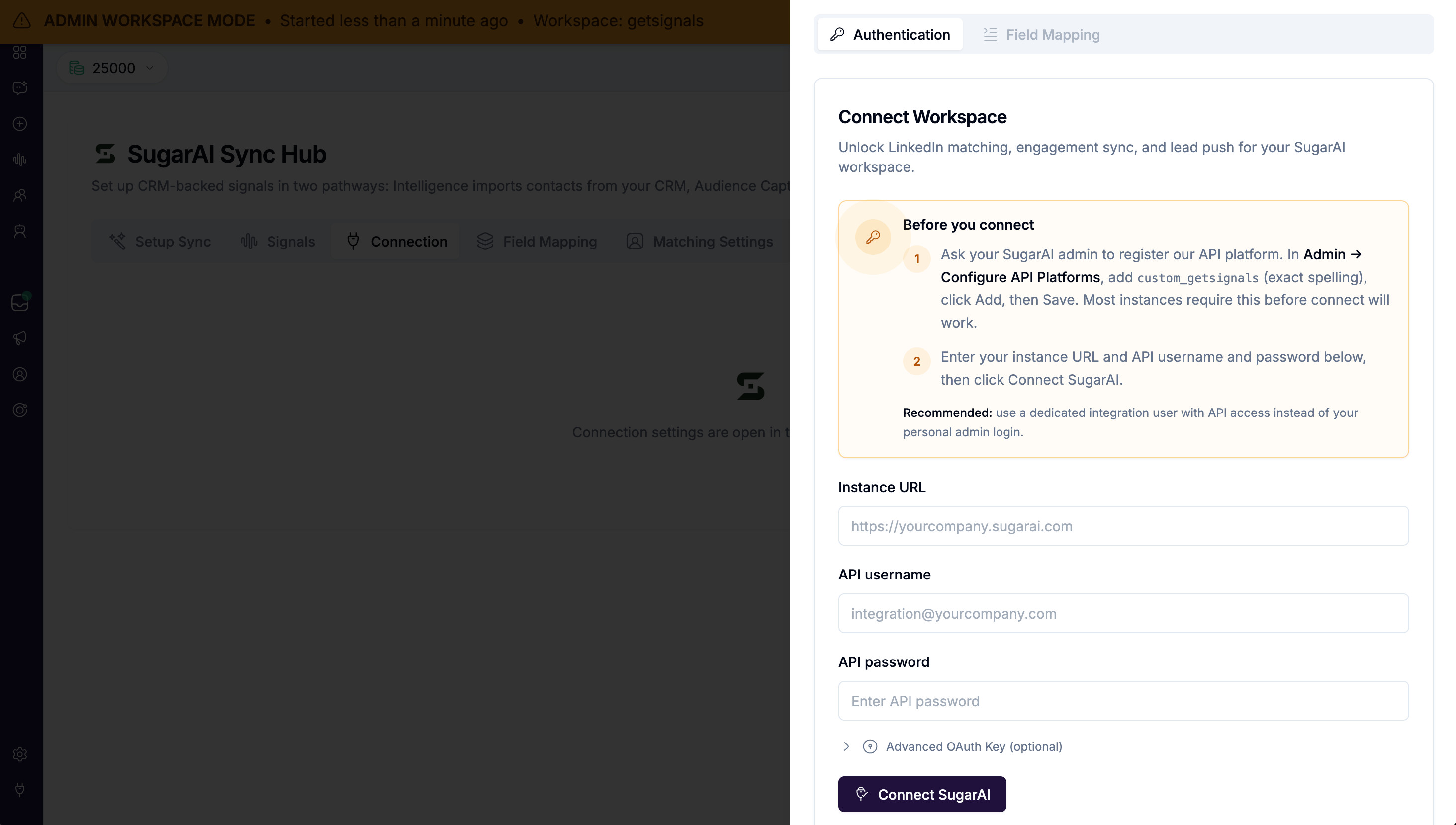
Click Connect SugarAI.
On success you'll see a Connected badge and a confirmation toast.
Advanced OAuth settings (optional)
If your SugarAI instance uses custom OAuth keys, expand the Advanced OAuth Key section:
Find custom values in your SugarAI instance under Admin then OAuth Keys. Most instances do not need to change these.
After connecting
The Connection tab shows three buttons when connected:
Verify connection: confirms credentials are still valid and shows the connected username
Update credentials: re-enter credentials if your password changes
Disconnect: removes the integration from getsignals
After connecting, go to the Matching Settings tab next. Syncs cannot run until at least one LinkedIn match field is configured.
Disconnecting
Click Disconnect on the Connection tab. This removes the integration from getsignals. Your SugarAI records and notes are not affected. The custom_getsignals API platform registration in SugarAI can be left in place for reconnecting later.