Sender Rotation
Scale outreach over multiple email accounts and social accounts - for individuals or teams.
Written By Kevin Lawrie
Last updated About 1 month ago
When a campaign has more than one sender assigned, whether that's Social Sender seats, mailboxes, or both, this article covers how leads get distributed across them and stay with that assignment for the life of the campaign.
The core rule: one lead, one sender, for the whole campaign
Whenever you assign more than one sender to a campaign, new leads are split evenly across them as they're enrolled. Once a lead is assigned to a sender, that assignment holds for the rest of the campaign. A lead doesn't rotate to a different sender partway through, the person who sent the invite is the same person sending the follow-up, all the way to the final step.
This is true whether you're rotating across Social Sender seats, mailboxes, or a linked combination of both.
Social only campaigns
Assign one or more active Social Sender seats on the Senders step. With a single seat assigned, every lead is reached through that one account. With multiple seats assigned, new leads are split evenly across them and stay with their assigned seat for the full campaign.
The one exception: company page actions. Some actions in a flow, reacting to or commenting on a post as your company page, are executed under the page's identity for that specific step. This changes who that one action appears to come from, but it does not change which sender the lead is otherwise assigned to. The underlying rotation assignment stays exactly the same underneath it.
Email only campaigns
Assign one or more active mailboxes on the Senders step. The same rotation logic applies: with multiple mailboxes assigned, new leads are split evenly across them, then stay with their assigned mailbox for the rest of the campaign. A lead never gets emailed from two different addresses mid-sequence.
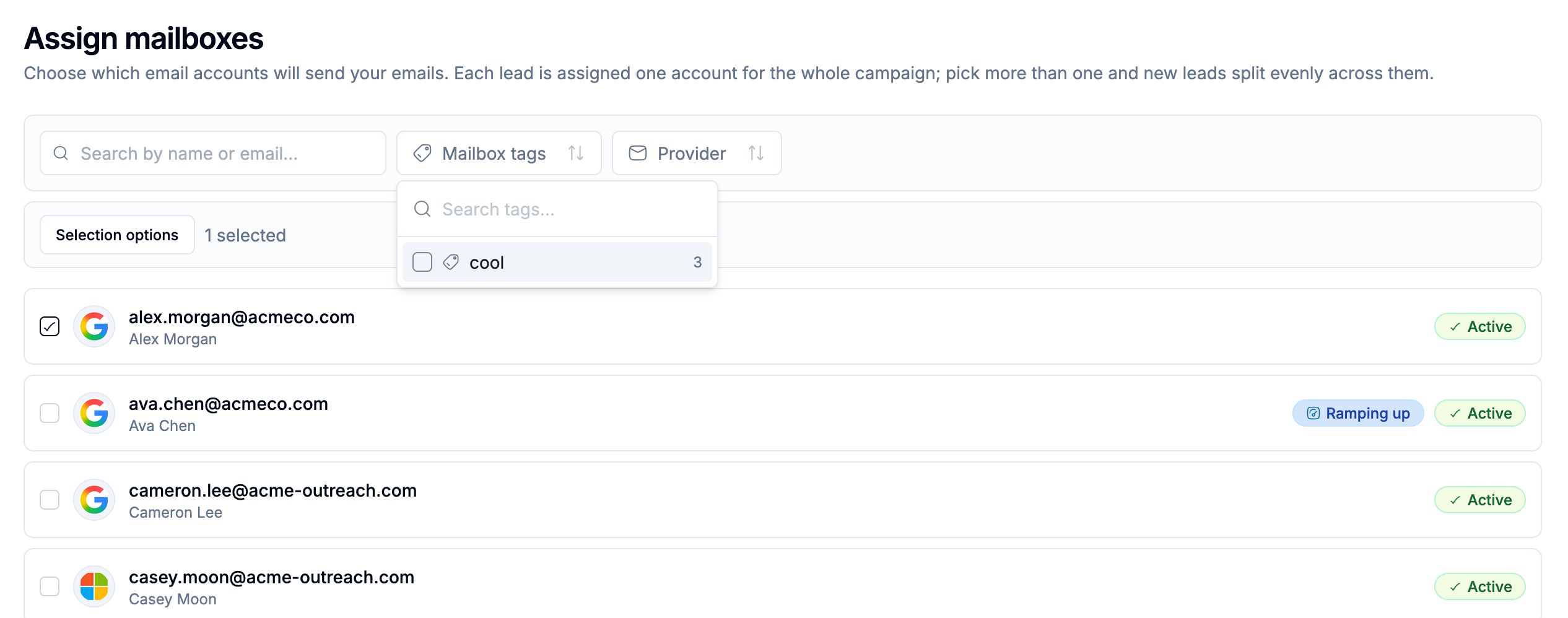
For easier organization of mailboxes that are commonly grouped together, create a tag and assign it to specific mailboxes from the Email Account manager. Tags can be assigned in bulk and you can filter available Email Senders in the Campaign Builder by assigned tag to make selection easier.
💡 Tip: This consistency is what makes threading work the way it does. Since a lead's entire sequence comes from one mailbox, their follow-ups can continue the same thread and read like an ongoing conversation with one person.
Social + Email campaigns: linking mailboxes to Social Senders
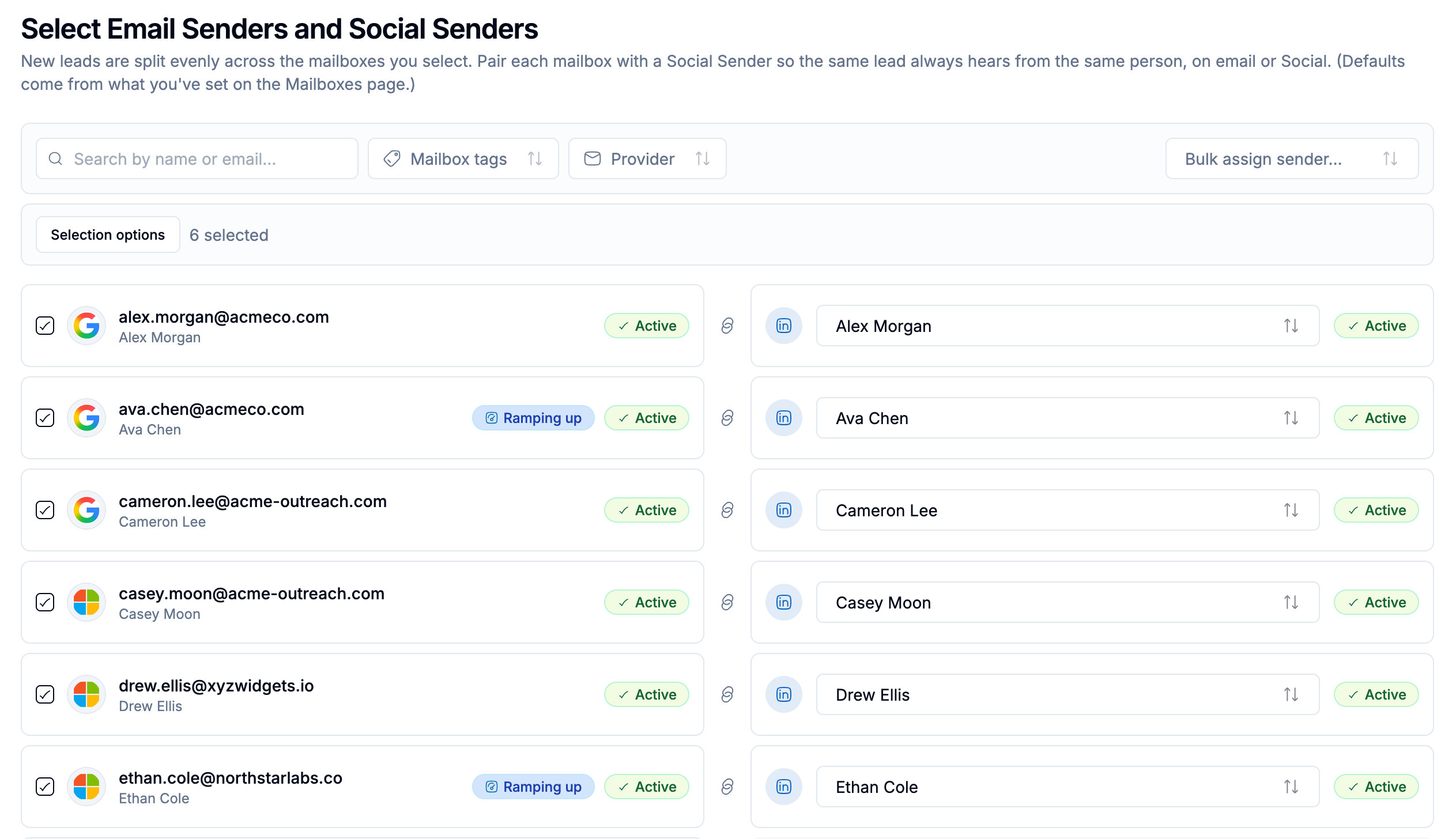
On a Social + Email campaign, rotation spans both channels at once. To make that work, every mailbox you assign gets linked to a specific Social Sender.

The relationship is many mailboxes to one Social Sender, not a one-to-one match. If one person on your team has five connected mailboxes and one LinkedIn account, all five mailboxes get linked to that same account. However many inboxes sit behind the name, a lead assigned to that sender only ever experiences one identity across both channels for the full campaign.
Setting up the link
On the campaign Senders step, after choosing Social + Email:
Select your mailboxes.
Select your Social Sender seats.
For each mailbox, confirm or set which Social Sender it's linked to, using the dropdown next to it.
The system will try to help. If a mailbox already has a Default Linked Social Sender set, that link prefills automatically. A name match between the mailbox address and a sender's name may also prefill. Either way, check every row before moving on, since a wrong default is easy to miss.
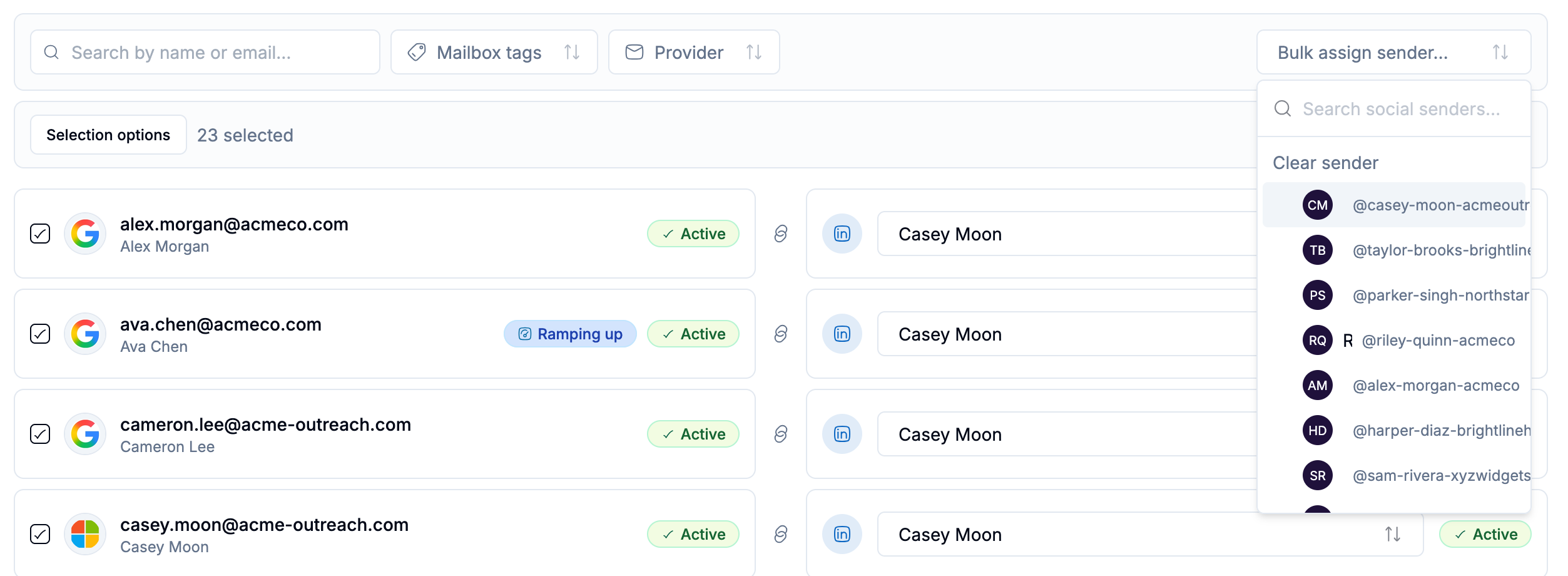
💡 Tip: Use Bulk assign to link one Social Sender across several selected mailboxes at once, rather than setting each one individually. This is the fastest way to link five mailboxes belonging to the same person in a single step.
Setting a Default Linked Social Sender ahead of time
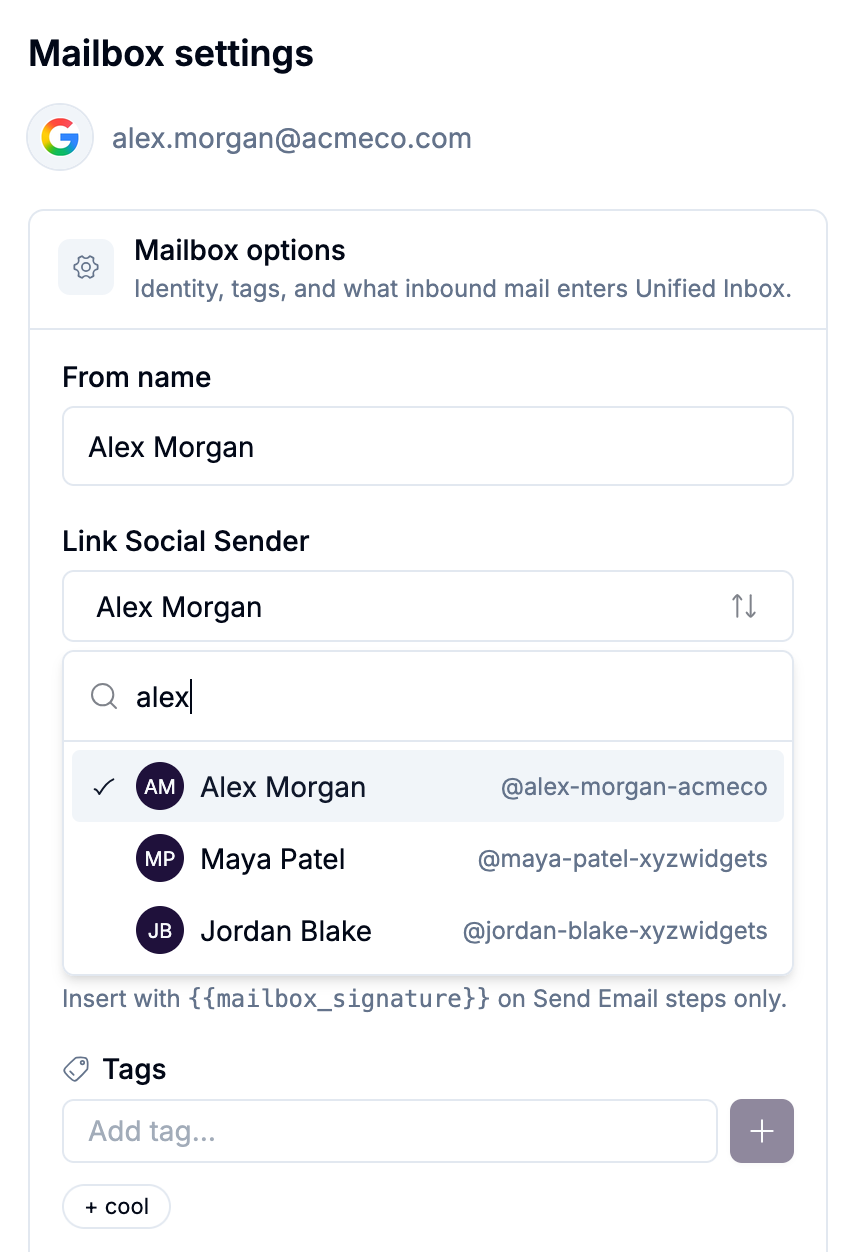
You don't have to do this linking at campaign-build time. On the Mailboxes page, open any mailbox's settings and set its Default Linked Social Sender in advance. Every future Social + Email campaign you build will have that mailbox's link prefilled automatically, saving a step each time you assign it.
Activation is blocked until every mailbox is linked
You cannot activate a Social + Email campaign with an unlinked mailbox. You'll also need at least one active Social Sender seat assigned, even if most of your volume is going out through email.