Matching Settings (Assign Custom Field Source)
Matching Settings is how getsignals finds the right SugarAI record to update when social activity is detected. It must be configured before any Intelligence Sync can run.
Written By Kevin Lawrie
Last updated 2 months ago
What matching settings do
When a Signal captures LinkedIn activity from someone in your CRM, getsignals needs to match that activity back to the correct SugarAI record. It does this by comparing the LinkedIn profile URL or username from the activity against a field you specify on your SugarAI Targets, Leads, Contacts, and Accounts.
Without at least one match field configured, Intelligence Syncs will not run.
Configuring LinkedIn match fields
Go to Integrations then SugarAI then the Matching Settings tab.
You will see four module pickers, one for each record type you want to sync to/from:
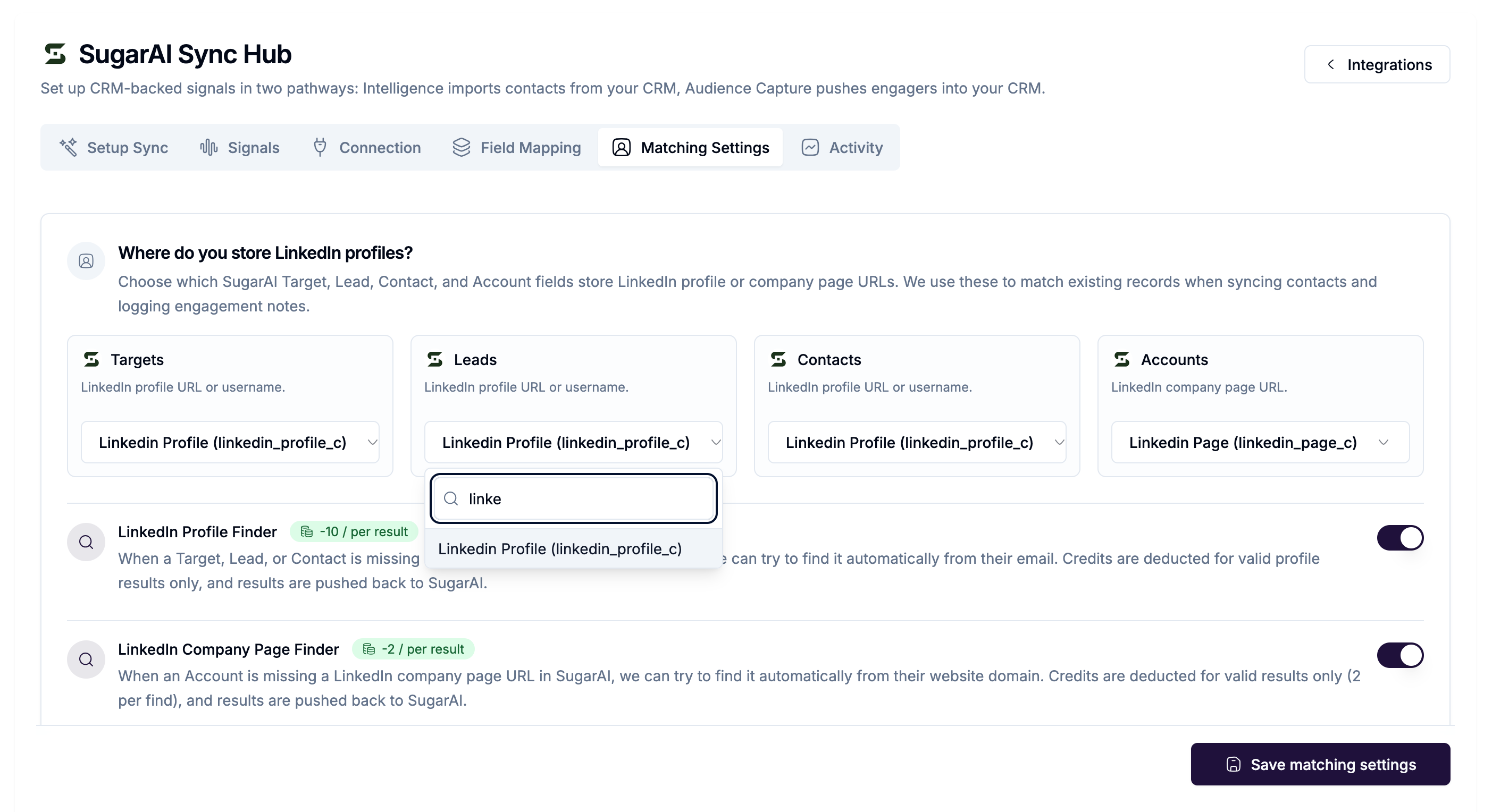
Select the correct field from the dropdown for each module. You only need to configure the modules you actively use.
At least one of Targets, Leads, or Contacts must be set before Intelligence Syncs can run.
💡 Tip: If you're not sure which field stores LinkedIn data in your instance, check a known record in SugarAI and look for the field containing a linkedin.com URL.
LinkedIn Profile Finder
Cost: 10 credits per valid result
Some records in SugarAI won't have a LinkedIn profile stored. Without it, getsignals cannot match them for monitoring.
The Profile Finder solves this automatically. When enabled, it searches for the LinkedIn profile of any Target, Lead, or Contact that is missing one, using their name, company, and email. When a profile is found, it is written back to the configured match field in SugarAI.
Credits are only charged for valid profile results. No charge if no profile is found.
To enable it, toggle LinkedIn Profile Finder on in the Matching Settings tab and set a Max attempts per run (default 100, maximum 100 per run).
LinkedIn Company Page Finder
Cost: 2 credits per valid result
This finder is unique to the SugarAI integration. When an Account record is missing a LinkedIn company page URL, the Company Page Finder searches for it automatically using the Account's website domain. Results are written back to the Account's configured match field in SugarAI.
Toggle LinkedIn Company Page Finder on in the Matching Settings tab to enable it.
Saving
Click Save matching settings when done. A confirmation toast confirms the save. Matching Settings also controls how Social Profile data is written on CRM push. Saving here means you do not need to separately configure LinkedIn in Field Mapping.