Audience Capture
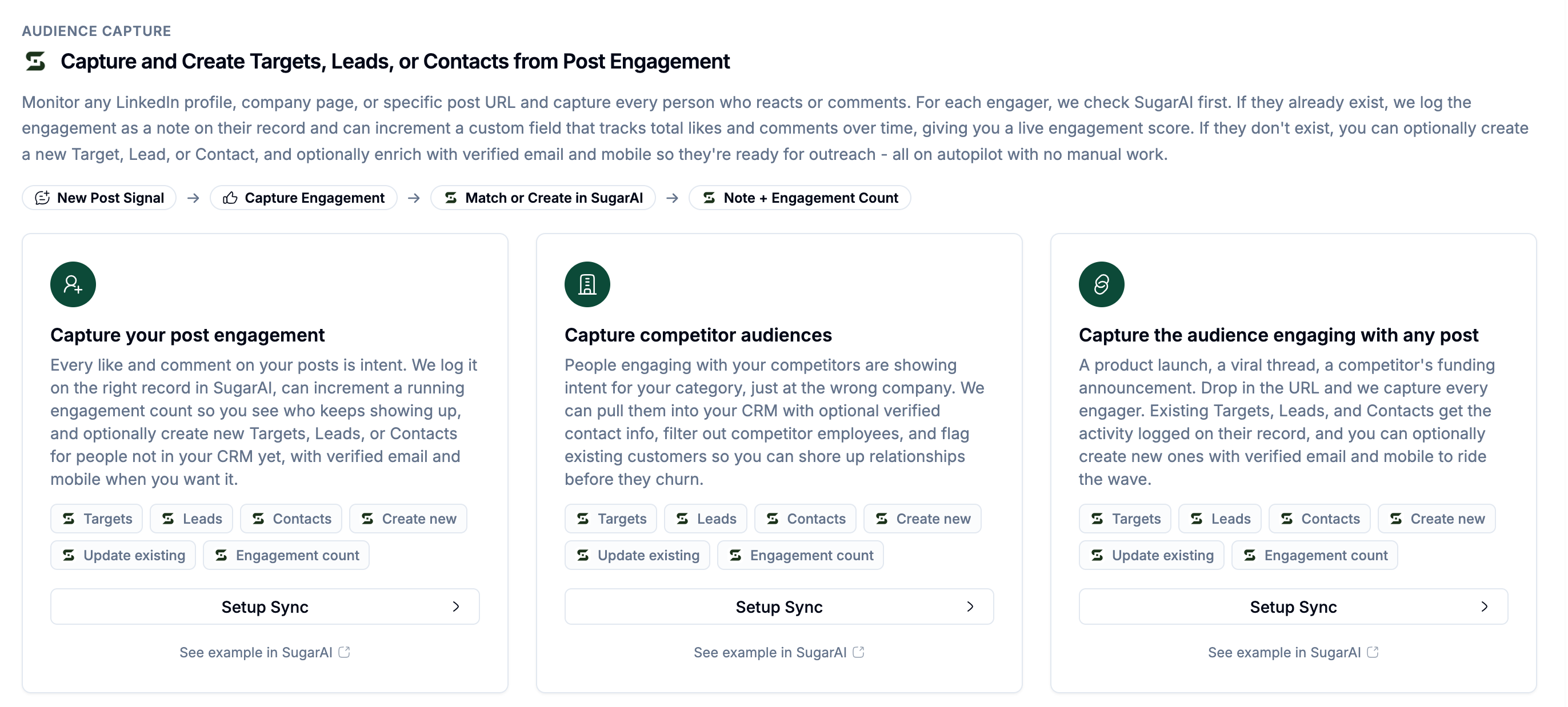
Audience Capture monitors LinkedIn profiles, company pages, or specific post URLs and pushes everyone who engages into SugarAI as a Target, Lead, or Contact. Existing records get a note. New people get a full enriched record.
Written By Kevin Lawrie
Last updated 2 months ago
How it works
Audience Capture is the "build pipeline from social engagement" pathway. You choose what to monitor: your own content, a competitor's profile or page, or a specific post, and getsignals captures every person who reacts or comments.
For each engager, getsignals checks SugarAI first:
If they exist: a note is logged on their record with the engagement detail, and their engagement count fields are incremented
If they don't exist: a new Target, Lead, or Contact is created, enriched with 65+ data points, verified email, and mobile
Everything happens automatically. No manual work.
Who benefits and how
Sales teams The competitor audience intent is the highest-value use case for outbound. When someone engages with a competitor's demo or thought leadership content, they are actively in the market for your category. Audience Capture surfaces those people before they fill in a form, or contact a competitor's sales team.
Marketing Monitoring your own brand posts and team content turns organic social engagement into a measurable pipeline source. Everyone who liked your founder's post or commented on a product announcement is now in SugarAI with full enrichment, tagged to the Signal that captured them, ready for nurture.
Customer Success Use post URL capture to monitor engagement on specific announcements or product launches. See exactly which existing customers and prospects engaged, and which did not. A customer who hasn't engaged with anything in three months is a different conversation than one who liked five posts this week.
Three capture intents
Setting up Audience Capture
Go to Integrations then SugarAI then the Setup Sync tab.
Select one of the three Audience Capture intents.
Click Setup Sync.
Work through the wizard steps.
Wizard steps
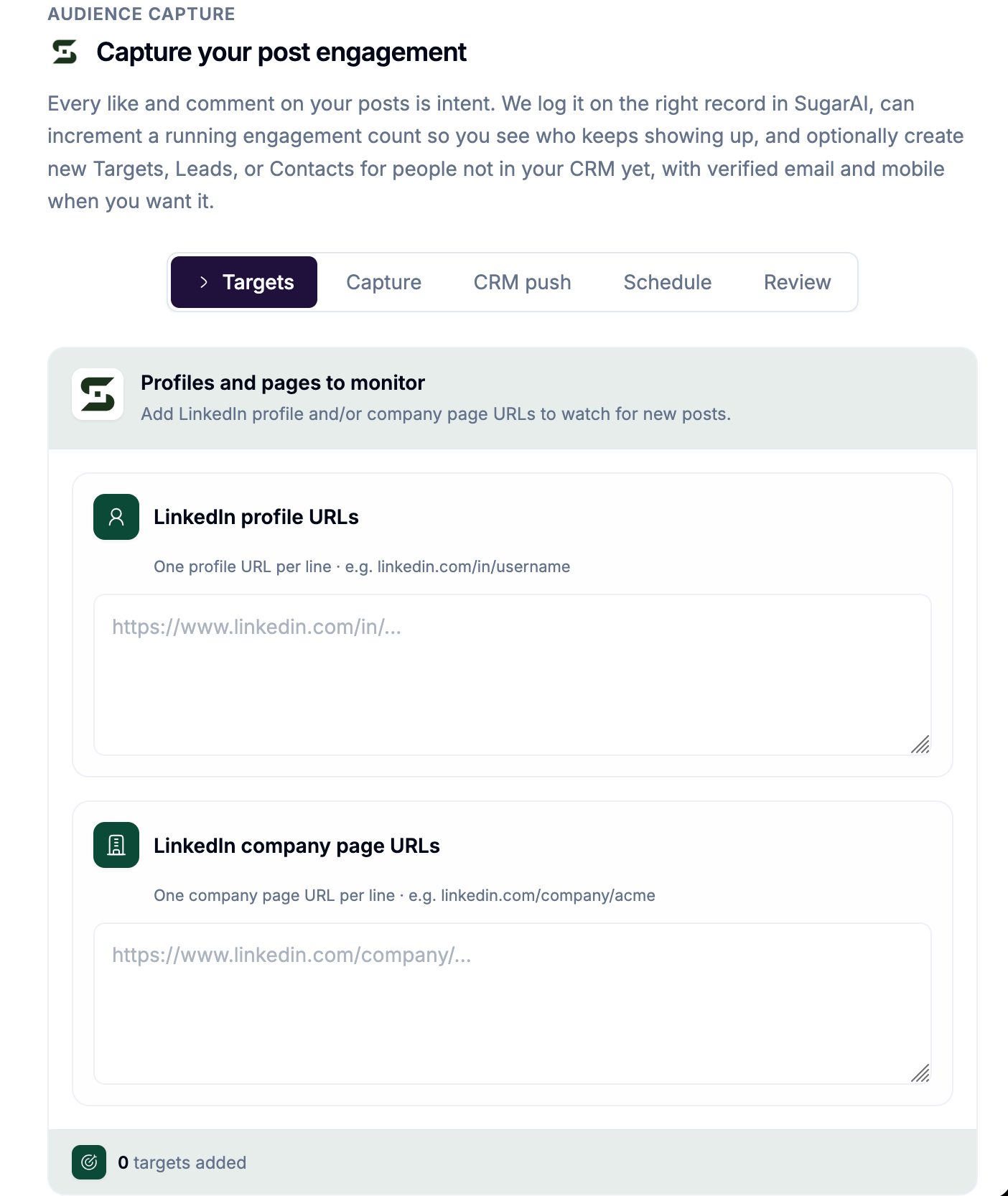
Step 1: Targets
Add the profiles, pages, or post URLs to monitor. Accepts LinkedIn profile URLs, company page URLs, or direct post URLs depending on the intent.
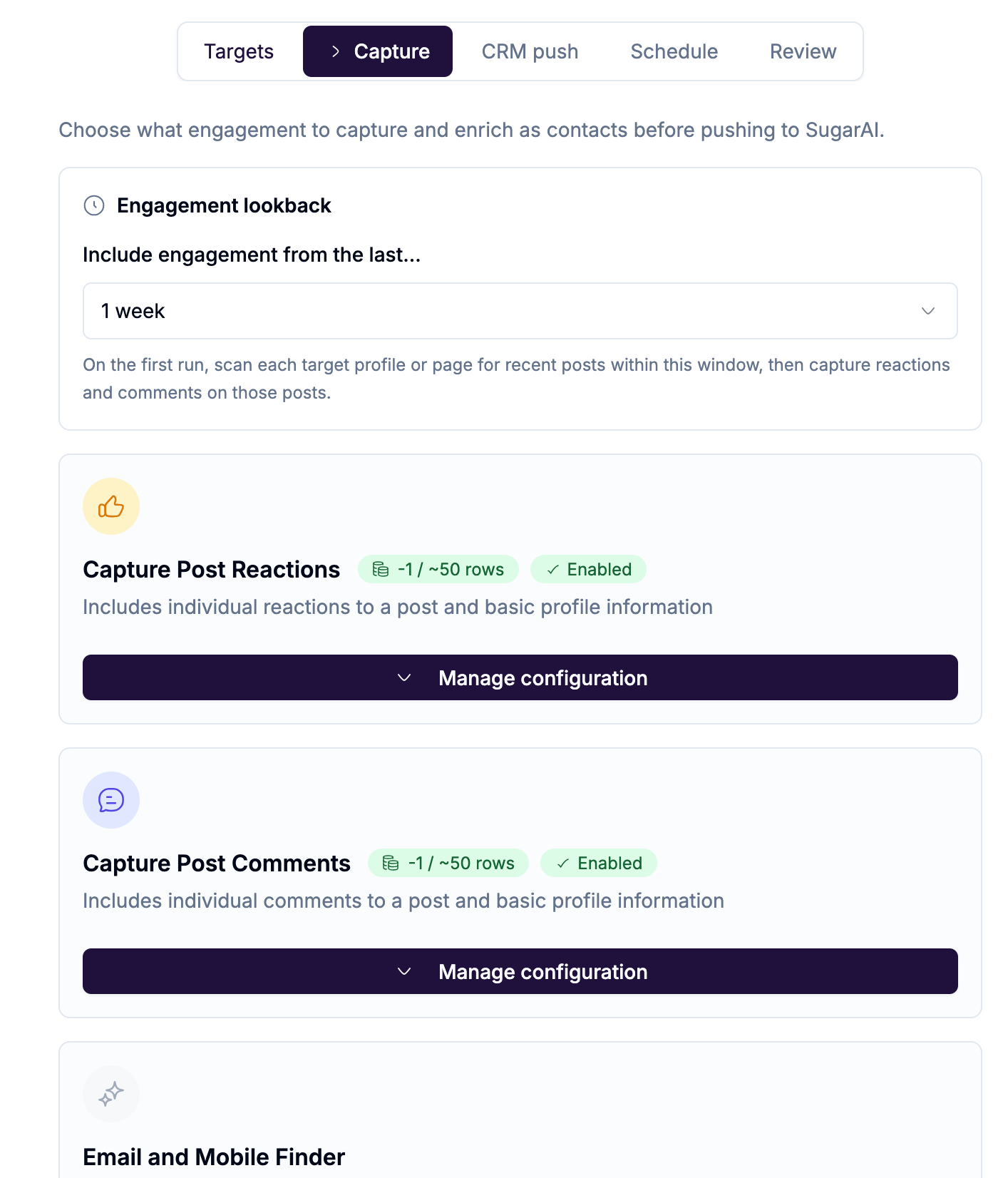
Step 2: Capture
Configure what to collect from each post:
Lookback period for the first run
Whether to capture reactions, comments, or both
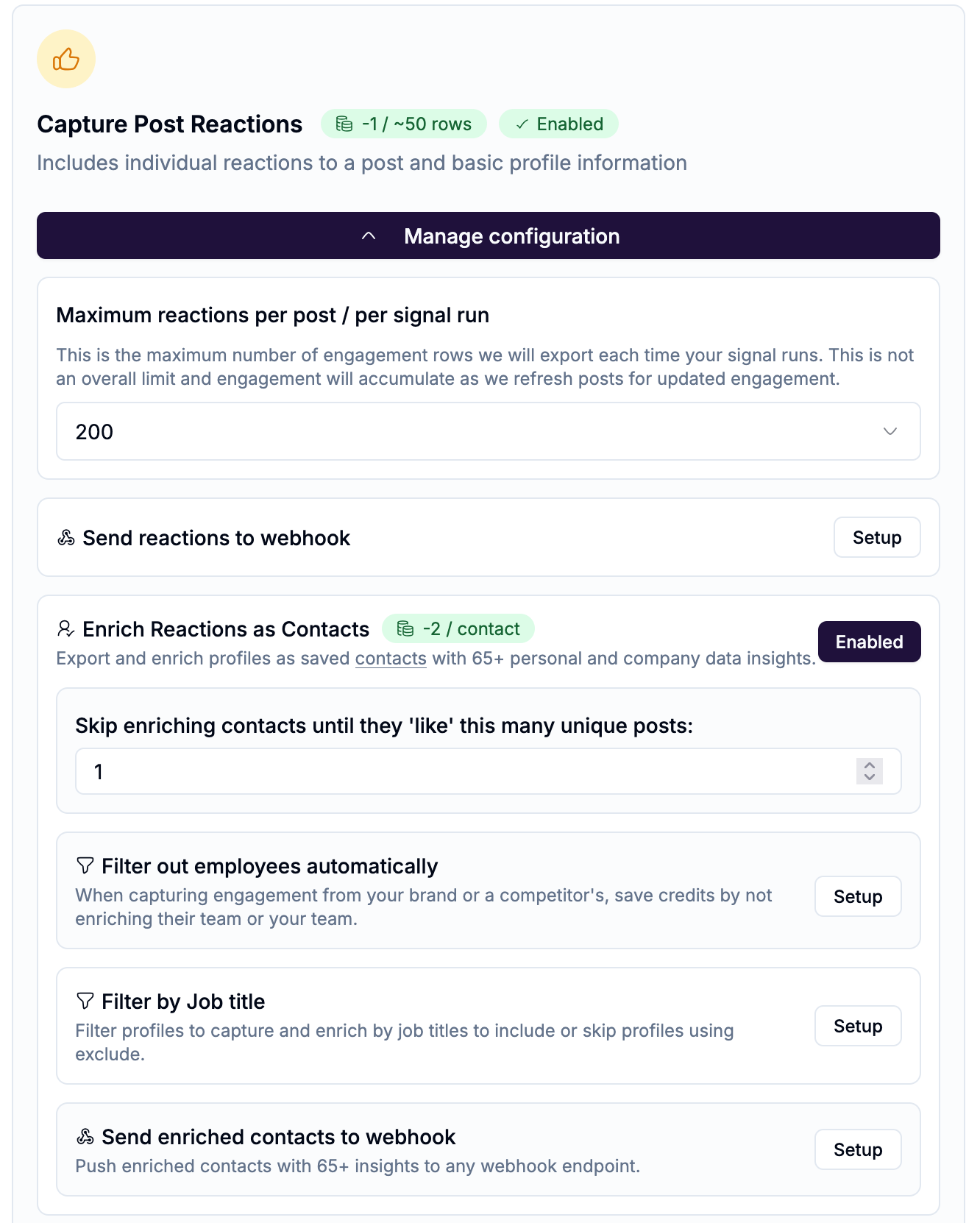
Step 3: CRM push
Configure how engagers are pushed to SugarAI:
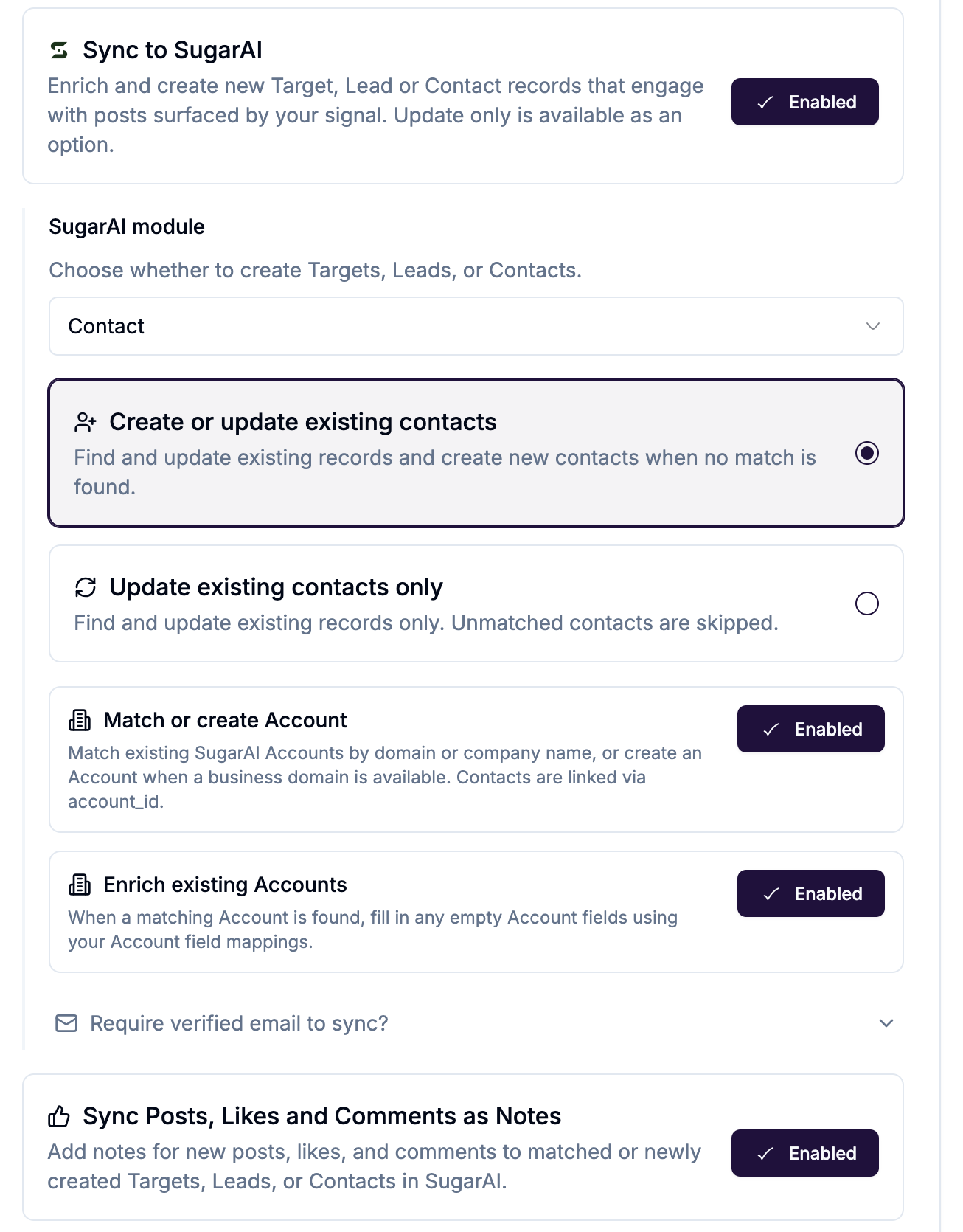
Module: Choose whether to create Targets, Leads, or Contacts.
Create or update mode:
Account options (Contacts module, create mode):
Match or create Account: when a Contact is created, match an existing SugarAI Account by domain or company name, or create one if none exists. Contacts are linked via the account relationship.
Enrich existing Accounts: when a matching Account is found, fill empty Account fields from your Account field mappings.
Email requirements:
Require verified email: only push contacts with a verified email address
Allow sync without email: push contacts even if no email is available
Engagement notes and counts:
Sync Posts, Likes and Comments as Notes: add notes to matched or newly created records for each engagement event
Sync Like and Comment Counts: maintain a running total of reactions and comments per person in SugarAI number fields. Select which SugarAI number field to use for reaction counts and which for comment counts. This creates a live engagement score per contact.
Step 4: Schedule
Set how often the Signal runs. Default is daily.
Step 5: Review
Confirm all settings and create. The Signal starts running on its next scheduled time.
What gets created or updated in SugarAI
Competitor audience tip
When monitoring competitor content, enable Filter out employees automatically in the Signal configure step. This prevents you from enriching the competitor's own team members who liked their own content.