Field mapping
Field mapping controls which enriched contact data fields get written to which SugarAI fields when records are created or updated. Configure this before running any sync or push flow.
Written By Kevin Lawrie
Last updated 2 months ago
Where to find it
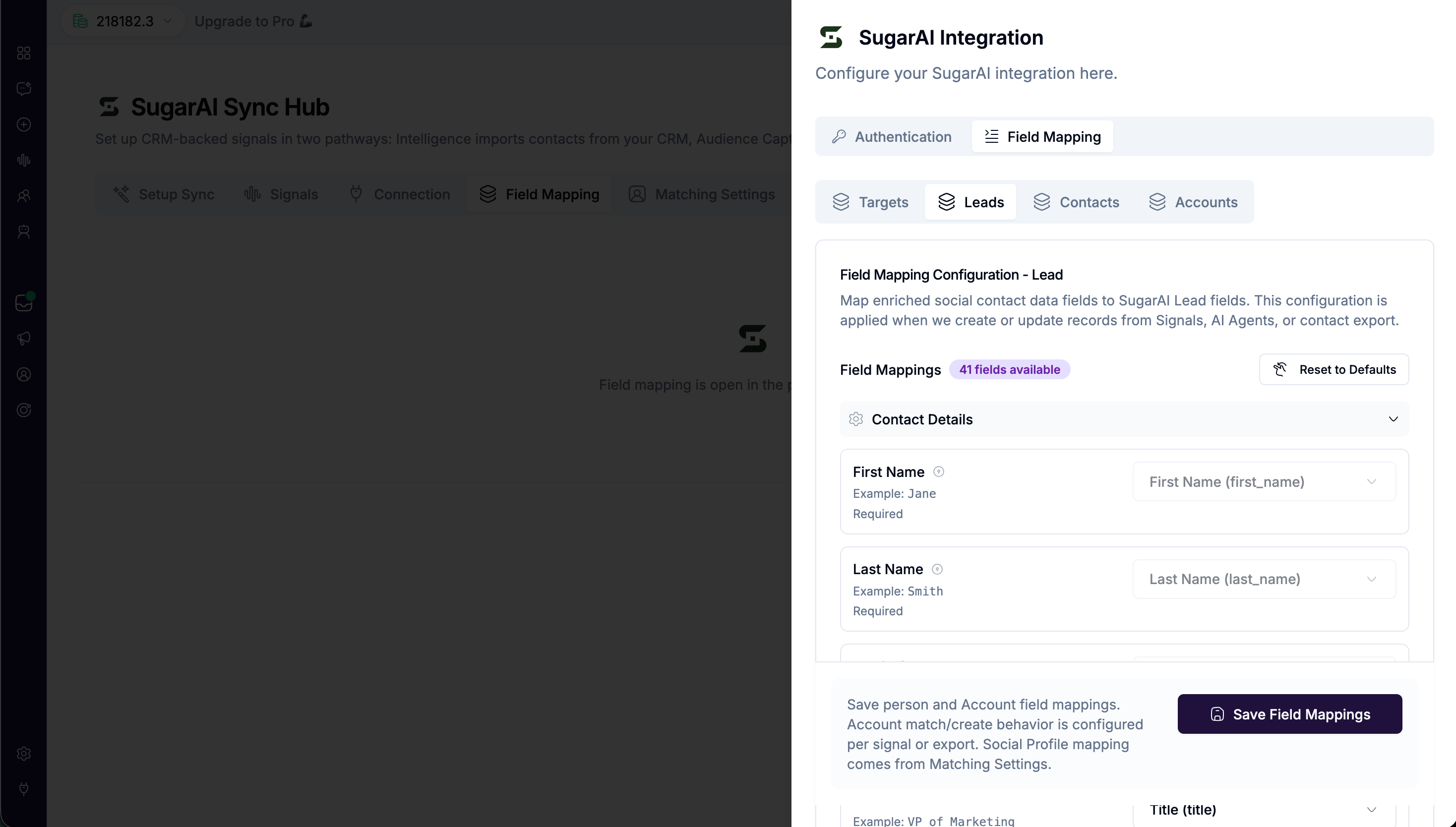
Go to Integrations then SugarAI then the Field Mapping tab. Field Mapping is only available after connecting your SugarAI workspace.
Four module tabs
SugarAI field mapping is split across four tabs, one per record type:
Configure the tabs for the record types you use. If you only create Leads from Audience Capture, only the Leads tab needs to be configured.
Person modules (Targets, Leads, Contacts)
Each person module tab shows field groups you can expand:
Contact Details
Company Information (not shown on the Contacts tab)
Location
Custom Properties
For each enriched field, select the matching SugarAI field from the dropdown. Set to Don't map to skip a field entirely.
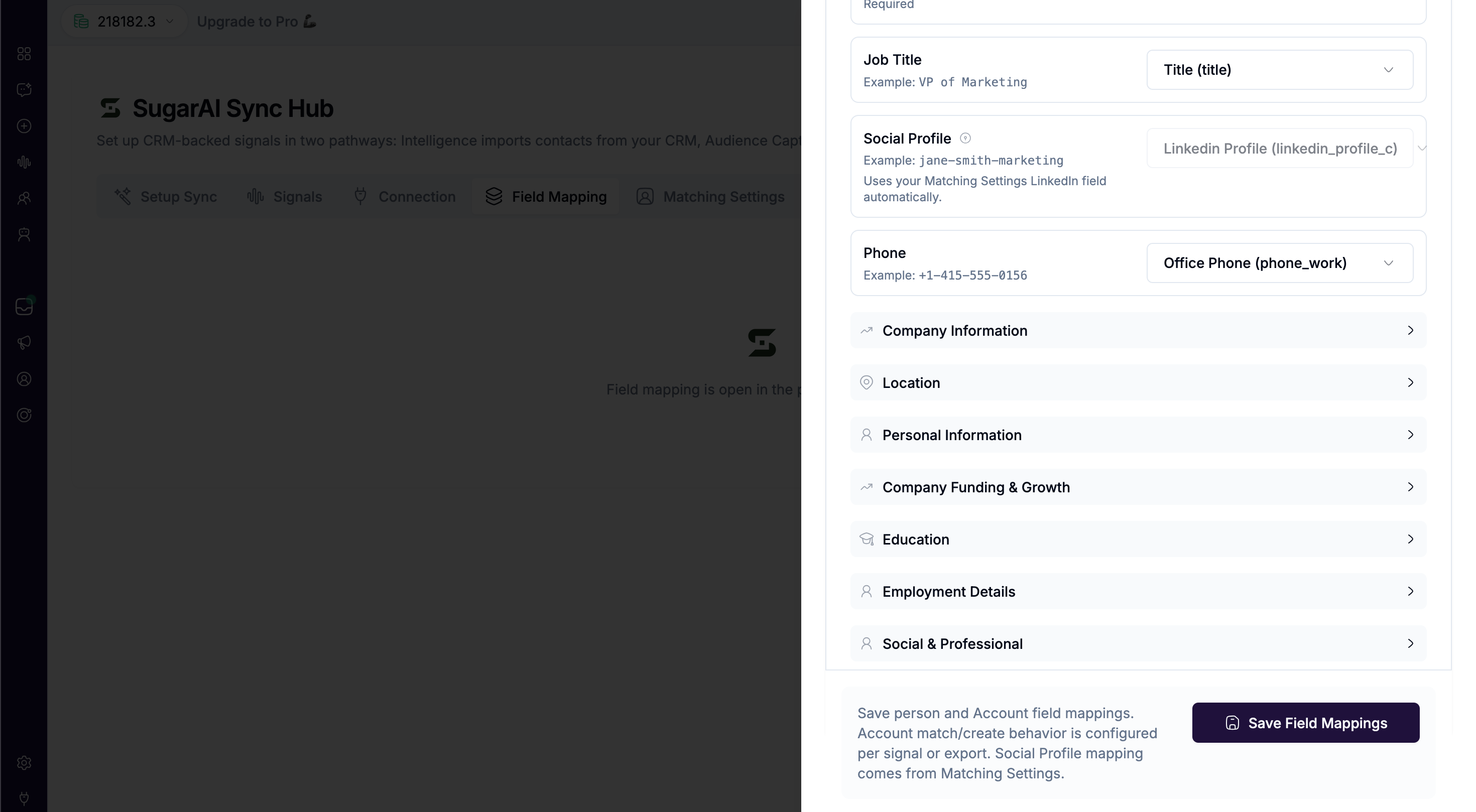
Notes on specific fields:
Social Profile: read-only here. It uses the LinkedIn match field you configured in Matching Settings automatically. If Matching Settings is not configured, this field will show as not configured.
Email: uses SugarAI's email link field automatically, not the legacy email1 field.
Required fields: some fields are locked as required and cannot be removed.
Click Reset to Defaults to restore the original default mappings.
Account module
The Accounts tab maps enriched company data to SugarAI Account fields. This mapping is used when an Account is matched or created, for example during a job change when someone moves to a new company.
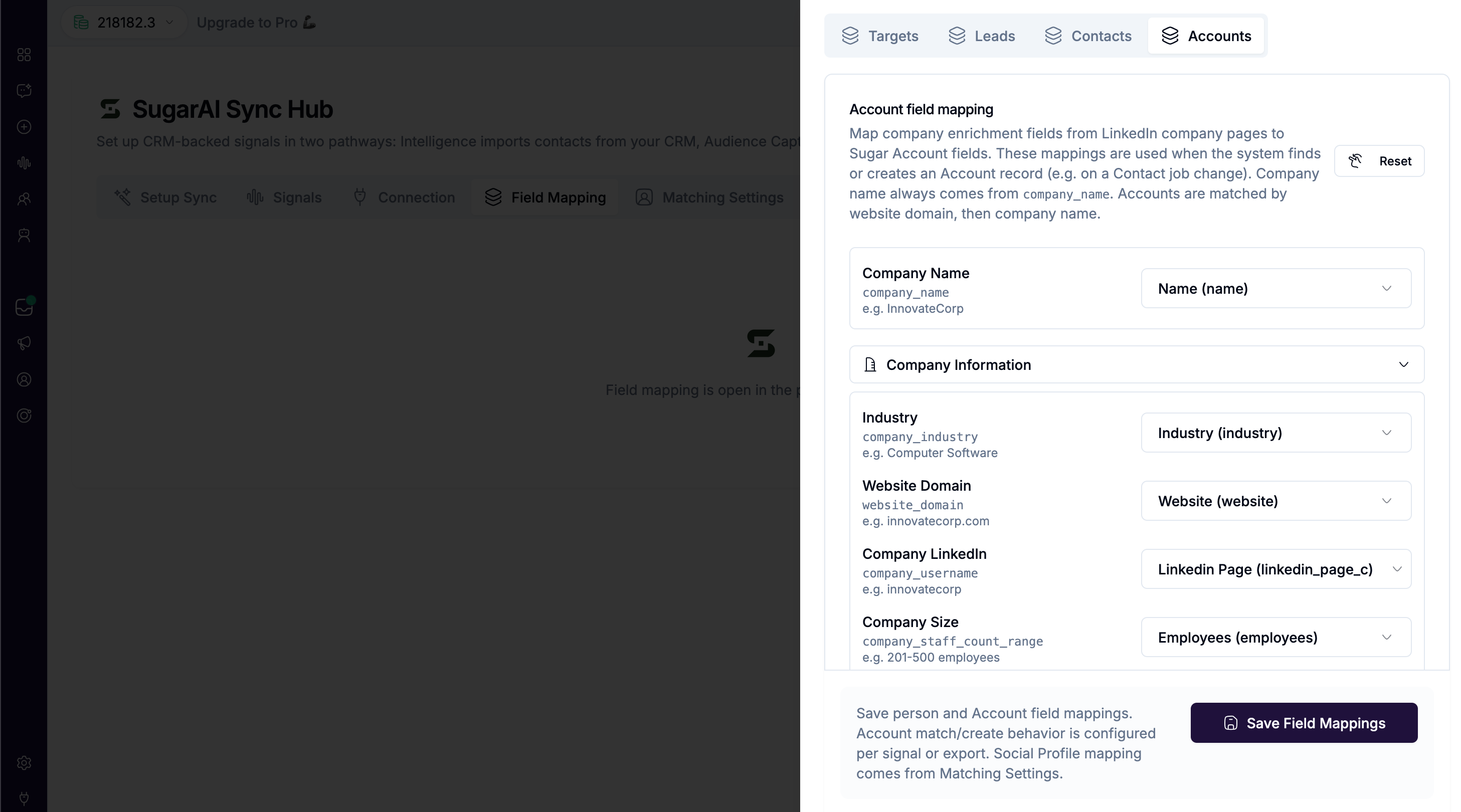
Accounts are matched first by website domain, then by company name.
Field groups available:
Company Information
Company Funding and Growth
Location
Set to Do not map to skip a field. Click Reset to restore defaults.
Saving
Click Save Field Mappings in the sticky footer at the bottom of the page. This saves all four module tabs at once. A confirmation toast confirms the save.
💡 Tip: Configure field mapping before creating your first sync. The mapping applies at the point of record creation or update. Fields not mapped when a record is first created or updated will not be written to SugarAI.