Intelligence Sync
Intelligence Sync imports contacts from a SugarAI Target List into a monitoring Signal and writes their LinkedIn activity back to their existing CRM records as notes. No new records are created.
Written By Kevin Lawrie
Last updated 2 months ago
How it works
Intelligence Sync is the "monitor your pipeline" pathway. You give getsignals a Target List from SugarAI and tell it what activity to watch for. From that point on, every time someone on that list publishes a post, likes a post, comments, or changes jobs, that activity is written as a note on their existing SugarAI record automatically. You configure the type of signal you want to sync back to the CRM.
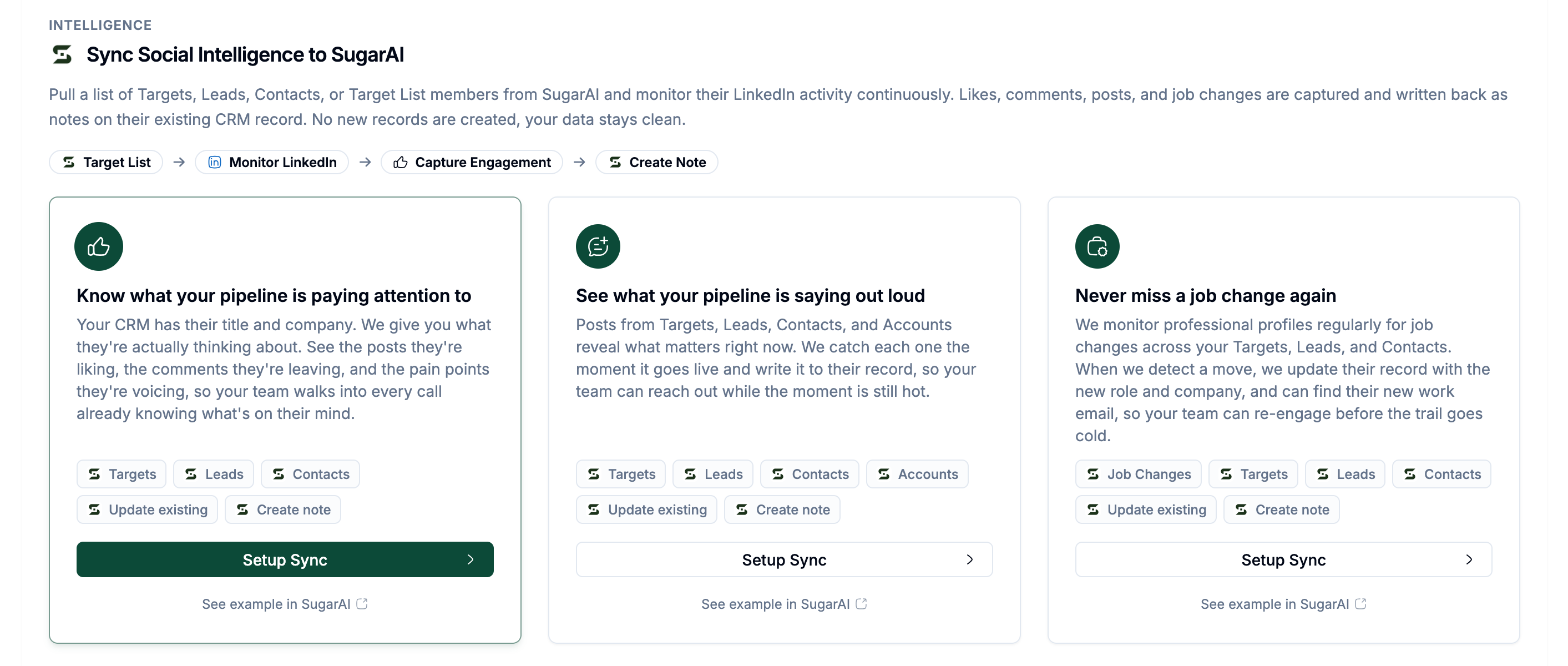
Your team sees social context inside SugarAI without leaving it. No feed scrolling, no manual research, no browser extensions required.
Prerequisites
SugarAI connected (see [Connecting your SugarAI workspace])
At least one LinkedIn match field configured in Matching Settings (see [Matching Settings])
A Target List in SugarAI containing the records you want to monitor
Creating an Intelligence Sync
Go to Integrations then SugarAI then the Setup Sync tab.
Choose one of the three Intelligence intents:
Click Setup Sync on your chosen intent.
The setup drawer opens. Work through two steps.
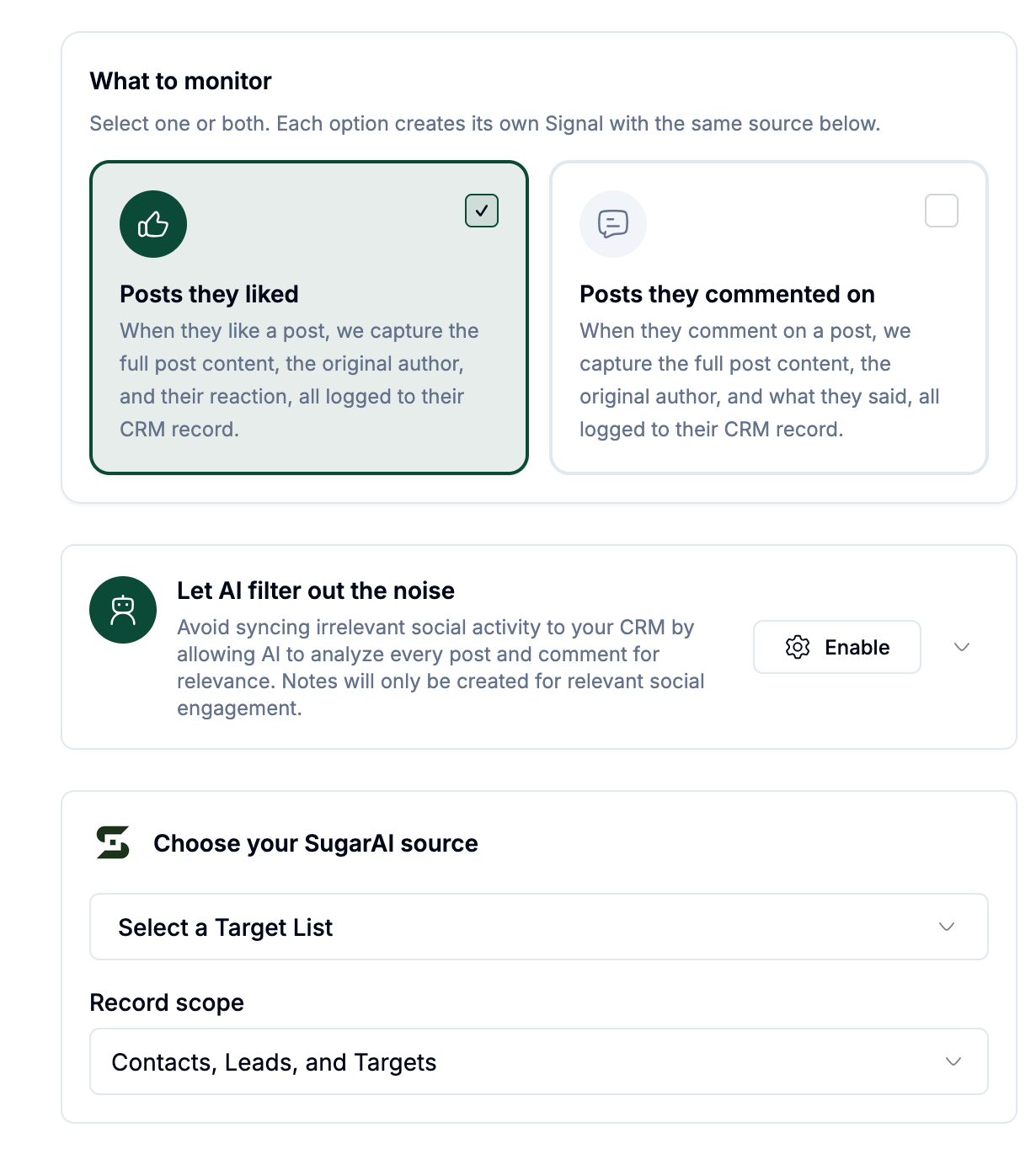
Step 1: Choose your SugarAI source
Target List: Select the Target List to import from. All records in that list with a LinkedIn profile in your configured match field are imported into the monitoring Signal.
Record scope: Choose which record types to monitor from that list:
Step 2: Rule options
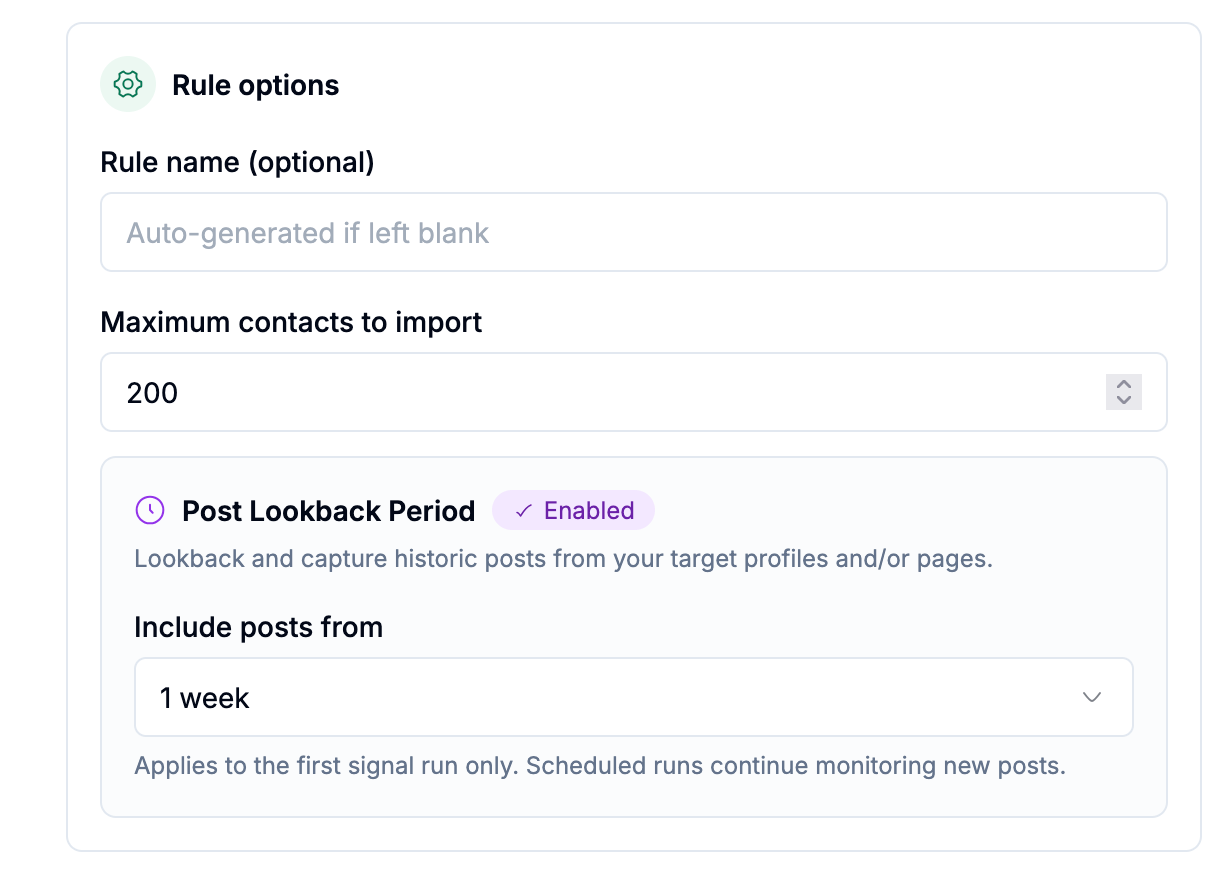
Click Create sync. A Signal is created automatically and will process within 60 minutes.
What gets written back to SugarAI
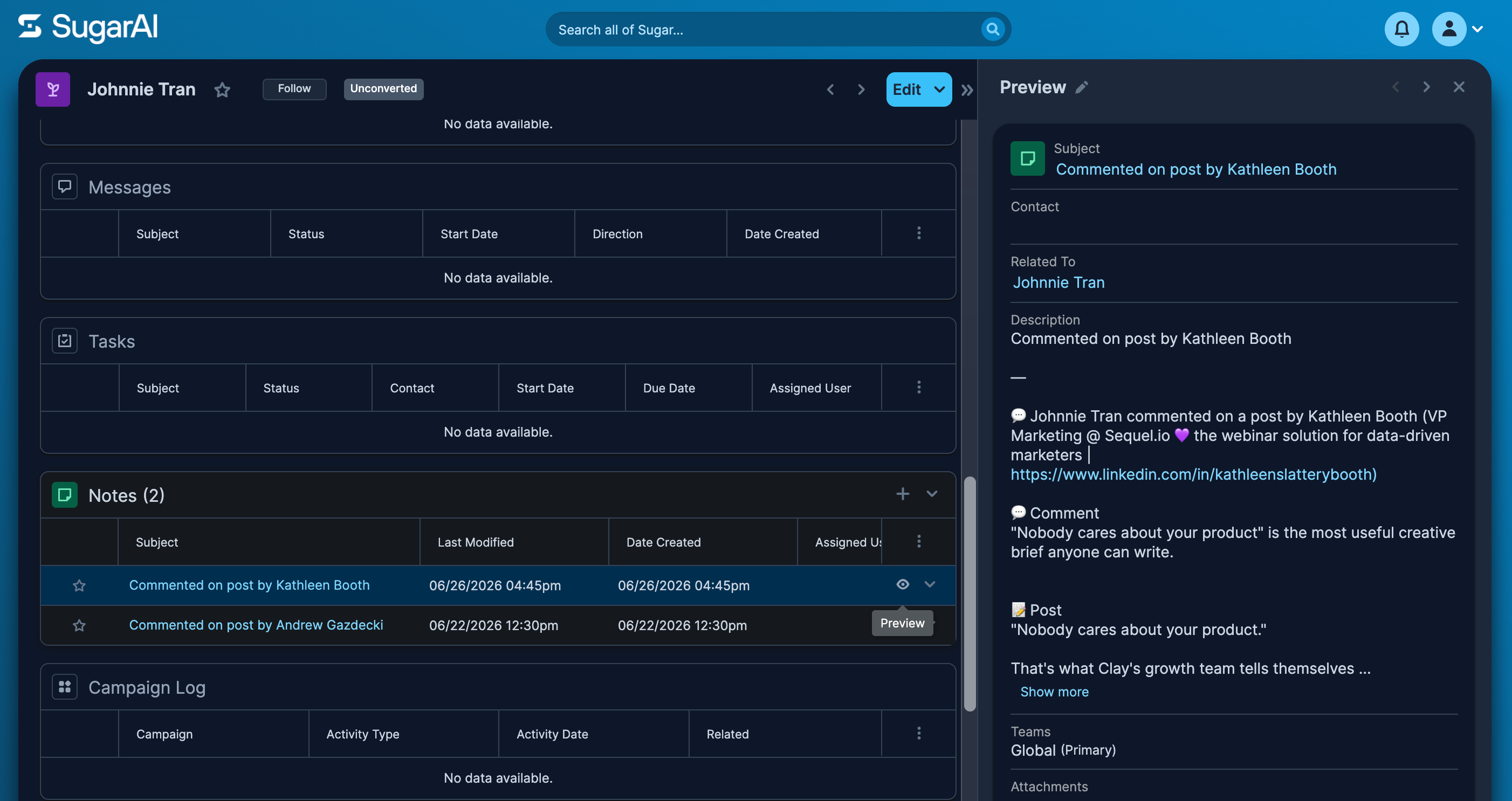
Each piece of captured activity appears as a note on the matched record:
Notes are visible to everyone on your team with access to that SugarAI record.
Managing Intelligence Syncs
Go to the Signals tab in the Sync Hub to see all active Intelligence sync rules. From there you can:
Toggle a sync on or off
Delete a sync rule and its associated Signal
The source column shows which Target List each sync is pulling from.