Capture authors from posts discovered
When your Signal discovers posts from people you don't already know, you can automatically save and enrich those authors as contacts. Filters let you make sure you're only spending credits on the right people.
Written By Kevin Lawrie
Last updated 6 months ago
What this does
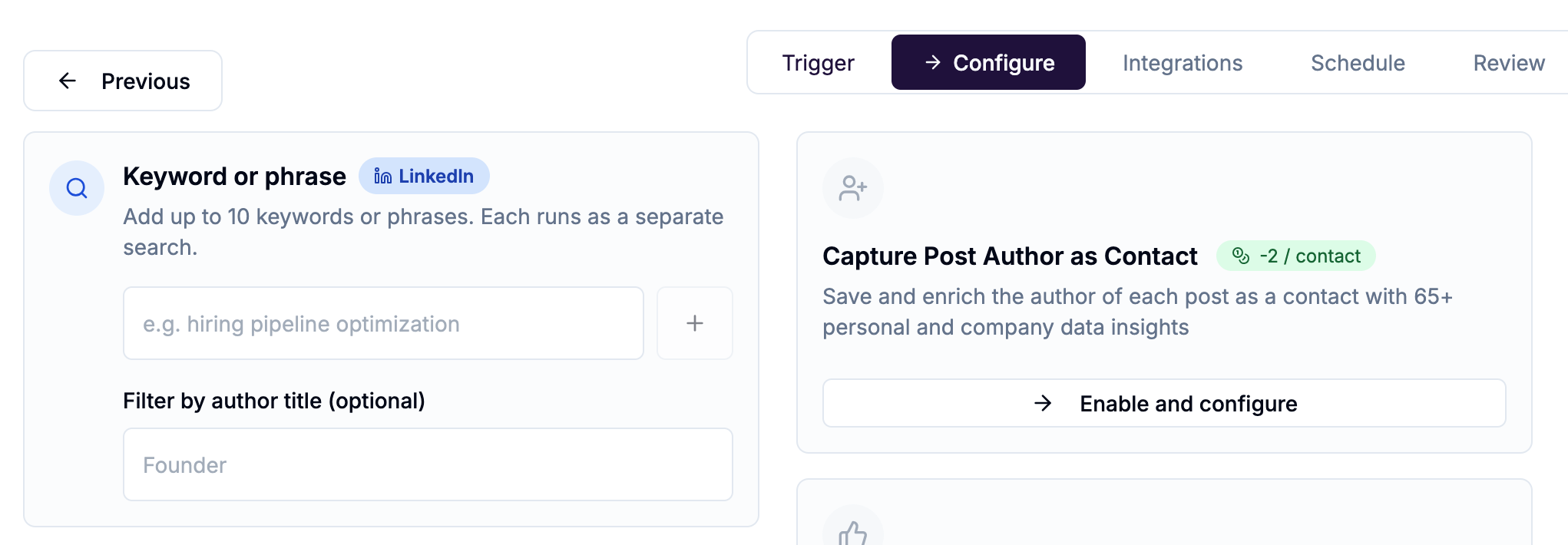
When Capture Post Author as Contact is enabled, the author of every post your Signal collects is saved as an enriched contact record with 65+ personal and company data insights.
Cost: -2 credits per enriched contact
This is one of the most direct contact capture methods available — the person wrote the post, which means they are actively publishing content on the topic your Signal is monitoring. That's strong intent data.
When author capture is available
Author capture is only available on Signals that are discovering posts from unknown people. It is not available when you already know who the author is because they are the target of your Signal.
Why not on Monitor for New Posts? When you're monitoring a specific profile or page for new posts, the author is your target — you already have them in your system. There's no unknown person to discover. You can still capture reactions and comments from those posts, since the people engaging are unknown to you.
How to enable it
Open your Signal and go to the Configure step.
Find the Capture Post Author as Contact block in the centre column.
Click Enable and configure.
Set your filters (see below).
Filters — your pre-enrichment gate
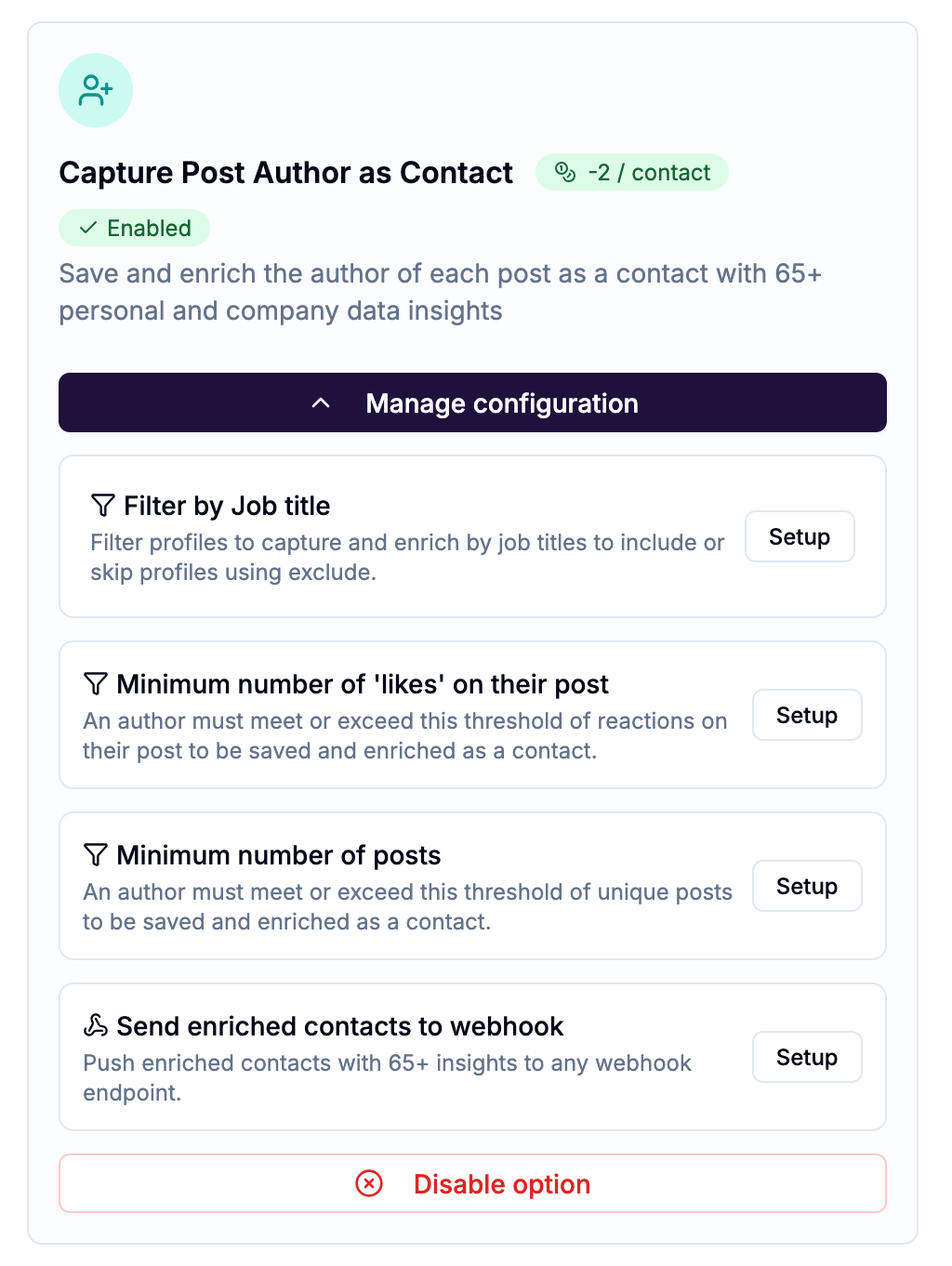
All filters run before enrichment. If an author doesn't pass, they are skipped and no credits are spent.
Filter by Job Title
Include or exclude authors based on their job title before enriching them.
Job title must contain — only enrich authors whose title matches at least one of your terms (e.g. "founder, ceo, vp sales"). Up to 5 terms.
Job title cannot include — skip authors whose title matches any of these terms (e.g. "student, intern, engineer"). Up to 5 terms.
This is the most powerful credit-saving filter available. A keyword Signal might surface posts from hundreds of different authors — without a job title filter, you'd enrich all of them. With one, you only enrich the roles that matter to you.
💡 Tip: Use partial terms. "sales" will match "Sales Manager", "Head of Sales", "VP Sales", and "Sales Director" — you don't need to list every variation.
Minimum number of 'likes' on their post
Only enrich authors whose post received at least a certain number of reactions.
Toggle to enable, then set the operator (More than or Less than) and a number (1–100,000).
Default when enabled: More than 50.
Use this to filter for authors who are generating real engagement — a post with 200 likes signals far more relevance than one with 2.
Minimum number of posts
Only enrich authors who have published at least a certain number of unique posts.
Toggle to enable, then set the minimum (1–1,000).
Default when enabled: 2 posts.
Use this to filter out one-time posters and focus on people who are consistently active on the topic you're monitoring.
Sending enriched authors to a webhook
Once an author is enriched, you can push their full contact record (65+ fields) to any webhook endpoint.
Toggle Send enriched contacts to webhook.
Select your webhook from the dropdown.
Use Send Test Payload to verify the connection.
What happens after enrichment
Once authors are being saved as enriched contacts, the following options activate on the right side of the Configure step:
Email and Mobile Finder — find verified contact details for enriched authors
Add to List — automatically add enriched authors to a named list
AI Agents — run AI processing on author profiles
Integration options (HubSpot, Attio, outreach sequences) become available on the Integrations step of the wizard.
⚠️ Note: Disabling Capture Post Author as Contact will clear all related settings. If an AI Agent is configured to process author contacts, you'll need to remove it first before disabling.