Setting up a YouTube Signal
Creating a YouTube Signal takes about two minutes. Choose between keyword monitoring (search all of YouTube) or channel monitoring (follow specific channels), configure what to capture, and set your schedule.
Written By Kevin Lawrie
Last updated 6 months ago
Step 1 — Choose your Signal type
Select one of the two YouTube signal types:
Monitor for YouTube Mentions (keyword search) Discovers videos across all of YouTube that mention your keyword or phrase. Works like a saved YouTube search — results delivered automatically on your schedule.
Monitor YouTube Channels (channel monitoring) Watches specific YouTube channels for new uploads. Every video they publish is captured and processed.
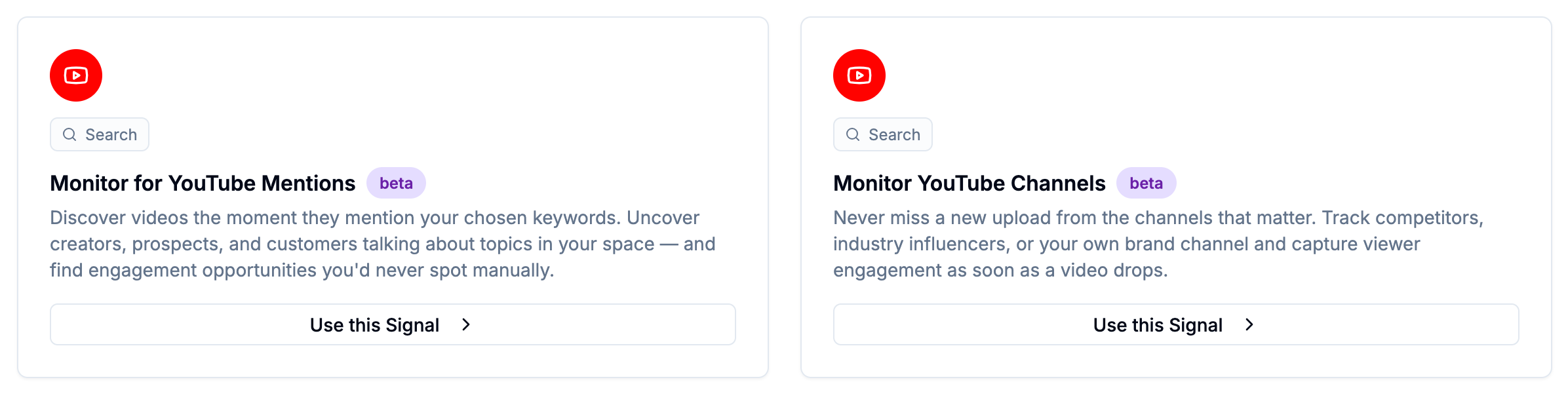
Both support comment capture, notifications, and AI Agent processing.
Step 2 — Name your Signal
Click Create Social Signal in the left sidebar. Enter a descriptive name — for example, "YouTube — Competitor: Acme Corp" or "YouTube — Keyword: outbound sales tools".
Step 3 — Configure the Signal
Keyword monitoring
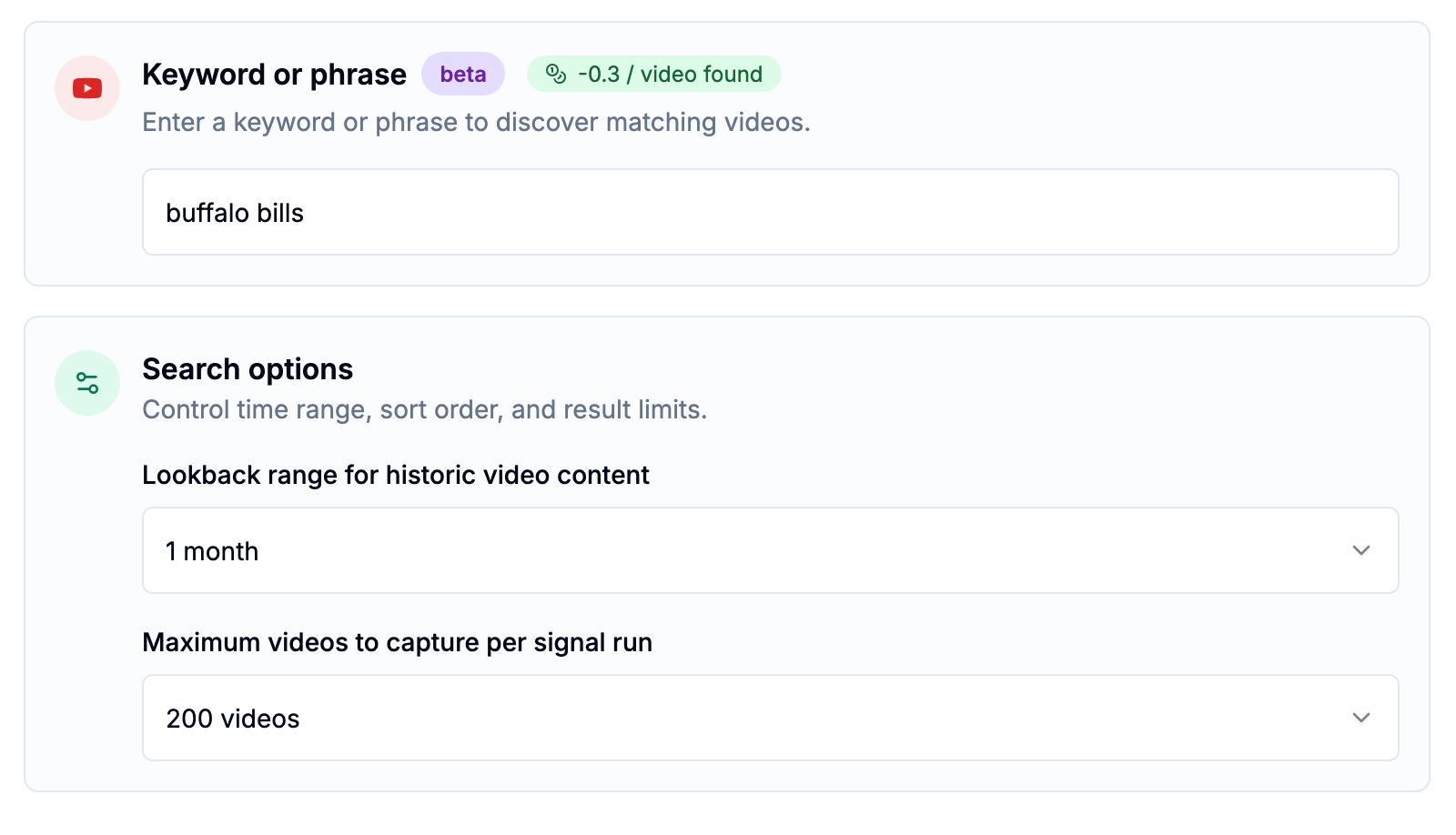
💡 Tip: Keep your keyword tight and specific. Broad terms return high volume but lower relevance. Start with your brand name, a competitor name, or a specific pain point phrase your ICP uses.
Channel monitoring
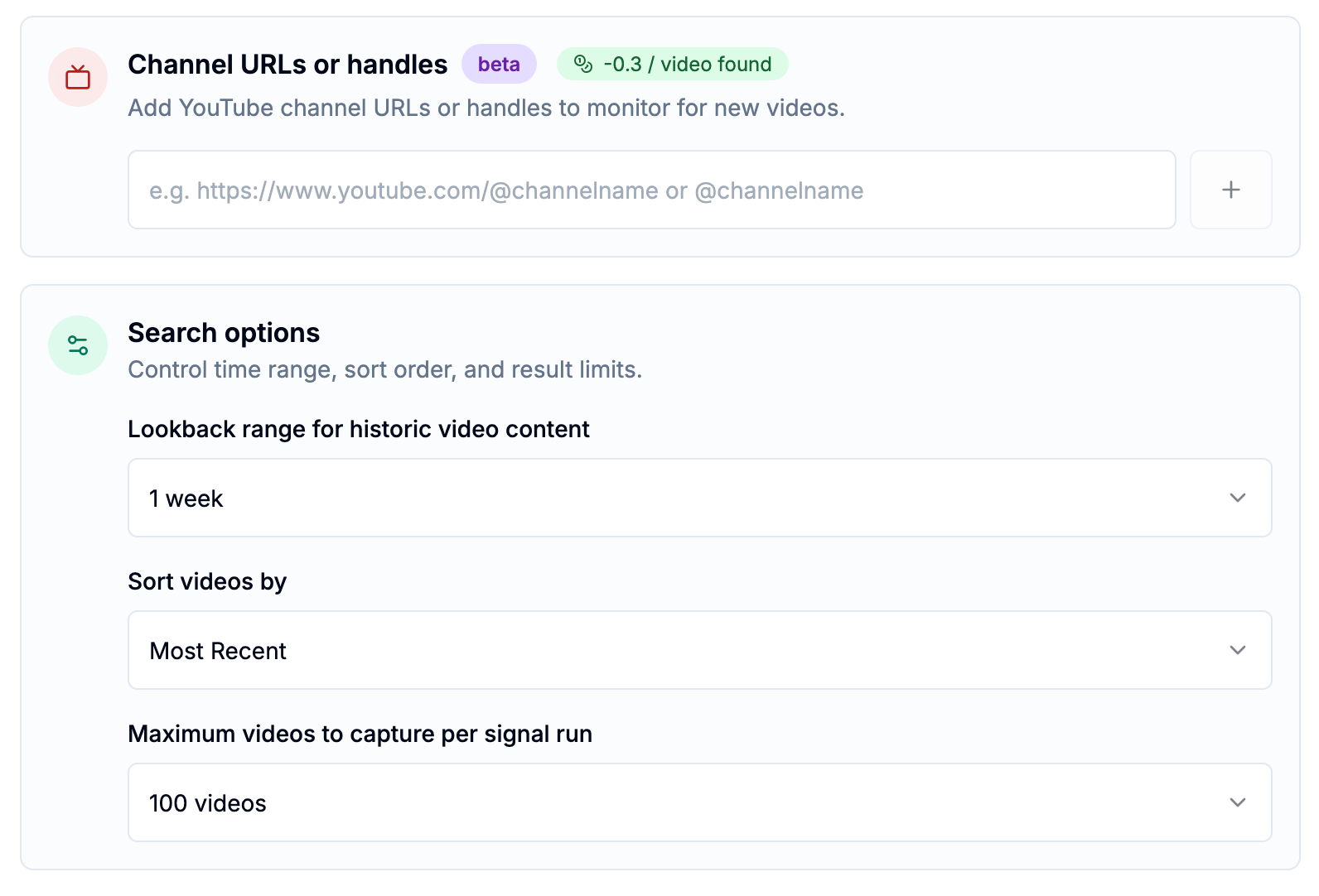
You can add multiple channel URLs or @handles to a single channel monitoring Signal.
⚠️ Note: The lookback period applies to the first run only. After that, each run picks up videos published since the previous run.
Step 4 — Enable comment capture (optional)
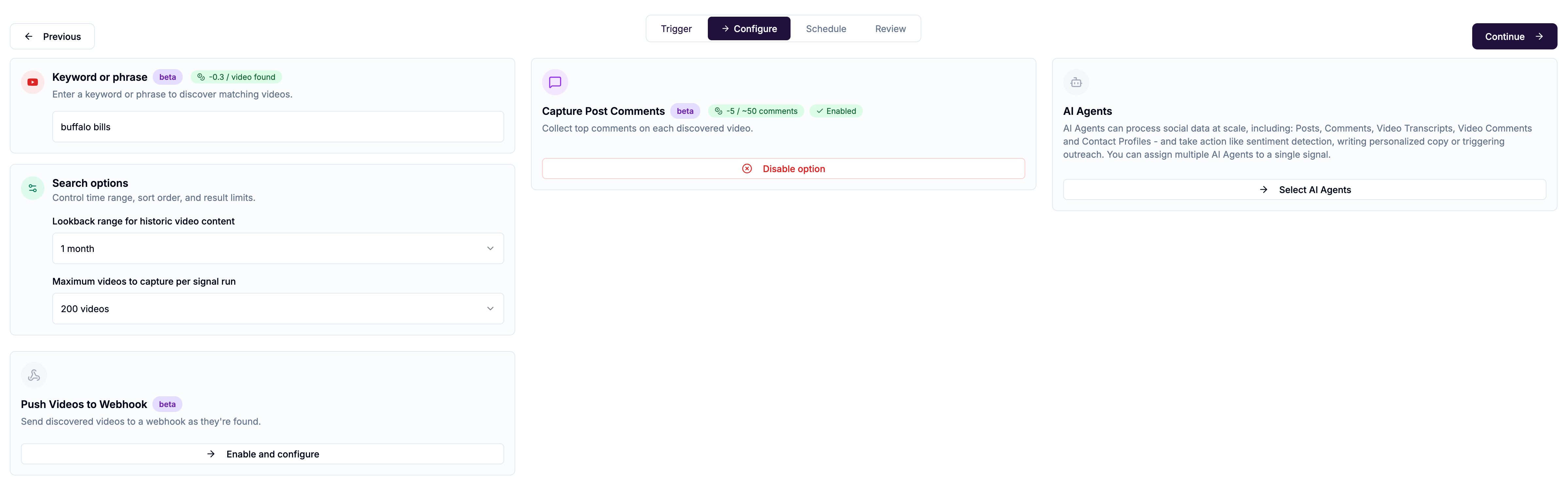
Toggle Export Video Comments to collect top comments on each discovered video.
When enabled:
Comments are fetched automatically after each video is processed
Up to 100 comments per video are captured by default
AI Agents can target YouTube Comments as a data target — in addition to YouTube Videos
Credit cost: ~5 credits per ~50 comments
💡 When to enable comments: Enable comment capture whenever your use case involves understanding what people are saying in response to videos — buyer intent mining, brand sentiment, competitive reaction tracking. If you only need the video content itself (transcripts, titles, descriptions for competitive intelligence), you can leave comments off to reduce credit usage.
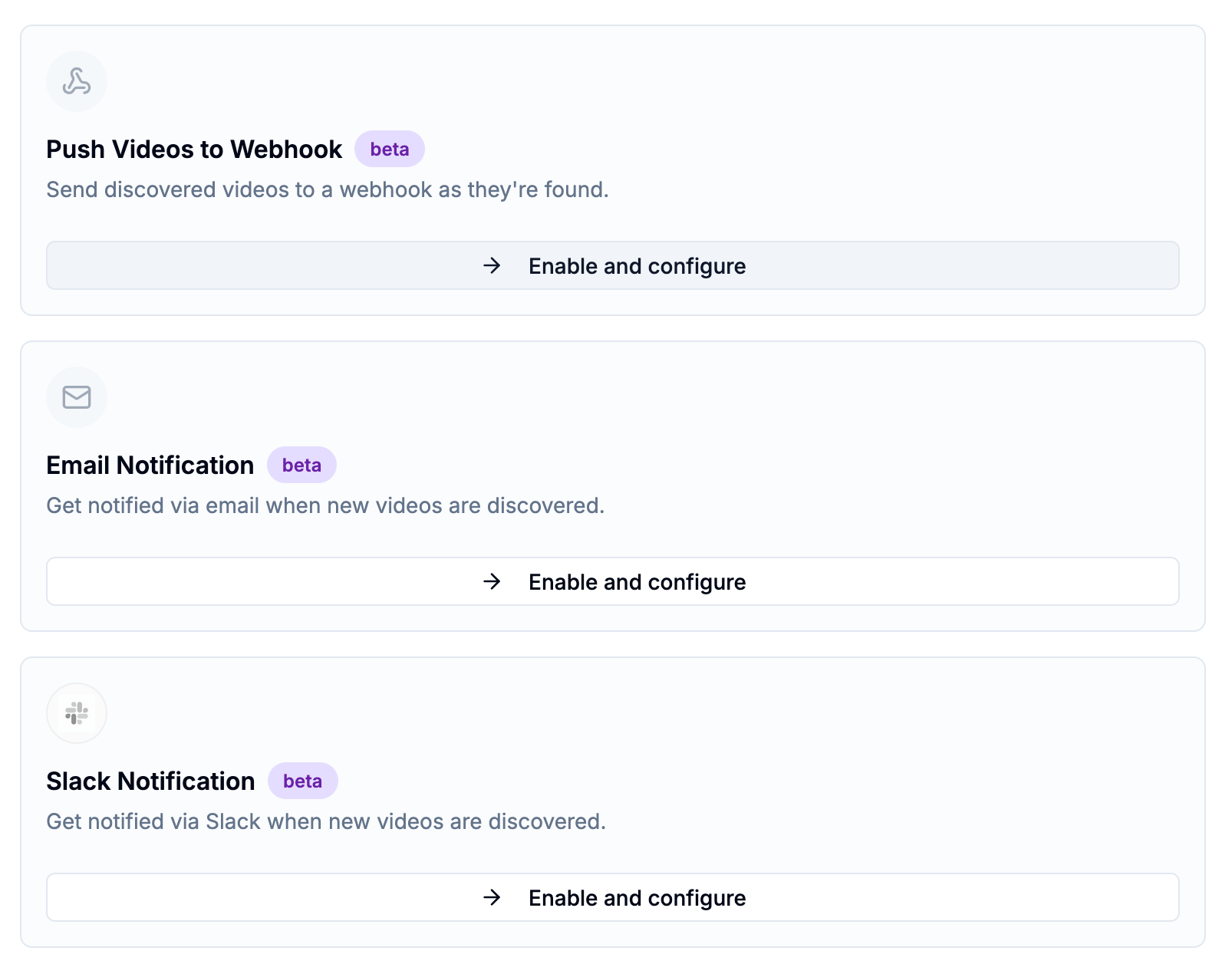
Step 5 — Configure notifications
Email notifications
Toggle on and enter one or more email addresses (comma or semicolon separated) to receive alerts when new videos are discovered.
Slack notifications
Toggle on and select a Slack channel. Slack must be connected in Integrations first. Notifications include video thumbnail, title, channel, engagement metrics, and a Watch on YouTube link.
Webhook
In the Export Videos section, enable webhook integration and select your webhook endpoint. Videos are sent one per HTTP call as they're discovered. See the Webhooks collection for payload schema details.
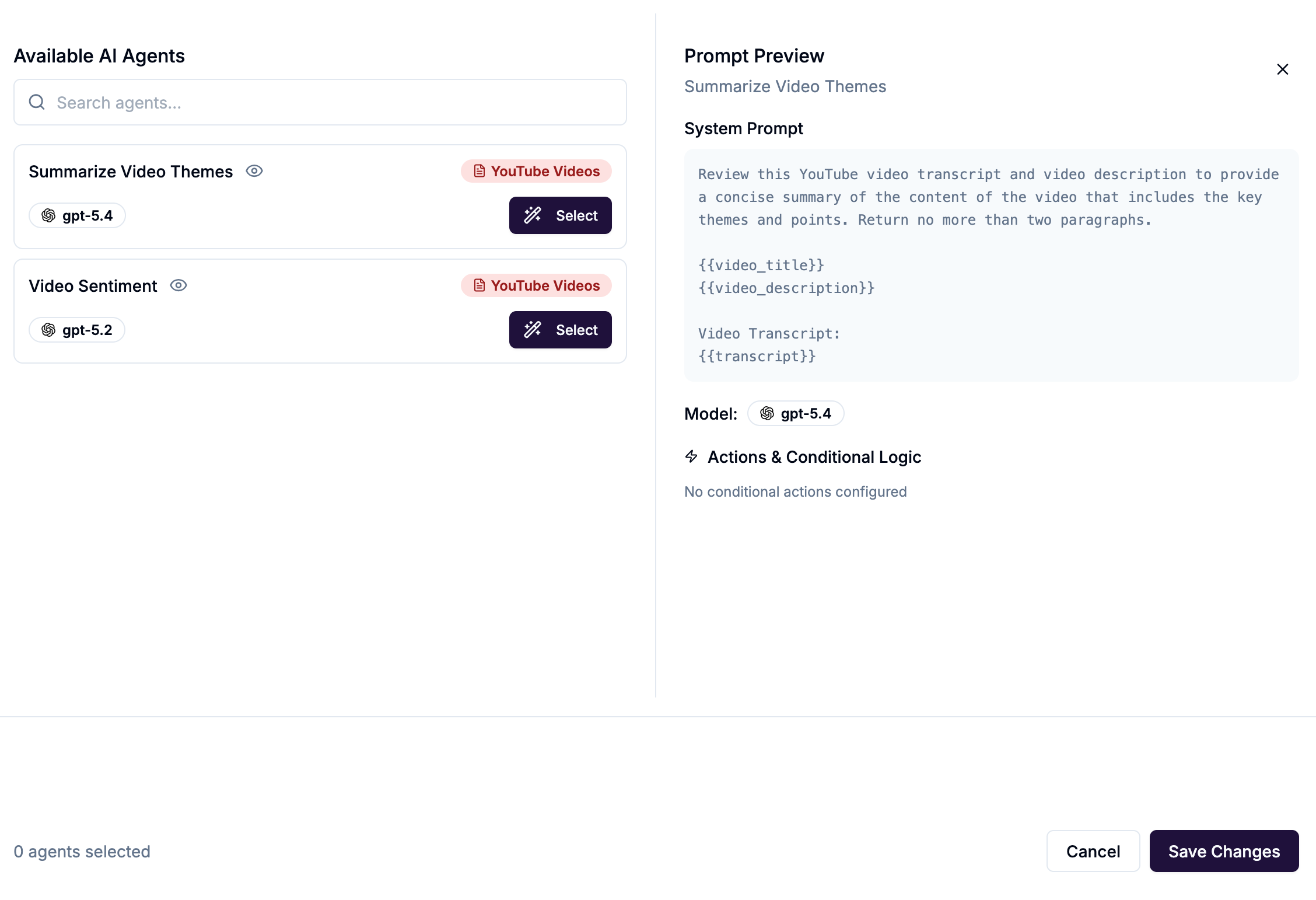
Step 6 — Assign AI Agents (optional)
Select AI Agents to process videos and/or comments automatically as they're discovered. See [Using AI Agents with YouTube] for the full guide.
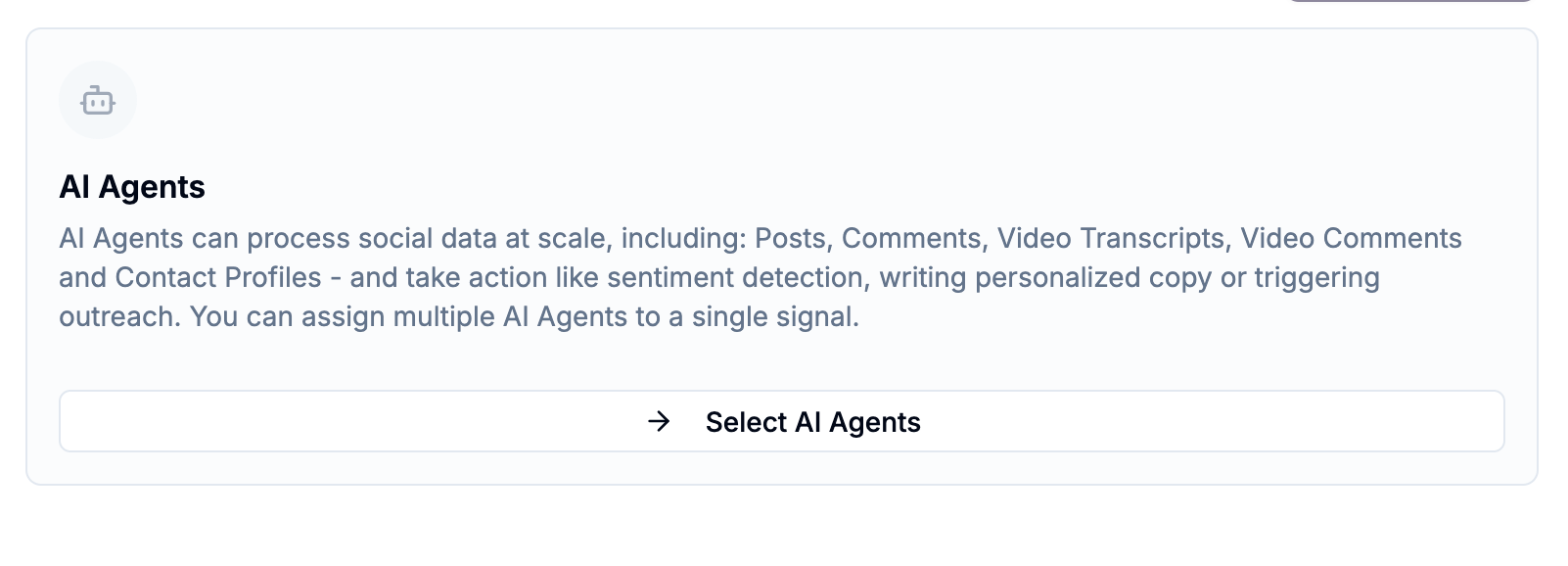
Available data targets depend on your comment capture setting:
With comments enabled: YouTube Videos and YouTube Comments agents both available
Without comments: YouTube Videos agents only
Step 7 — Set the schedule
Choose how often the Signal should run: Daily, Weekly, Every 2 Weeks, or Monthly.
For competitive monitoring and brand tracking, daily is recommended. For market intelligence and trend analysis where recency is less critical, weekly works well.
Viewing results
Once the Signal runs, go to Signals → View Results to see discovered videos. Each video shows title, channel, engagement metrics, and thumbnail. If comment capture is enabled, expand any video to see its comments.
If AI Agents are assigned, their output appears in the results view alongside each video or comment — tags applied, summaries written, and any actions triggered are all visible.