Create your first Signal
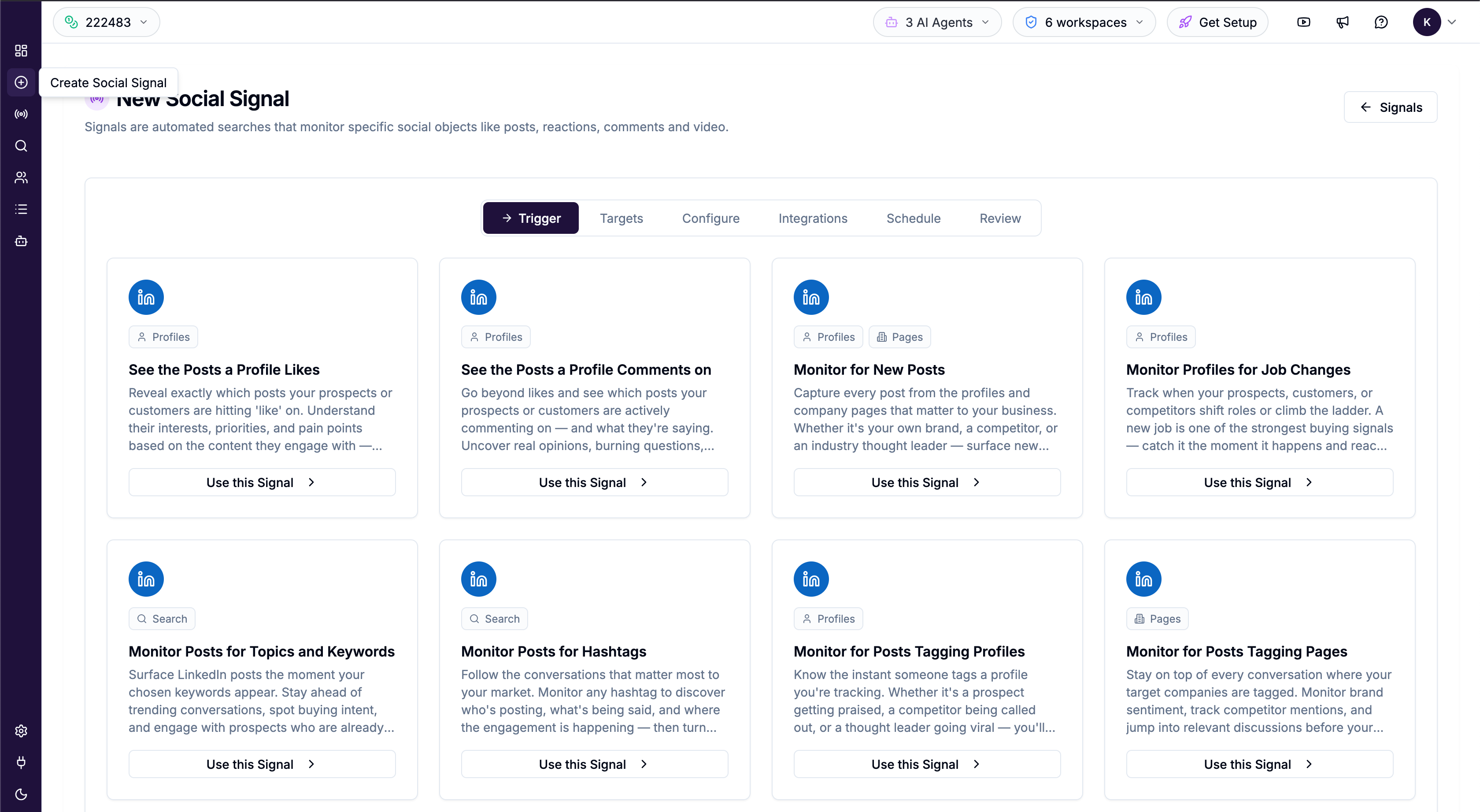
Creating a Signal takes about two minutes. Use the wizard at Create Social Signal in the left sidebar — it walks you through each setting in order.
Written By Kevin Lawrie
Last updated 6 months ago
Before you start
Have these things ready before opening the wizard:
The LinkedIn profile URLs or company page URLs you want to monitor (if tracking specific people or pages)
Any keywords or hashtags you want to filter by
A rough idea of how often you want the Signal to run
Step-by-step walkthrough
Step 1 — Name your Signal
Click Create Social Signal in the left sidebar. A prompt will ask you to give your Signal a name. Choose something descriptive — for example, "Competitor Posts – Acme Corp" or "Hashtag: #B2BSales". You can rename it later.
Step 2 — Choose a Signal type
Select what you want to monitor. The most common types for new users are:
Monitor for New Posts — tracks when a profile or page publishes something new
Monitor Posts for Topics and Keywords — finds posts across LinkedIn containing your search terms
Monitor Posts for Hashtags — tracks posts using a specific hashtag
Monitor Profiles for Job Changes — alerts you when someone changes their role
💡 Tip: Not sure which type to pick? Start with Monitor for New Posts (to track specific people) or Monitor Posts for Topics and Keywords (to track a topic broadly). If you have an active personal or company brand, monitor your own profile or pages to capture the audience already engaging with you.
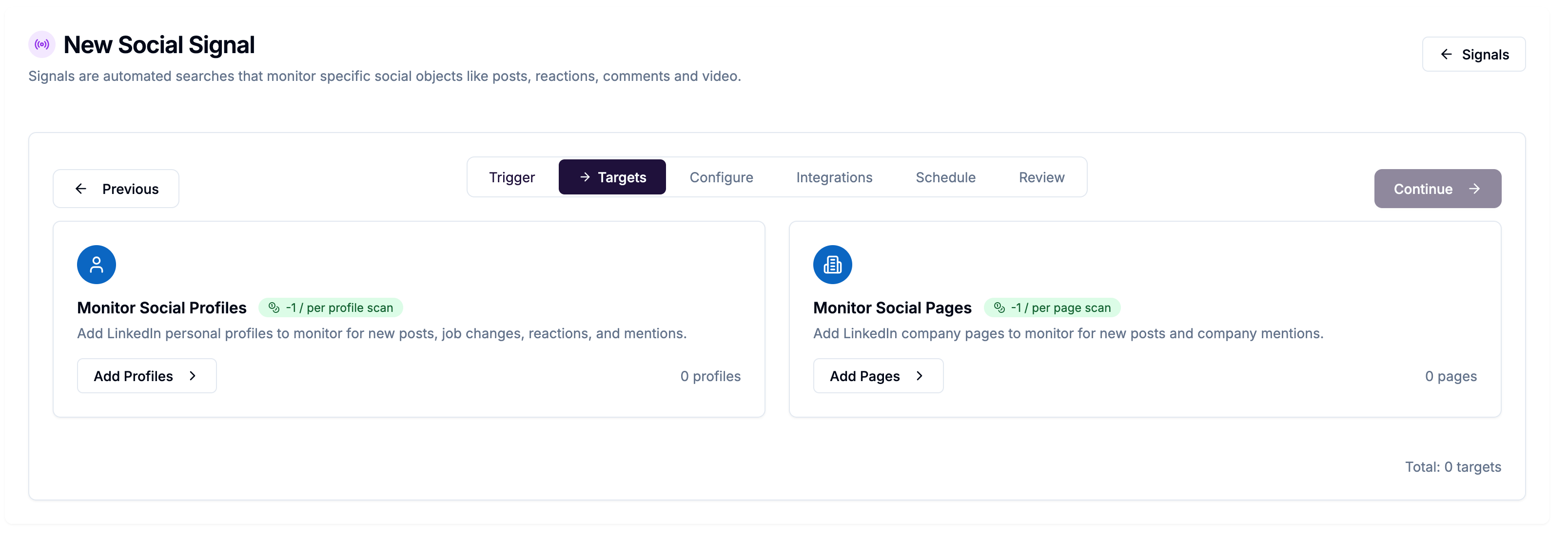
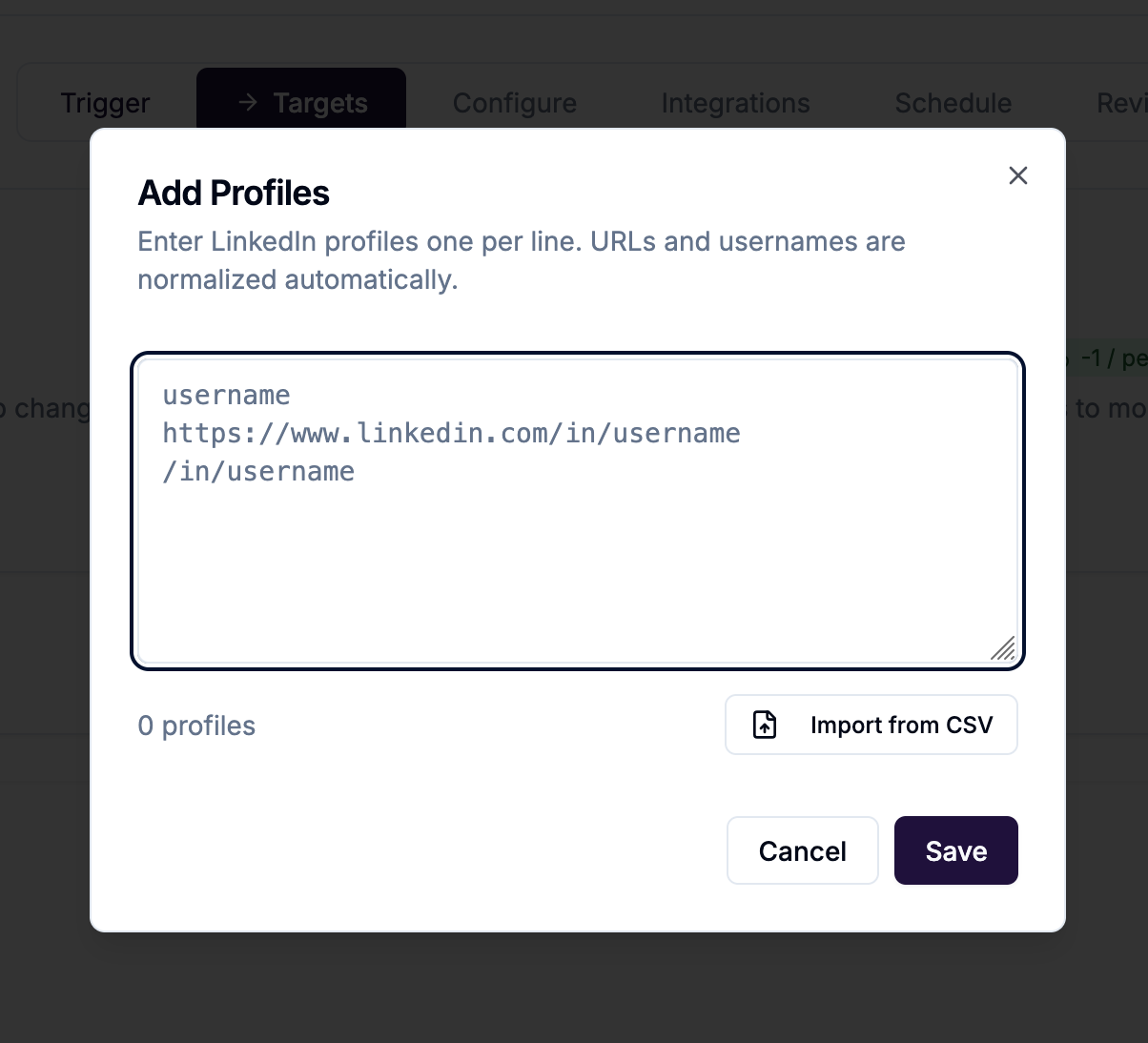
Step 3 — Add targets (profile and page signals only)
If you chose a type that monitors specific profiles or pages, you will be asked to add them here. Paste in LinkedIn profile URLs or company page URLs, one at a time.
Step 4 — Configure the Signal
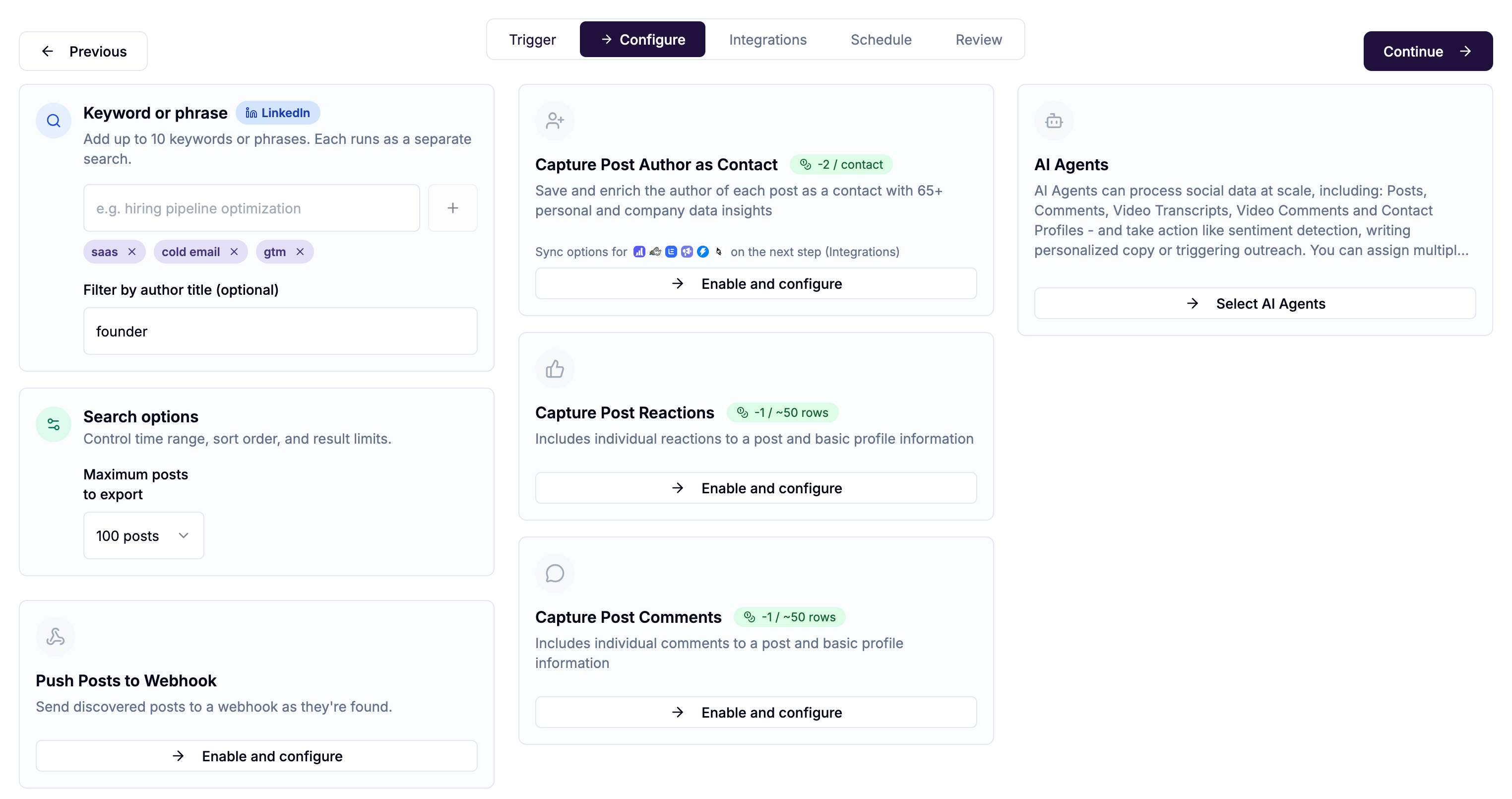
This step varies by signal type, but commonly includes:
Keywords — the search terms to look for (up to 10)
Lookback period — how far back to search on the first run (e.g., last 7 days)
Capture reactions / comments — whether to collect people who reacted to or commented on posts
Export authors — whether to save post authors as contacts automatically
⚠️ Note: The lookback period only applies to the first run. After that, each run picks up activity since the last run.
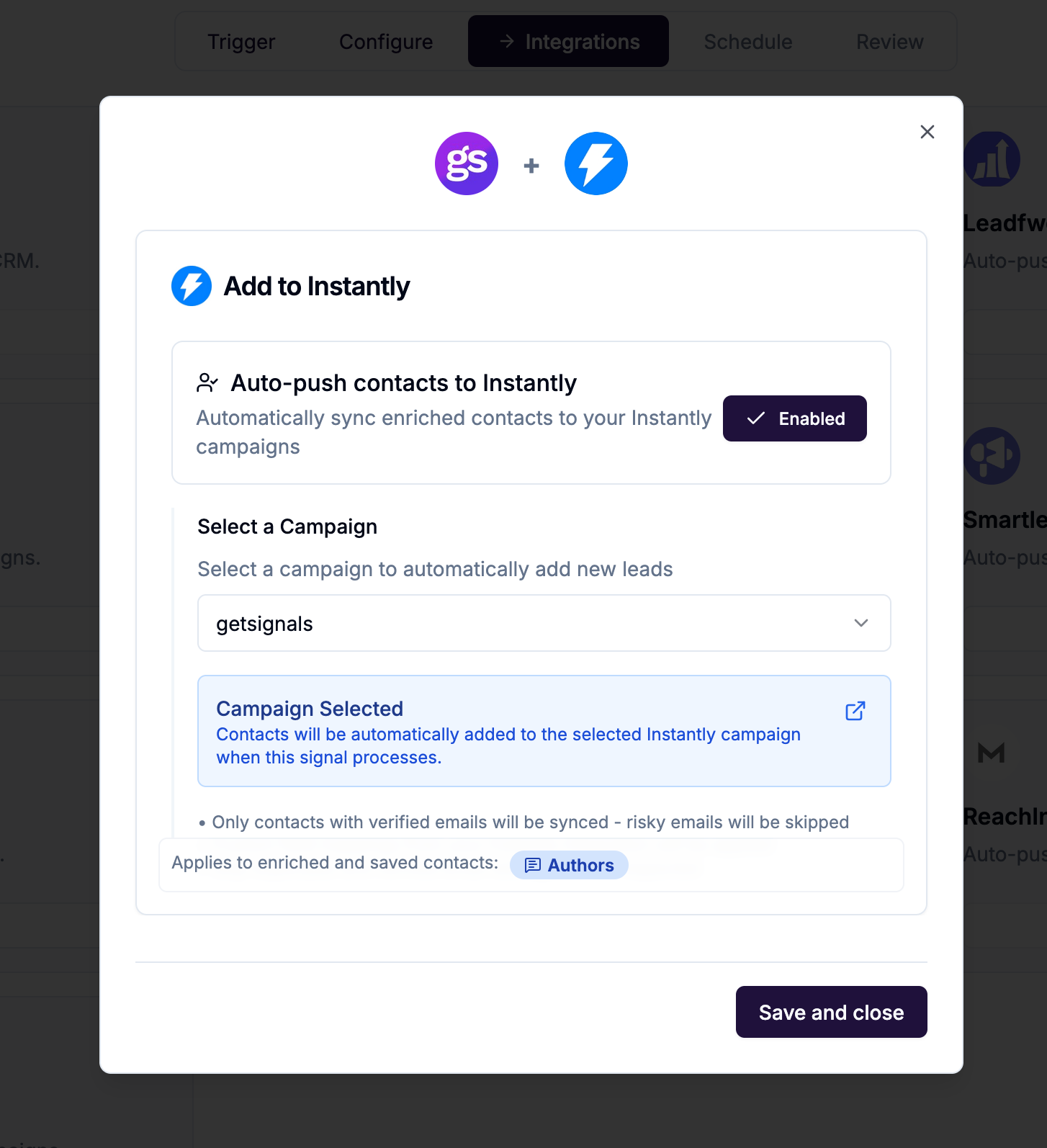
Step 5 — Connect integrations (optional)
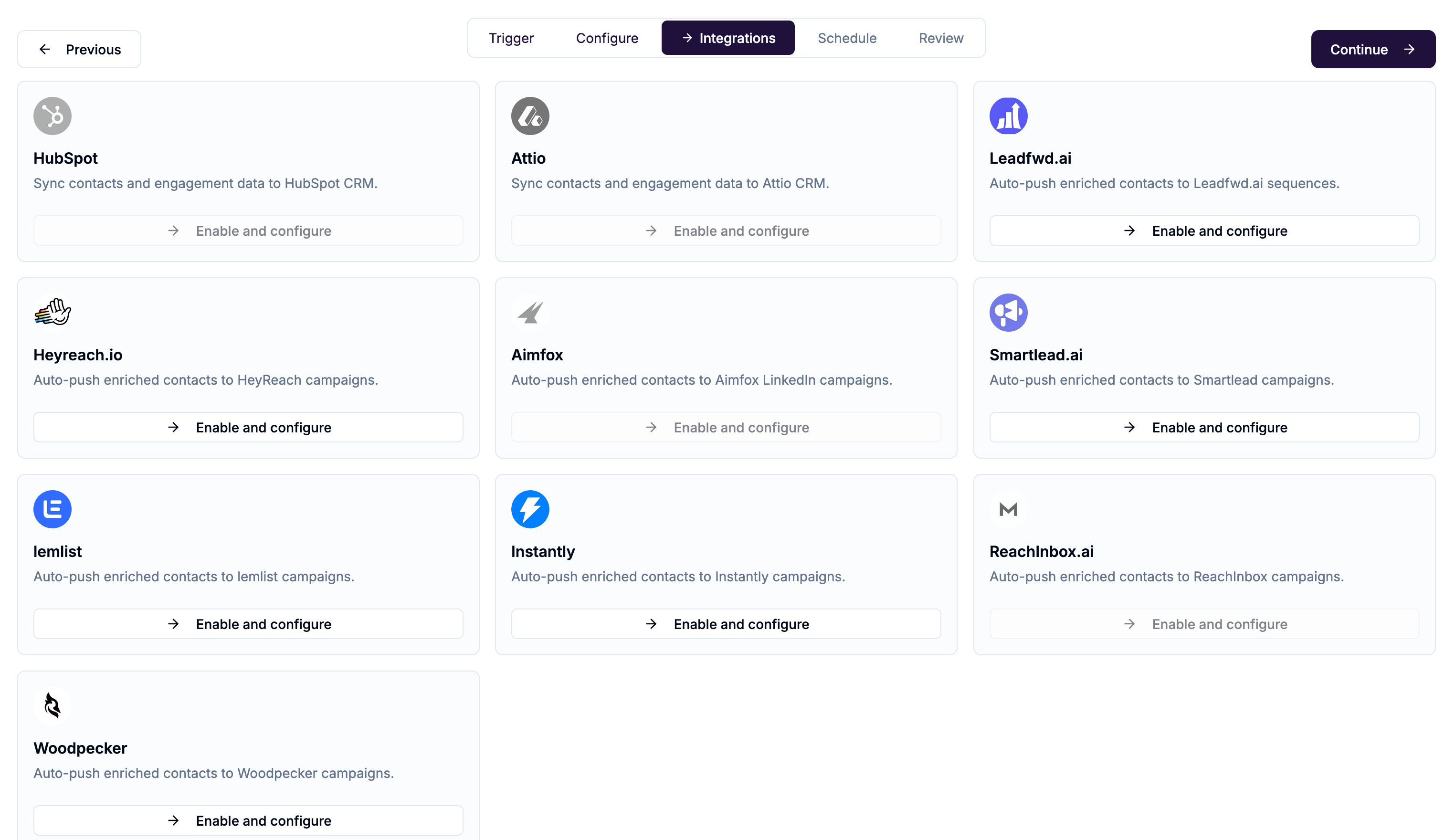
If you want results sent somewhere automatically, configure it here:
HubSpot or Attio — push new contacts directly to your CRM
Instantly, Smartlead, HeyReach, etc. — push new contacts to your outbound stack
Step 6 — Set the schedule
Choose how often the Signal should run — daily, weekly, bi-weekly or monthly — and what time of day. Set the timezone to match your working hours.
Step 7 — Review and create
The final step shows a summary of everything you configured. Review it, then click Create to save and activate the Signal. It will run at its next scheduled time, or you can trigger it manually right away.
What happens next?
Once created, your Signal appears in the Signals list. After its first run, click View Results to see what it found. From there you can filter, export, or push contacts to your CRM.
💡 Tip: To trigger your Signal immediately without waiting for the schedule, go to the Signals list, find your Signal, click the actions menu (⋮), and choose Run Now.