How to pause, resume, or delete a Signal
Pausing a Signal stops it from running without losing any of your settings or past results. Deleting removes it permanently. Both actions take just a few seconds from the Signals list.
Written By Kevin Lawrie
Last updated 6 months ago
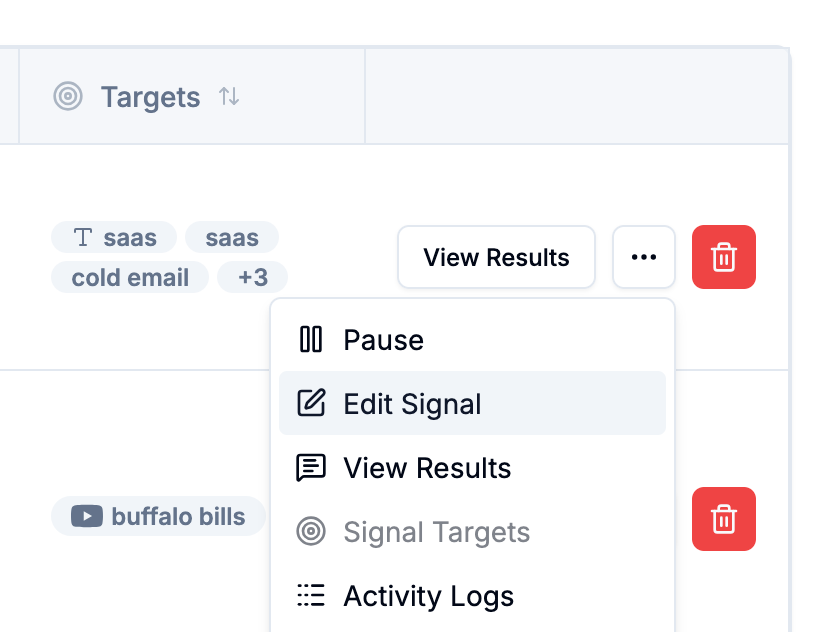
Pausing a Signal
Use pause when you want to temporarily stop a Signal — for example, during a campaign break or while updating your targeting.
Go to Signals in the left sidebar.
Find the Signal you want to pause.
Click the actions menu (⋮) at the right of the row.
Select Pause (or Toggle Active).
The Signal's status changes to paused. It will no longer run on its schedule until you resume it.
💡 Tip: Paused Signals retain all their settings and past results. Nothing is lost when you pause.
Resuming a paused Signal
Go to Signals in the left sidebar.
Find the paused Signal (look for a paused status badge in the row).
Click the actions menu (⋮) and select Enable (or Toggle Active).
The Signal resumes its normal schedule. If you want it to run immediately, also click Run Now from the same menu.
Deleting a Signal
Deleting a Signal permanently removes it along with all of its results. This cannot be undone.
Go to Signals in the left sidebar.
Click the actions menu (⋮) next to the Signal.
Select Delete.
Confirm the deletion when prompted.
⚠️ Note: Deleting a Signal also removes all posts, reactions, comments, and contacts that were collected exclusively by that Signal. Consider pausing instead if you might need the data later.