Understanding Signal results
Signal Results is where all the activity your Signal collected lives. You can search, filter, sort, expand individual posts, and take action on contacts — all from one view.
Written By Kevin Lawrie
Last updated 6 months ago
Getting to Signal Results
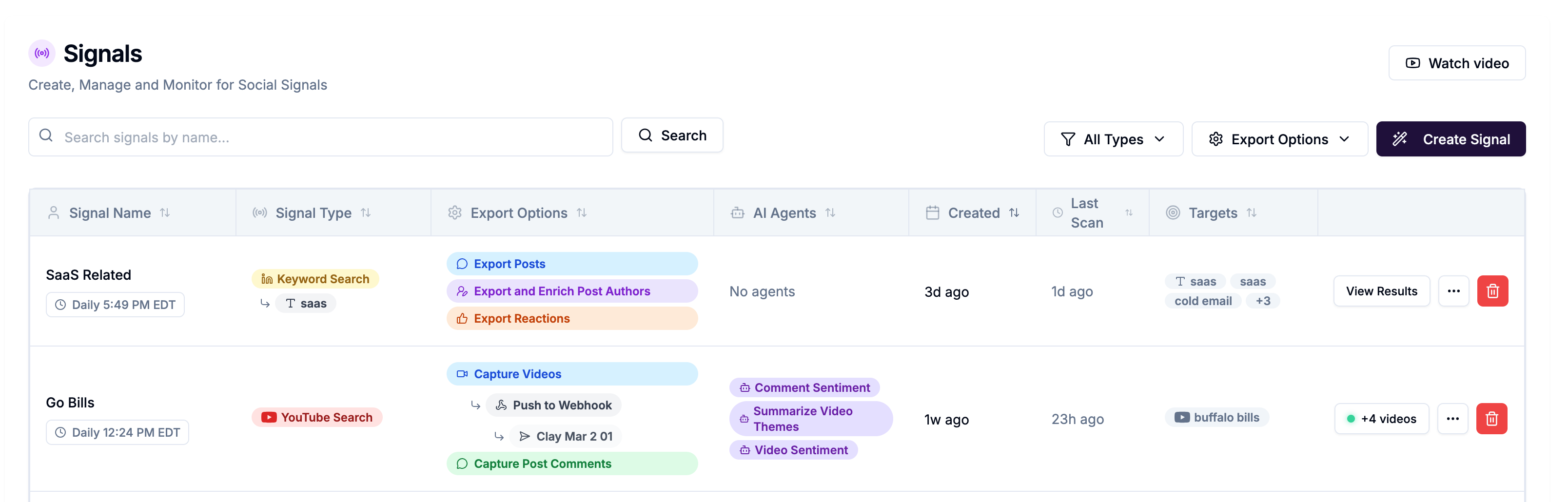
From the Signals list, click View Results next to any Signal (or click the Signal name directly). You can also reach it from the actions menu (⋮) → View Results.
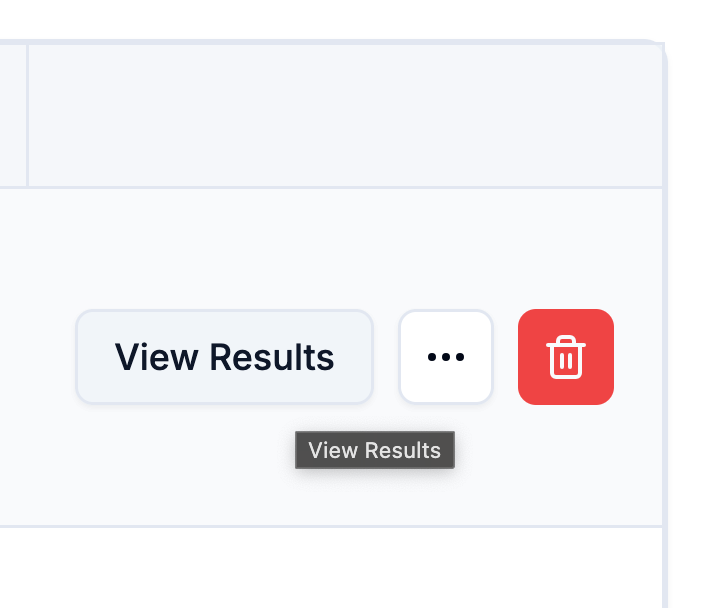
What you see at the top
The header shows four key numbers at a glance:
Posts — total posts collected by this Signal
Reactions — total reactions captured across those posts
Comments — total comments captured
Contacts — number of people saved as contacts from this Signal
(YouTube Signals show Videos, Comments, and Engagement instead.)
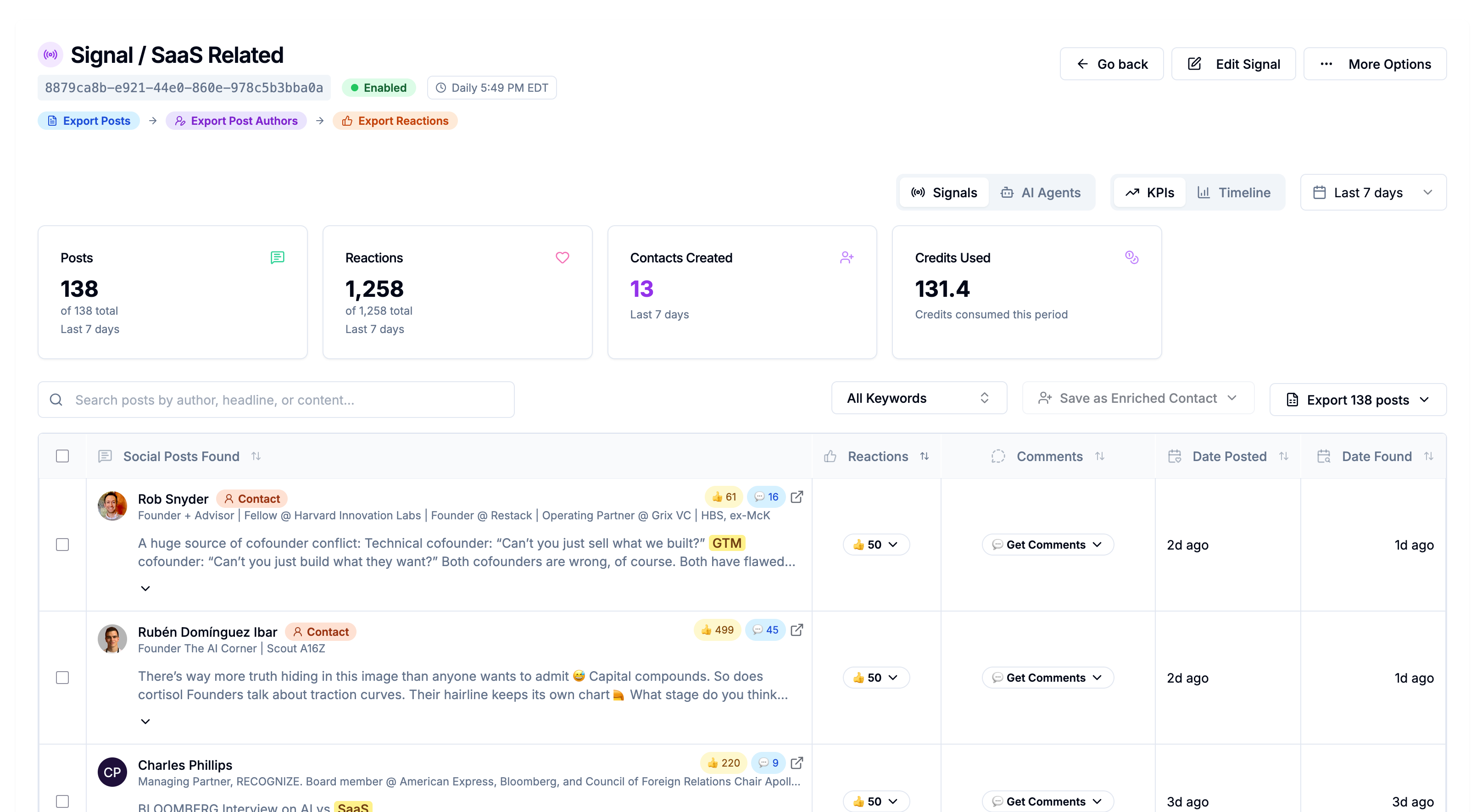
The results table
Each row represents one post. You can see:
The author's name, photo, and headline
A preview of the post text
How many reactions and comments the post received
When it was posted and when your Signal found it
Icons showing which integrations have processed this post
Click anywhere on a row to open the full post detail — including the complete post text, a list of people who reacted, and all comments.
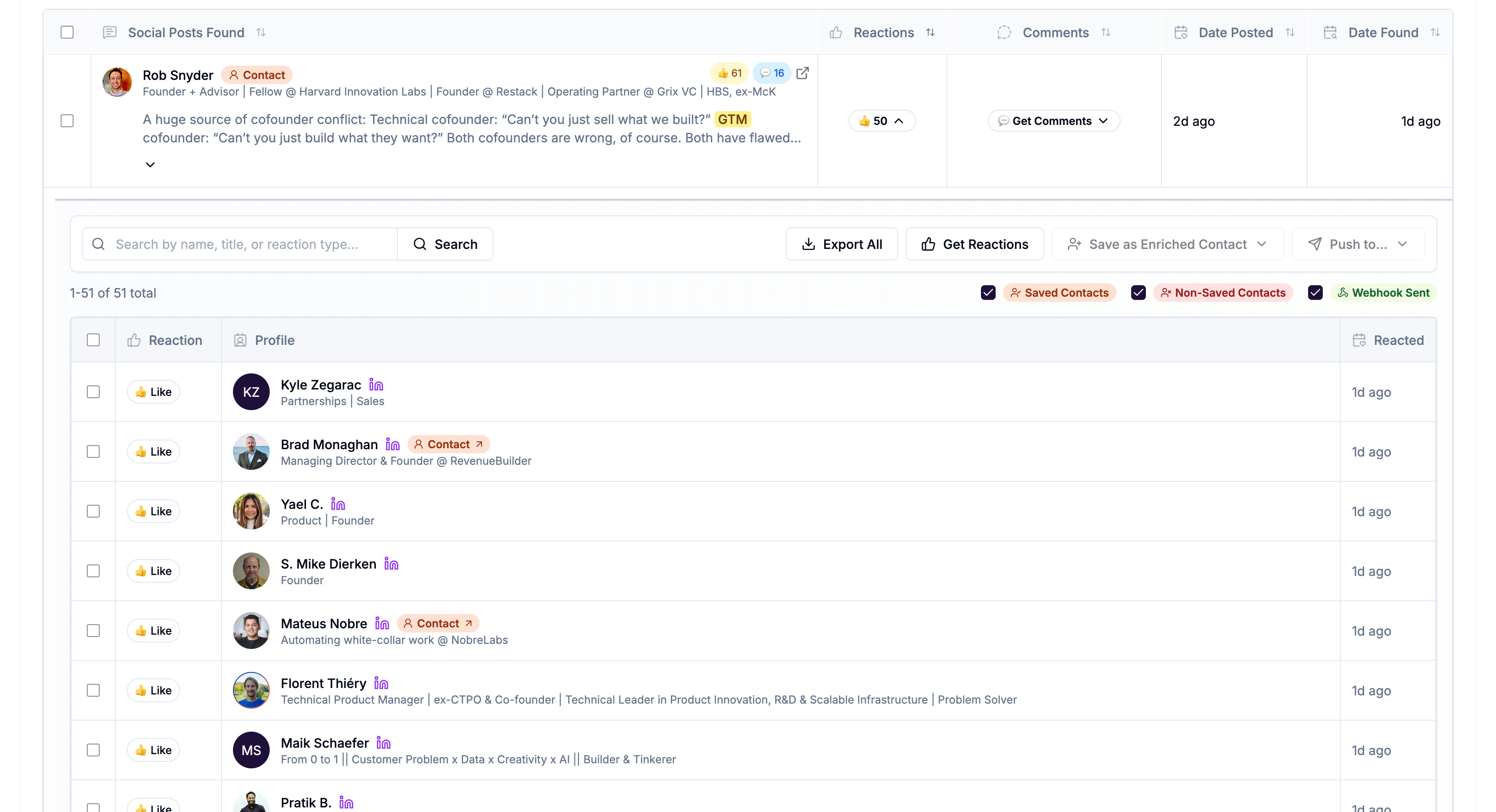
Filtering and searching
Use the tools above the table to narrow down results:
Search bar — type a name, keyword, company, or phrase to filter posts instantly
Target filter — on multi-target Signals, show results from one specific target at a time
Include / Exclude keywords — further refine keyword Signals to surface or hide specific topics
Click any column header to sort by that column. The most useful sorts are by Reactions (to find high-engagement posts) and by Posted date (to see the freshest content first).
Taking action on results
The toolbar above the table has several action buttons:
Export — download posts, reactions, or comments as a CSV or Excel file
Get Reactions or Get Comments — allows you to manually check and request new or additional engagement (reactions or comments) at any time.
Enrich authors, reactions or comments — Select one or many rows from Posts, reactions or comments — and capture full personal and company insights (65+ fields) and find verified work emails and mobile phone numbers.
Delete posts — remove selected posts from your results (does not affect LinkedIn)
💡 Tip: Select multiple rows using the checkboxes on the left, then use the toolbar to take bulk action on all of them at once.