Edit an existing Signal
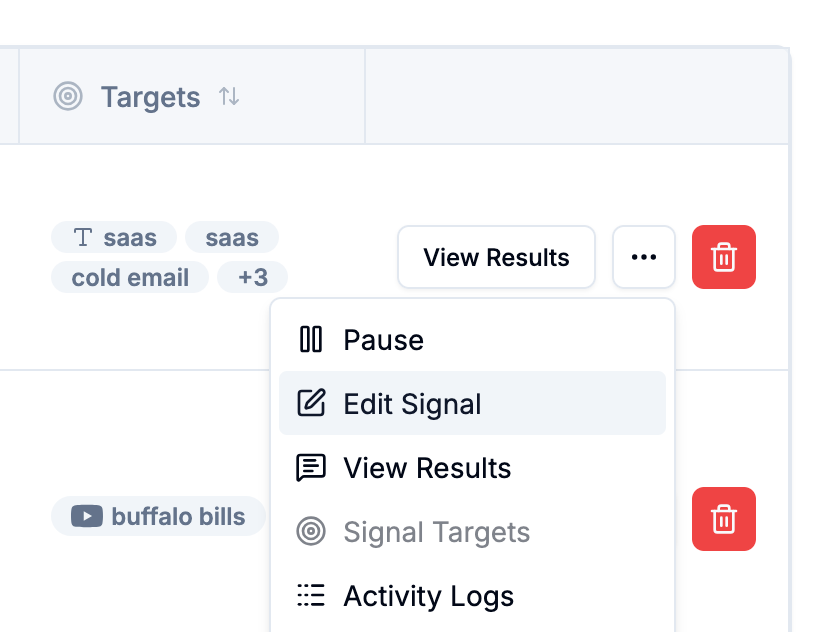
You can edit any Signal at any time. Changes take effect on the next run. Opening the edit panel is a two-click process from the Signals list.
Written By Kevin Lawrie
Last updated 6 months ago
How to open the editor
Go to Signals in the left sidebar.
Find the Signal you want to change.
Click the actions menu (⋮) at the right of the row.
Select Edit.
The same wizard you used to create the Signal opens, pre-filled with its current settings. Work through the tabs to make your changes.
💡 Tip: You can jump directly to any step using the tabs at the top of the wizard — you do not need to click through every step to reach the one you want to change.
What you can change
Signal name
Targets (add or remove LinkedIn profiles and pages)
Keywords, hashtags, or search terms
Lookback period and post limits
Whether to capture reactions, comments, and authors
Integrations (Slack, email, CRM, webhooks)
Schedule (frequency, day, time, timezone)
Saving your changes
After making your changes, navigate to the Review step and click Save to apply them. If you close the panel without saving, no changes are made.
⚠️ Note: Editing a Signal does not trigger a re-run. Your changes will apply the next time the Signal runs on its schedule — or immediately if you use Run Now after saving.