Connecting an LLM provider (BYOK)
AI Agents run on your own LLM account — you bring your own API key. This gives you full control over which models you use, how much you spend, and which provider you trust with your data. You must connect at least one provider before you can create or run AI Agents.
Written By Kevin Lawrie
Last updated 6 months ago
Why bring your own key?
Most AI platforms bundle LLM costs into their pricing and give you limited or no control over the underlying model. We do it differently.
BYOK — bring your own key — means:
You choose the model. Run GPT-4o for nuanced analysis, a smaller model for high-volume classification, Claude for specific tasks — mix and match across different agents based on what each one needs.
You control your spend. Your LLM costs go directly to your provider. You see exactly what each model costs, and you can set spend limits directly in your provider account.
You own the relationship. Your data goes to the provider you've chosen under your own account terms — not routed through a third party's API key.
Platform cost is flat and minimal. We charge -0.1 credits per agent job regardless of which provider or model you use. That covers the job execution — the LLM cost is separate and goes directly to your provider.
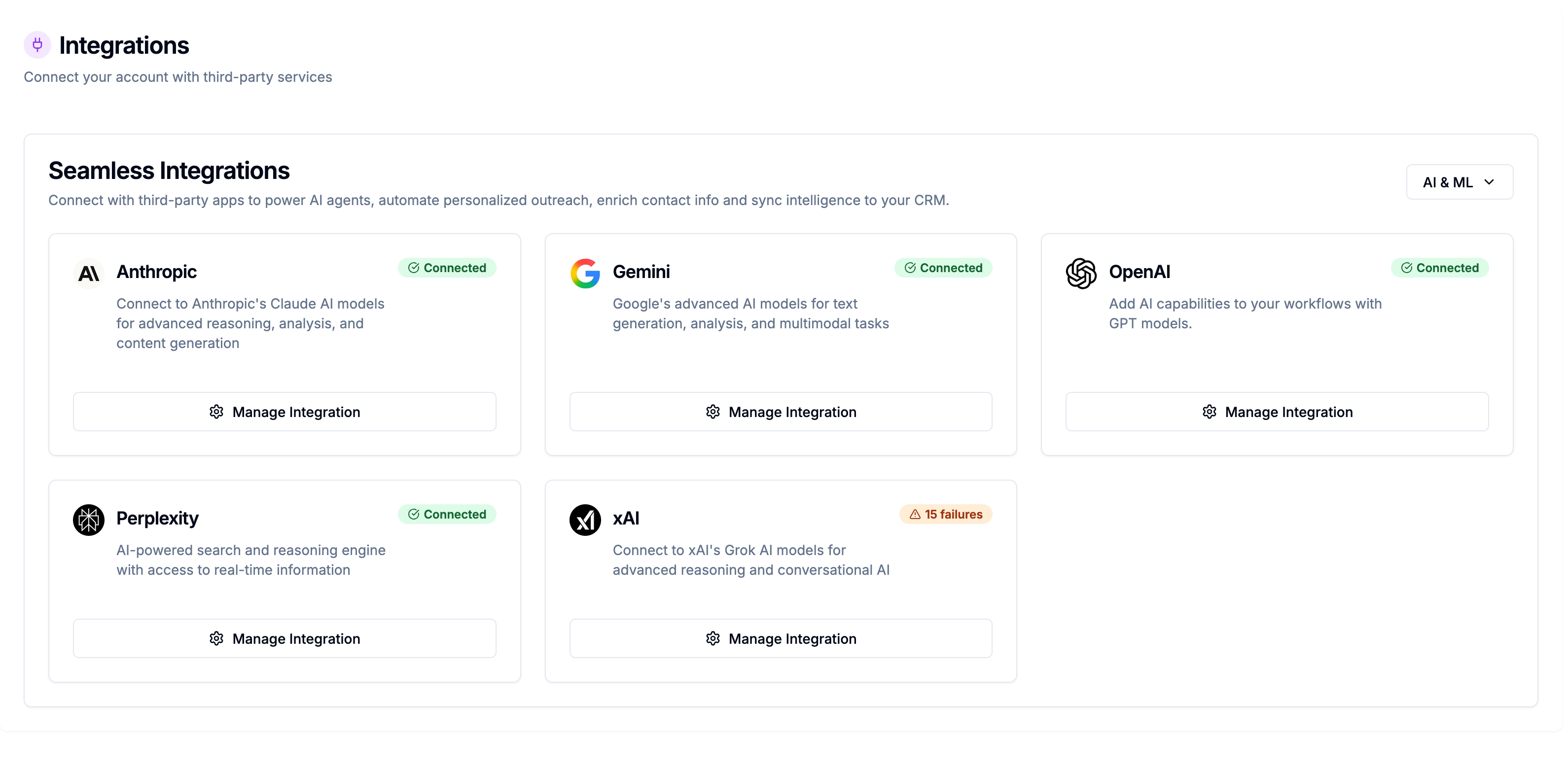
Supported providers
You can connect multiple providers and assign different providers to different agents.
How to connect a provider
Go to Integrations in the left sidebar.
Filter by AI & ML using the category dropdown (or scroll to find the provider).
Click Configure on the provider card.
The integration sheet opens. Click Log in if prompted.
Enter your API key in the input field.
Click Save (or Save & Test) to store the key and verify the connection.
When connected, the status badge changes to Connected and available models are shown.
Where to find your API key
API keys are sensitive credentials — treat them like passwords. Never share them or paste them into documents or messages.
Choosing a provider and model
You don't need to connect all five providers. Start with one you already use or have an account with. Here's a practical starting point:
For most users: OpenAI or Anthropic cover the full range of use cases — strong classification models at lower cost tiers, more capable models for nuanced analysis and generation.
For high-volume classification agents (ICP filtering, intent detection on posts and comments): Choose a fast, low-cost model. You may be running thousands of jobs per Signal run — model cost per token adds up.
For generative agents (cold email openers, video summaries, ICP scoring with reasoning): Choose a more capable model where output quality matters more than cost per call.
💡 Tip: You can assign different providers and models to different agents. A simple TRUE/FALSE classifier doesn't need the same model as an agent writing personalised outreach copy.
Managing connected providers
From the Integrations page, you can:
View connection status — Connected, Disconnected, or Error
Update your API key — click Configure on a connected provider and enter a new key
Disconnect a provider — removes the integration. Any agents using that provider will show a warning until reassigned to a different provider.
If a provider is disconnected or encounters an error, agents assigned to it will display a warning banner in the AI Agent wizard. Click Fix Integration to go directly to that provider's configuration.
Checking provider status in the AI Agent wizard
When building or editing an AI Agent, the Build step shows only providers that are currently connected. If a provider you want to use isn't appearing in the dropdown, go back to Integrations and check its connection status.
If you see "No LLM integrations are connected", no providers have been set up yet. Click Go to Integrations in the banner to connect one before continuing.