Running AI Agents on contacts manually
You can run any contact-targeting AI Agent against a selection of existing contacts directly from the Contacts manager — without waiting for a Signal to run.
Written By Kevin Lawrie
Last updated 6 months ago
When to use this
Running agents manually on contacts is useful when:
You have a backlog of contacts that were enriched before you built an agent
You want to test a new agent on a small batch before assigning it to a Signal
You need to re-run an agent after updating its prompt
You want to apply an agent to contacts from multiple Signals at once
How to run an agent manually
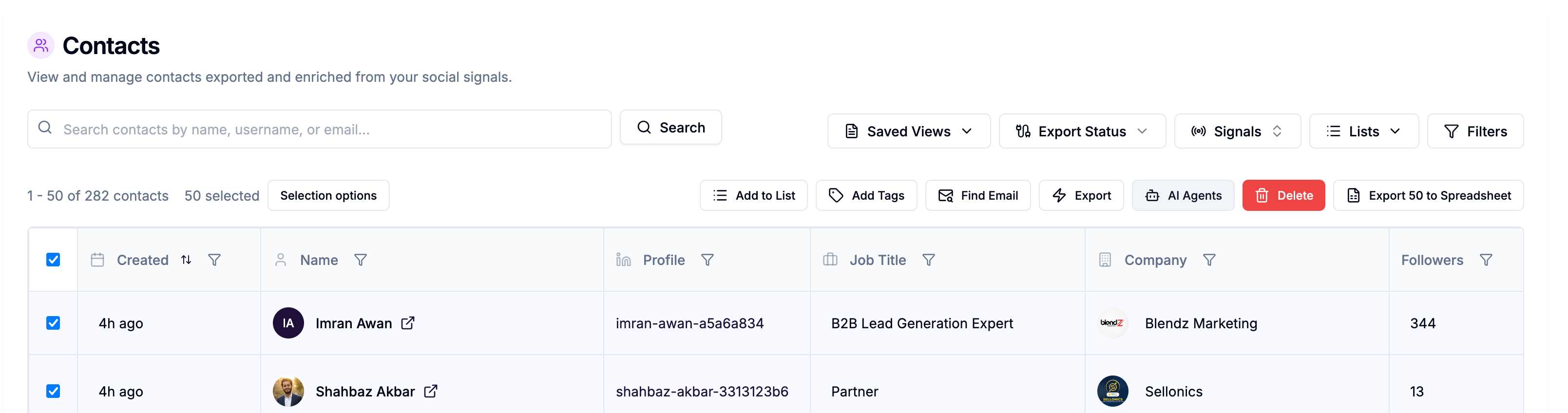
Go to Contacts in the left sidebar.
Apply filters to narrow down to the contacts you want to process (by Signal, List, tag, job title, etc.).
Select contacts using the checkboxes — or use Select all (up to 1,000) to select all contacts matching your current filters.
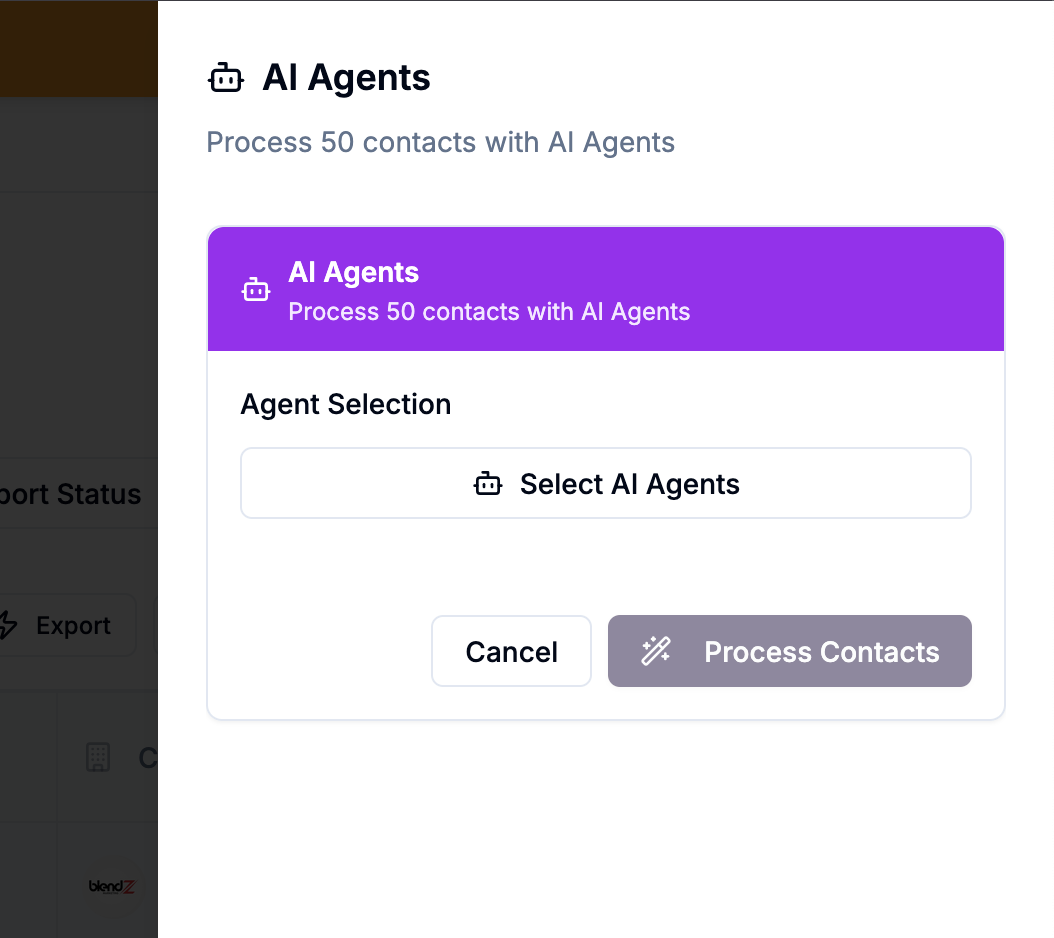
Click AI Agents in the action bar.
Select the agent(s) you want to run from the modal.
Click Done to start processing.
Only agents with a Contacts data target appear in this modal.
What happens during processing
The agent processes each selected contact in sequence, sending each profile through your prompt and executing any triggered actions. Processing time depends on the number of contacts and the model you're using.
Results appear on each contact's AI Agents tab in their profile sheet — showing the prompt used, the model's response, the timestamp, and the status.
If an action was triggered (tag applied, property updated, added to campaign), that will also be visible in the contact's Integrations tab.
Checking results
After the run completes:
Tags applied by the agent appear in the Tags column of the contacts table
Custom property updates are visible in the contact profile
Campaign enrollments are visible in the Integrations tab of each contact
Failed jobs can be retried from the AI Agents list → Retry Failed Jobs
💡 Tip: Before running a new agent on a large batch of contacts, test it on 5–10 contacts first. Check the AI Agents tab on those contacts to see the raw output and confirm it matches what your conditional rules expect.