Using tags to organise contacts
Tags are labels you assign to contacts to categorise, segment, and filter them. They're flexible by design — you can use them however makes sense for your workflow.
Written By Kevin Lawrie
Last updated 6 months ago
What tags are for
Tags give you a freeform way to organise contacts that goes beyond the structured data fields (job title, company, signal source, etc.). Common uses include:
Marking contacts by ICP tier ("Tier 1", "Tier 2")
Flagging contacts for a specific campaign or initiative ("Q2 Outreach", "Event Follow-up")
Recording a status or outcome ("Replied", "Not a Fit", "Follow Up")
Categorising by topic or interest area ("AI Interested", "Hiring Now")
AI Agent outputs — agents can automatically apply tags based on their analysis (e.g. "Positive Sentiment", "ICP Match")
Adding tags to contacts
Adding tags to individual contacts
Open the contact's profile sheet and find the Tags field in the header area. Click to add or remove tags.
Adding tags in bulk
Select one or more contacts in the table using the checkboxes.
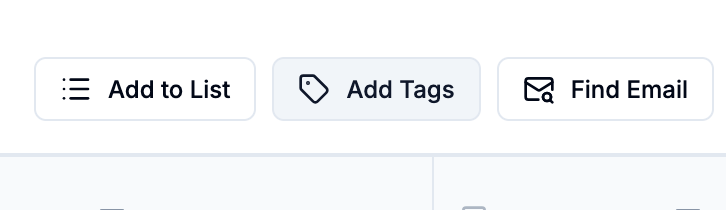
Click Add Tags in the action bar.
Select the tags you want to apply from the multi-select dropdown.
Click Assign to apply them to all selected contacts.
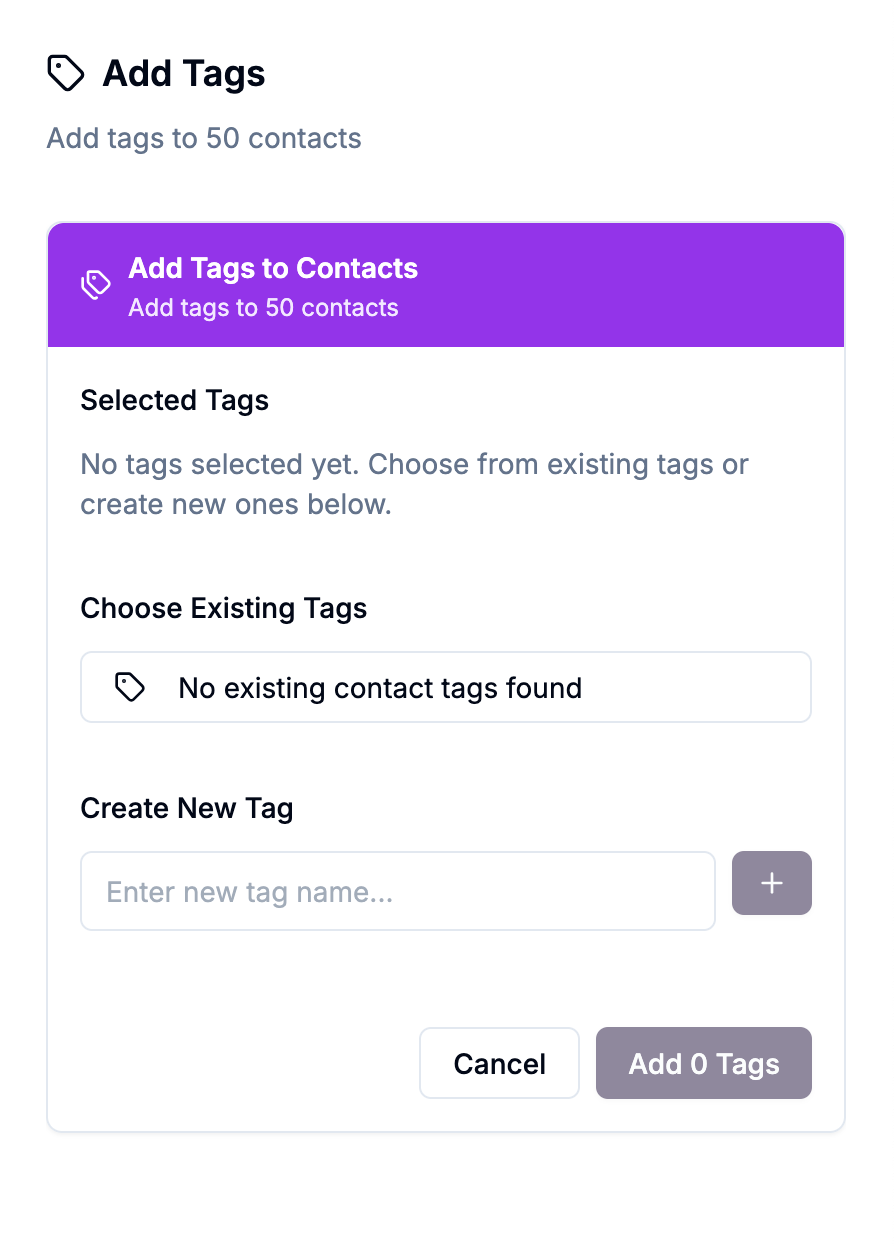
You can select up to 1,000 contacts at a time for bulk tagging.
Filtering by tags
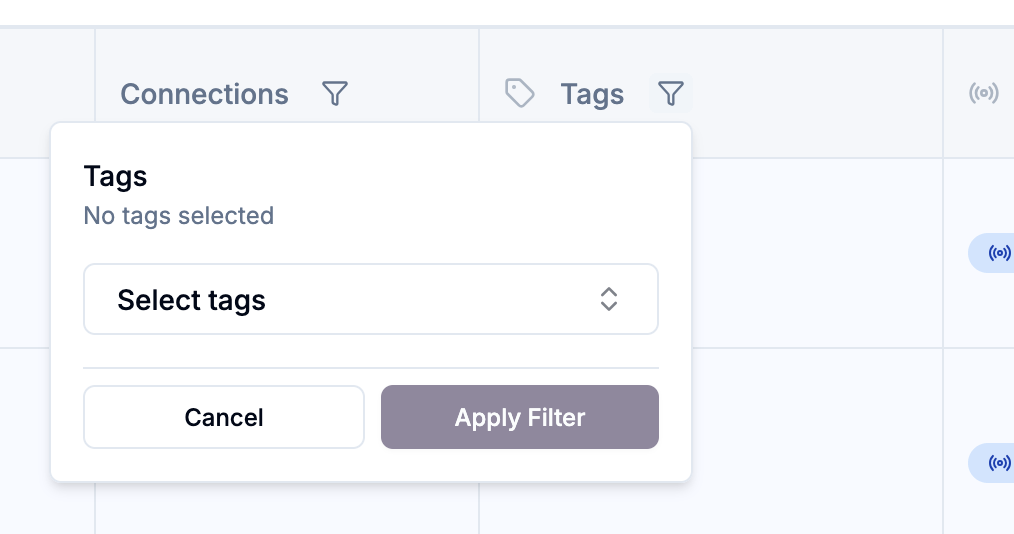
Tags appear as a column in the contacts table. To filter by one or more tags:
Click the filter icon in the Tags column header for a quick inline filter
Or open the Filters sheet and use the Tag Filter for multi-select filtering combined with other conditions
Tags applied by AI Agents
If you have AI Agents configured with a Create Tag from AI Output action, tags can be applied automatically as Signals run. For example, an agent that scores contacts by ICP fit might apply a "Strong ICP" or "Weak ICP" tag without any manual work.
These auto-applied tags appear in the contact record and are fully filterable — meaning you can build a Saved View of all contacts tagged "Strong ICP" and action them in bulk.
💡 Tip: Combining AI Agent auto-tagging with a Saved View is a powerful workflow. Set the agent running on a Signal, let it tag contacts over time, and return to a pre-filtered view of only the contacts worth actioning.