Exporting contacts to a spreadsheet
Export any selection of contacts — or your entire filtered contact list — to a CSV file. You choose exactly which fields to include from the full set of 65+ enrichment fields.
Written By Kevin Lawrie
Last updated 6 months ago
How to export
To export selected contacts:
Select one or more contacts using the checkboxes.
Click Export to Spreadsheet in the top right.
Choose your fields.
Click Export to CSV.
To export all contacts matching your current filters:
Apply any filters you want (or none, to export everything).
Make sure no contacts are individually selected.
Click Export to Spreadsheet.
Choose your fields and export.

Choosing which fields to include
The export dialog lets you select exactly which data fields to include in the CSV. Fields are organised into groups — check or uncheck entire groups, or toggle individual fields within them.
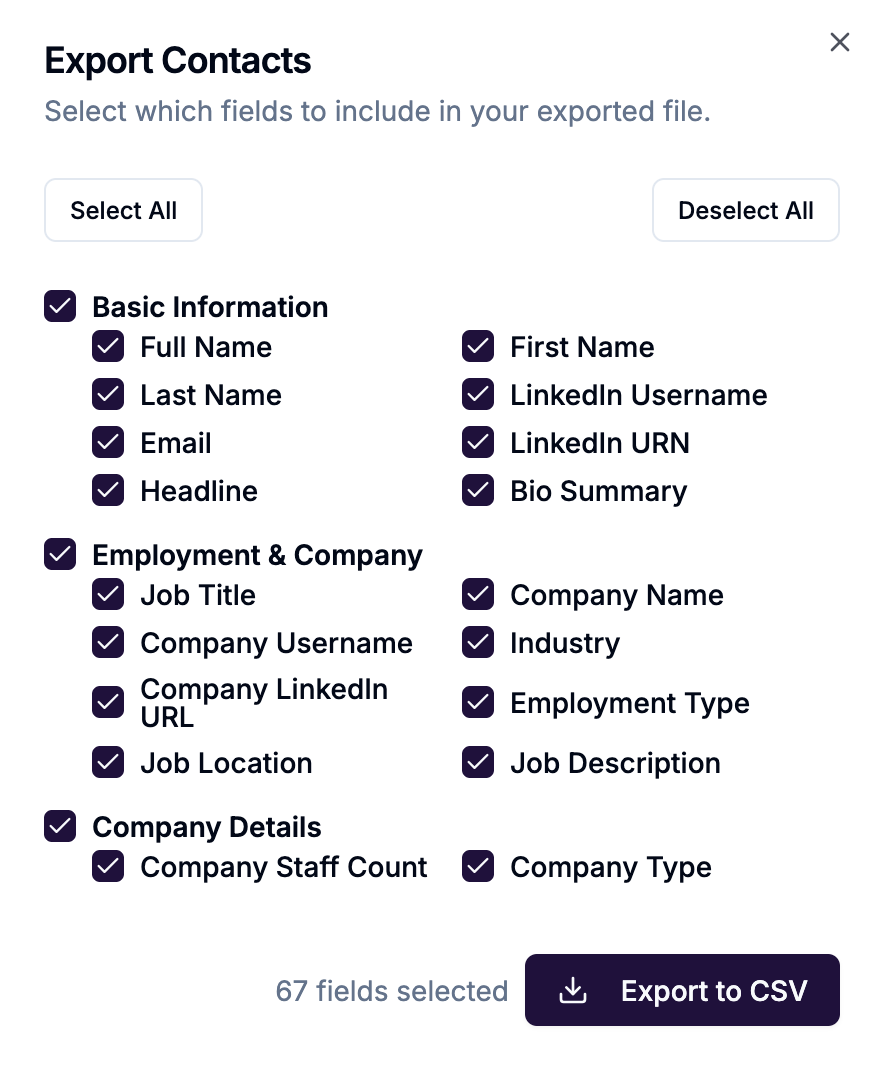
Use Select All or Deselect All to quickly toggle the full field set.
Default fields
If you export without changing any selections, the default field set includes:
Full name, first name, last name, email, company name, website, company LinkedIn URL, job title, location, username, headline, bio summary, country, city, email status, school, degree, field of study, company industry, job description, employment type, and notes.
This covers the most commonly needed fields for CRM import, outreach personalisation, and prospecting workflows.
Tips for large exports
Apply filters before exporting to get a focused dataset rather than your entire contact base
The export respects your current filters — what you see in the table is what gets exported
For very large exports, consider filtering by Signal, List, or date range to export in manageable segments
⚠️ Note: The spreadsheet export is for your own use — saving data, importing to tools that aren't directly integrated, or sharing with your team. For pushing contacts directly into CRM or outreach tools, use the Export button and choose your integration destination instead.