Taking bulk actions on contacts
Select any number of contacts and act on all of them at once — add to lists, apply tags, find emails, push to integrations, run AI Agents, or delete. Bulk actions work on up to 1,000 contacts at a time - and 150 at a time for Integration push requests.
Written By Kevin Lawrie
Last updated 6 months ago
Selecting contacts
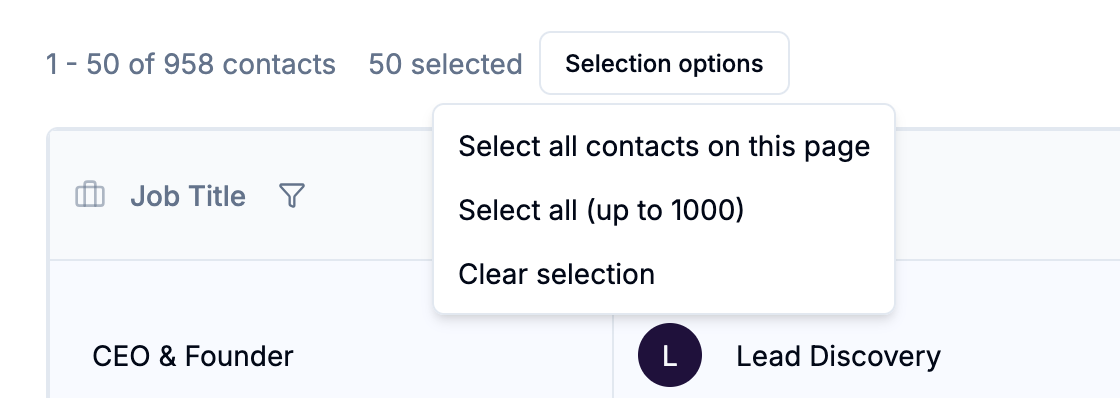
Use the checkboxes on the left of each row to select individual contacts. For larger selections, use the dropdown next to the checkbox in the column header:
Select all contacts on this page — selects every visible row
Select all (up to 1,000) — selects all contacts matching your current filters, up to the 1,000 contact limit
Clear selection — deselects everything
Once contacts are selected, the action bar at the top activates.

Add to List
Adds all selected contacts to a named List.
Select contacts.
Click Add to List in the action bar.
Choose an existing list from the dropdown, or select Create New List and enter a name.
Lists are useful for grouping contacts by campaign, source, ICP tier, or any other criteria. Once in a list, contacts can be filtered, exported, or actioned as a group.
Add Tags
Applies one or more tags to all selected contacts at once.
Select contacts.
Click Add Tags in the action bar.
Select the tags to apply from the multi-select dropdown.
Click Assign.
Tags are applied to all selected contacts simultaneously. Existing tags on those contacts are not removed.
Find Email
Runs the waterfall email finder on selected contacts that don't yet have a verified email address.
Select contacts.
Click Find Email in the action bar.
Configure your provider sequence (or use the default order).
Click Start Finding Emails.
The finder works through your configured providers in sequence until a verified email is found for each contact. Contacts missing a first name, last name, or website domain are skipped automatically.
Cost: -1 credit per verified email found. No charge if no email is found.
A progress bar shows results in real time. You can cancel mid-run. See the dedicated [Email Finder article] for full details on provider configuration.
AI Agents
Runs one or more AI Agents against all selected contacts.
Select contacts.
Click AI Agents in the action bar.
Select the agent(s) to run from the modal.
Click Done to start processing.
Only agents configured to target Contacts are available here. Agents run once across all selected contacts. Results — tags applied, fields updated, actions triggered — appear in each contact's AI Agents tab.
Delete
Removes selected contacts from your account.
Select contacts.
Click Delete in the action bar (shown in red).
Confirm the deletion in the dialog.
⚠️ Note: Deletion is a soft delete — contacts are removed from your view but the underlying data is retained internally. If the same person is enriched again by a Signal in future, a new contact record will be created.
Export (push to integrations)
Pushes selected contacts to a connected CRM, outreach platform, or webhook. This is covered in detail in the next article — [Pushing contacts to CRM and outreach tools].