The Contacts manager — an overview
The Contacts manager is your centralised database of every person enriched from your Signals. It brings together contacts from across all your Signals into one searchable, filterable, and actionable view.
Written By Kevin Lawrie
Last updated 6 months ago
What is a contact?
A contact is an enriched profile record created when your Signal captures a post author, a reactor, or a commenter and saves them through the enrichment process. Each contact contains 65+ data fields pulled from their LinkedIn profile and company page — name, job title, company, location, follower count, education, funding data, and more.
Contacts are not manually created. They are generated automatically by your Signals based on the capture settings you configure.
How contacts get here
Every contact in the manager was enriched by at least one Signal. The path looks like this:
A Signal runs and collects posts
Based on your configure settings, it captures authors, reactors, or commenters
Those people pass your pre-enrichment filters (job title, employee filter, etc.)
They are enriched into contact records at -2 credits each
They appear here in the Contacts manager
From this point, a contact belongs to your account permanently — not just to the Signal that created them.
Contacts stack across Signals
This is one of the most important things to understand about the Contacts manager.
The same person can appear in multiple Signals — reacting to a post in one Signal, commenting in another, getting picked up as a post author in a third. Rather than creating duplicate records, the platform stacks all of that activity onto a single contact record.
The result is a unified view of everything that person has done across all your Signals and all their behaviours. A contact showing 3 signals in the table hasn't just been seen once — they've shown up repeatedly across different monitoring contexts. That's a much stronger signal of relevance than a one-time appearance.

The UI layout
The Contacts manager has three main areas:
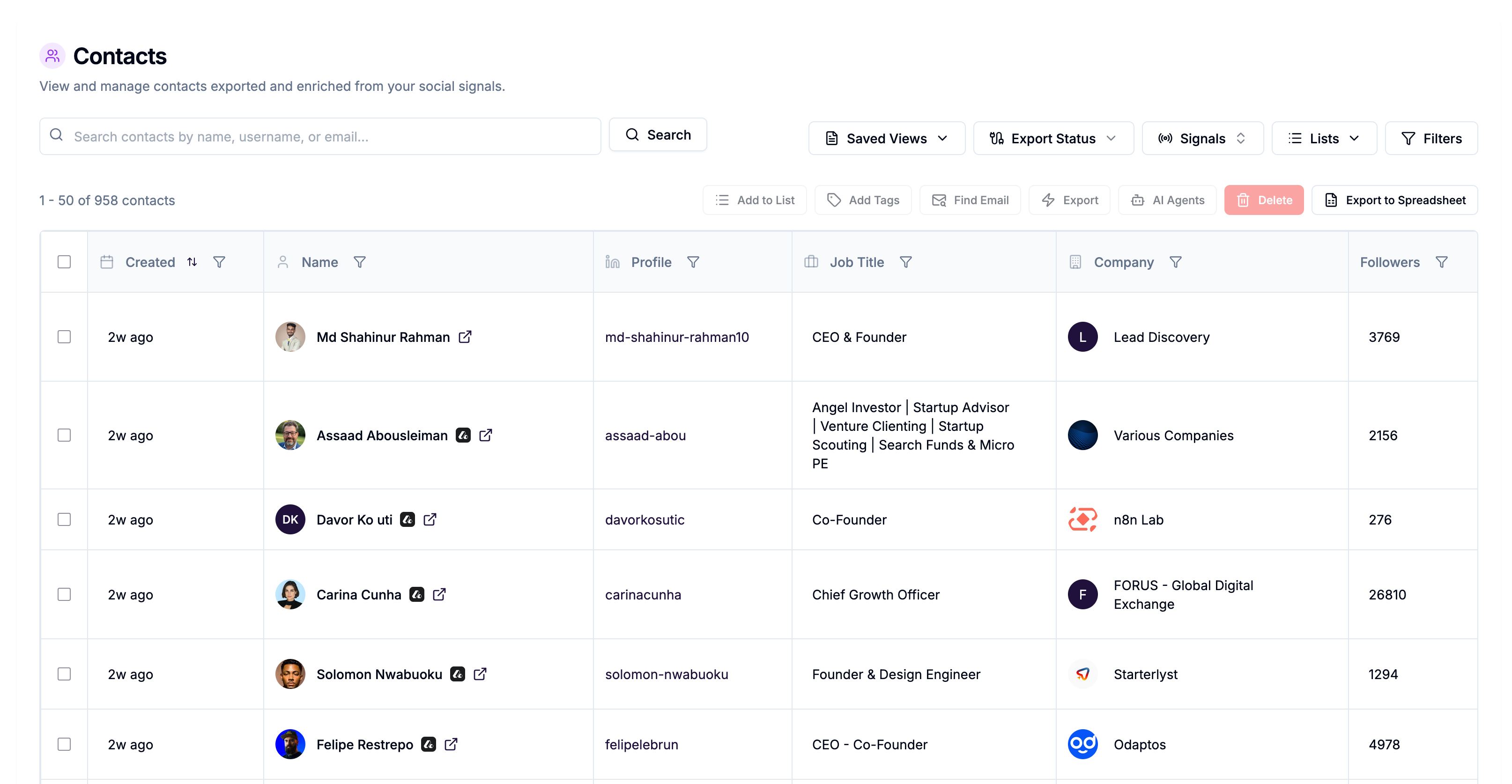
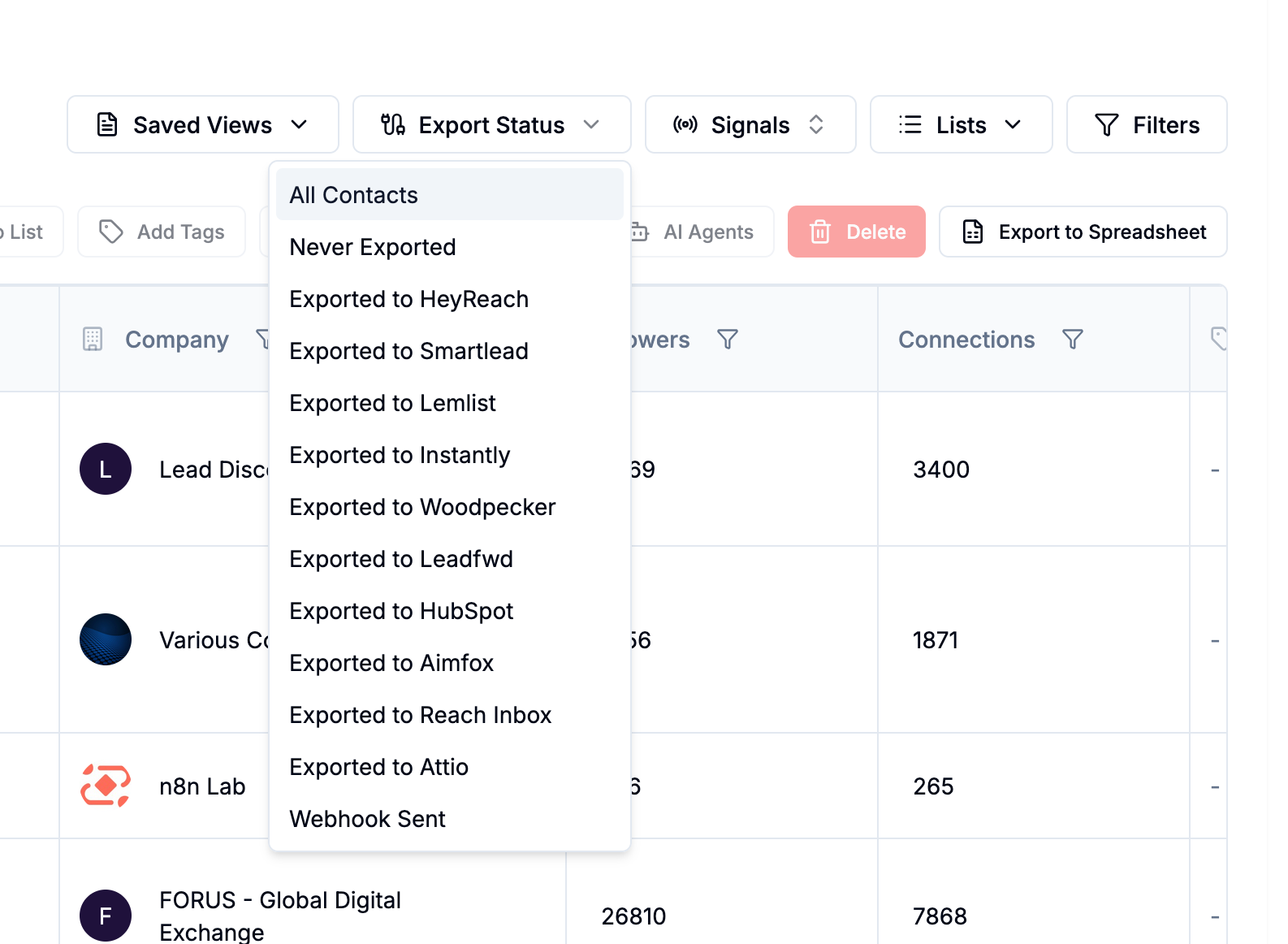
Top bar — search and quick filters Search by name, username, or email. Quick filter buttons for Saved Views, Export Status, Signals, and Lists sit to the right.
Action bar — bulk actions Add to List, Add Tags, Find Email, Export, AI Agents, Delete, and Export to Spreadsheet. These activate when you select one or more contacts.
Contact table The main list of contacts with columns for Created, Name, Profile, Job Title, Company, Followers, Connections, Tags, Signals, and Source. Sortable by Created date (newest first by default).
Scale and pagination
The Contacts manager is built to handle large volumes. Page size options are 10, 25, 50, or 100 contacts per page. Bulk operations support up to 1,000 contacts at a time.
When no contacts are selected, Export to Spreadsheet exports all contacts matching your current filters. When contacts are selected, it exports only those.
Getting to the Contacts manager
Click Contacts in the left sidebar. The manager opens showing all contacts across your entire account, sorted by most recently created.