Searching and filtering your contacts
The Contacts manager has several layers of filtering — from a simple search bar to granular field-level conditions. This article covers all of them so you can always find exactly the contacts you need.
Written By Kevin Lawrie
Last updated 6 months ago
Search bar
The search bar at the top left searches across contact name, username, and email address. Type and press Search (or Enter) to filter the table instantly.
Use this for quick lookups when you know who you're looking for. For broader filtering by role, company, or behaviour, use the filter options below.
Quick filters (top bar)
Four quick filter buttons sit in the top right area of the manager. They're the fastest way to slice your contacts by common criteria.
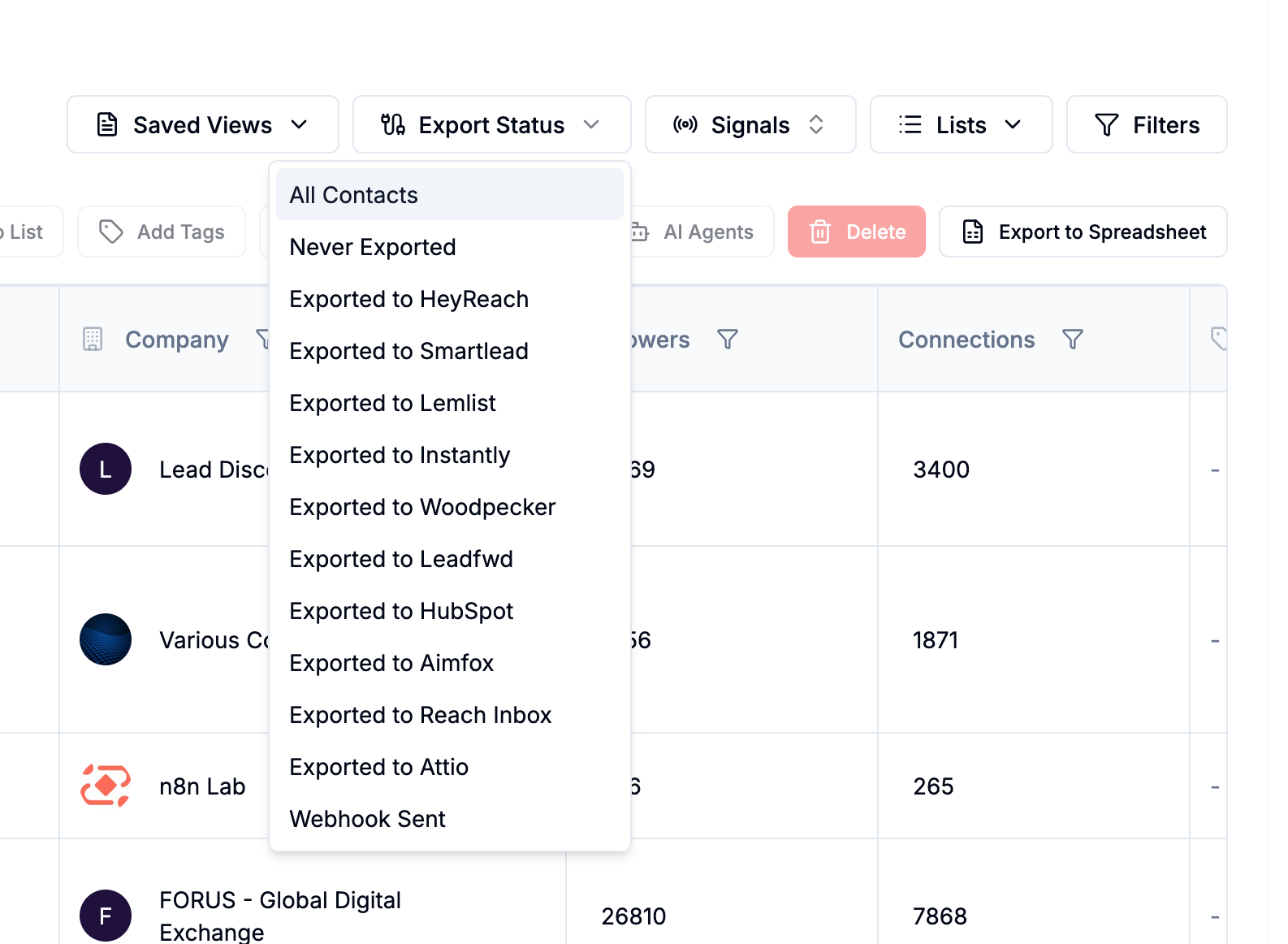
Saved Views
Apply a previously saved filter configuration with one click. Saved Views let you store any combination of filters as a named preset — useful for recurring workflows like "leads not yet exported" or "founders from keyword signals this month."
Export Status
Filter by whether contacts have been pushed to a specific integration:
Never Exported — contacts not yet sent anywhere
Per-integration options: HubSpot, Attio, HeyReach, Smartlead, Lemlist, Instantly, Woodpecker, Leadfwd, Aimfox, Reach Inbox, Webhook Sent
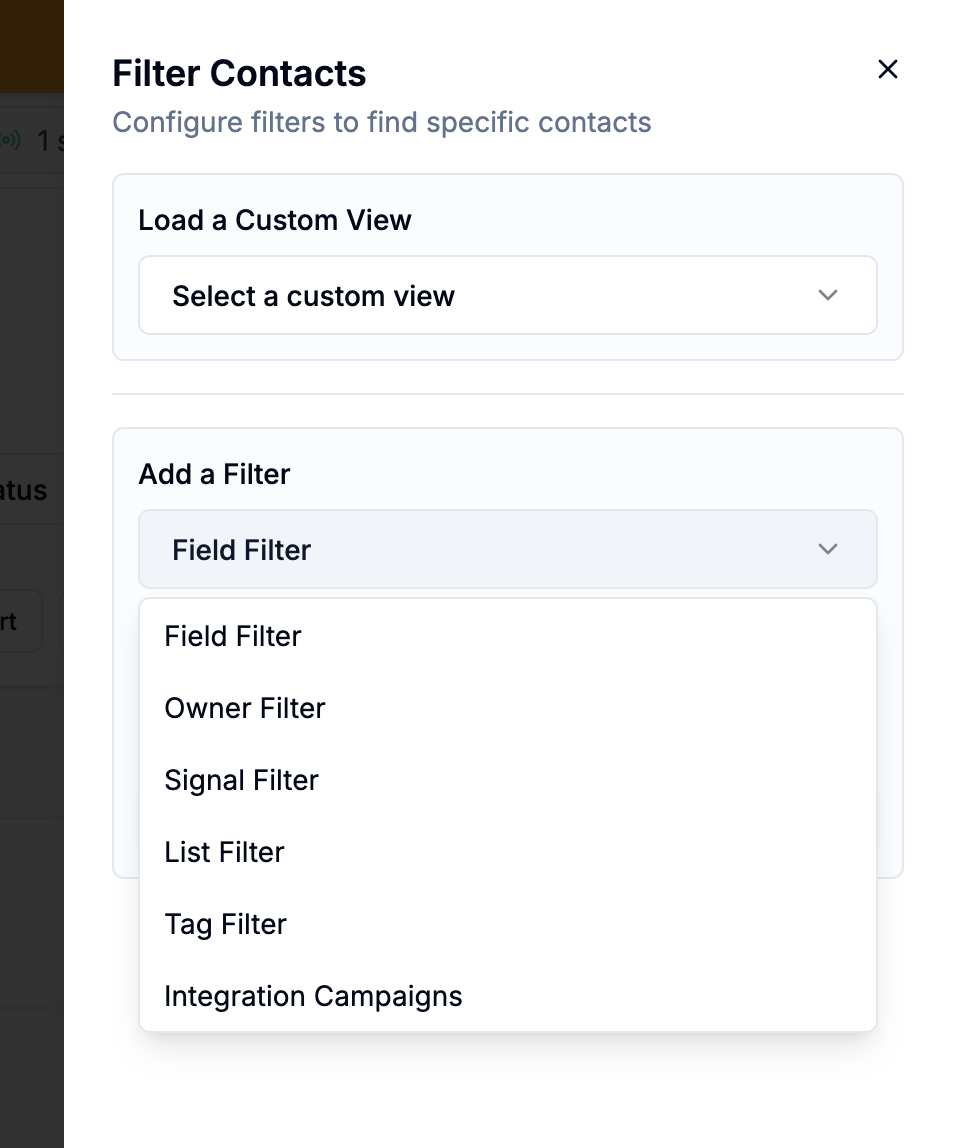
💡 Tip: "Never Exported" is one of the most useful quick filters — it shows you contacts sitting in your account that haven't been actioned yet.
Signals
Filter contacts to show only those who appeared in one or more specific Signals. Multi-select to combine Signals.
Lists
Filter contacts to show only those belonging to a specific List.
The Filter sheet
Click the Filters button (top right) to open the full filter sheet. This gives you access to every filter type available.
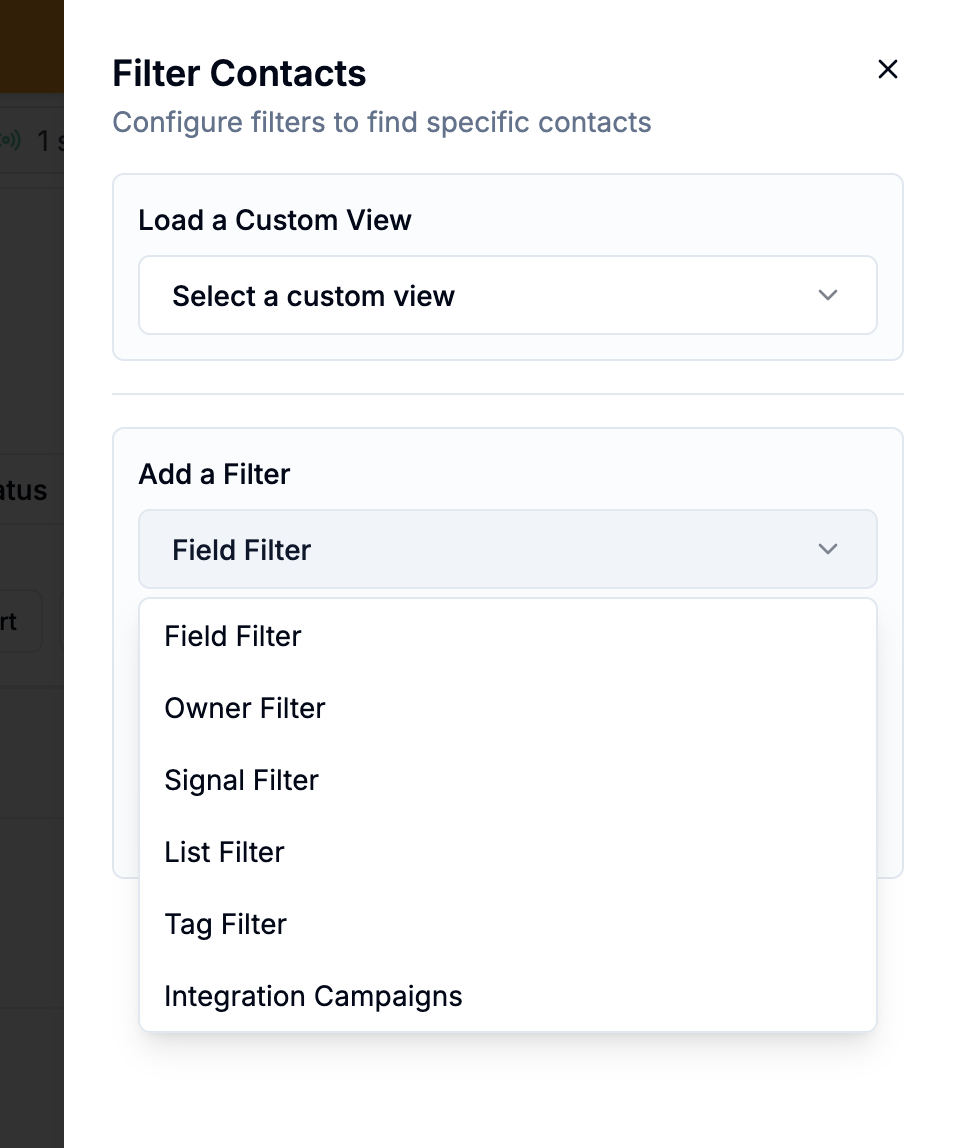
Field Filter
Filter by any contact data field — name, email, job title, company, location, followers, connections, email status, school, degree, and more. Also supports custom properties written by AI Agents.
Each condition has three parts:
Field — what you're filtering on
Operator — how to match (contains, does not contain, equals, is provided, is not provided, is greater than, is less than)
Value — what to match against
You can add up to 5 conditions per column. Multiple conditions on the same field are combined with OR logic.
Common use cases:
Job title contains "vp" or "director" — find senior contacts
Email status equals "verified" — find contacts ready for outreach
Followers is greater than 10000 — find high-reach contacts
Company industry contains "software" — filter by sector
Created at is after [date] — find recently enriched contacts
Owner Filter
Filter contacts by which team member is assigned as their owner. Multi-select to see contacts owned by multiple people.
Signal Filter
Filter by one or more Signals — the same as the quick filter but accessible from within the filter sheet for combining with other conditions.
List Filter
Filter by List membership — contacts belonging to one or more of your named Lists.
Tag Filter
Filter by one or more tags assigned to contacts. Multi-select.
Engagement Filter
Filter by how much engagement a contact generated within your Signals:
Reactions count — how many times they liked posts in your Signals
Comments count — how many times they commented
Use operators: equals, does not equal, is greater than, is less than, is provided, is not provided.
Example: Reactions count is greater than 5 — find people who have liked posts in your Signals more than five times. High repeat engagement is a strong indicator of relevance.
Integration Campaigns Filter
Filter by whether a contact has been added to a specific campaign or sequence in a connected integration. Select the integration, then the specific campaign or sequence.
Column filters (inline)
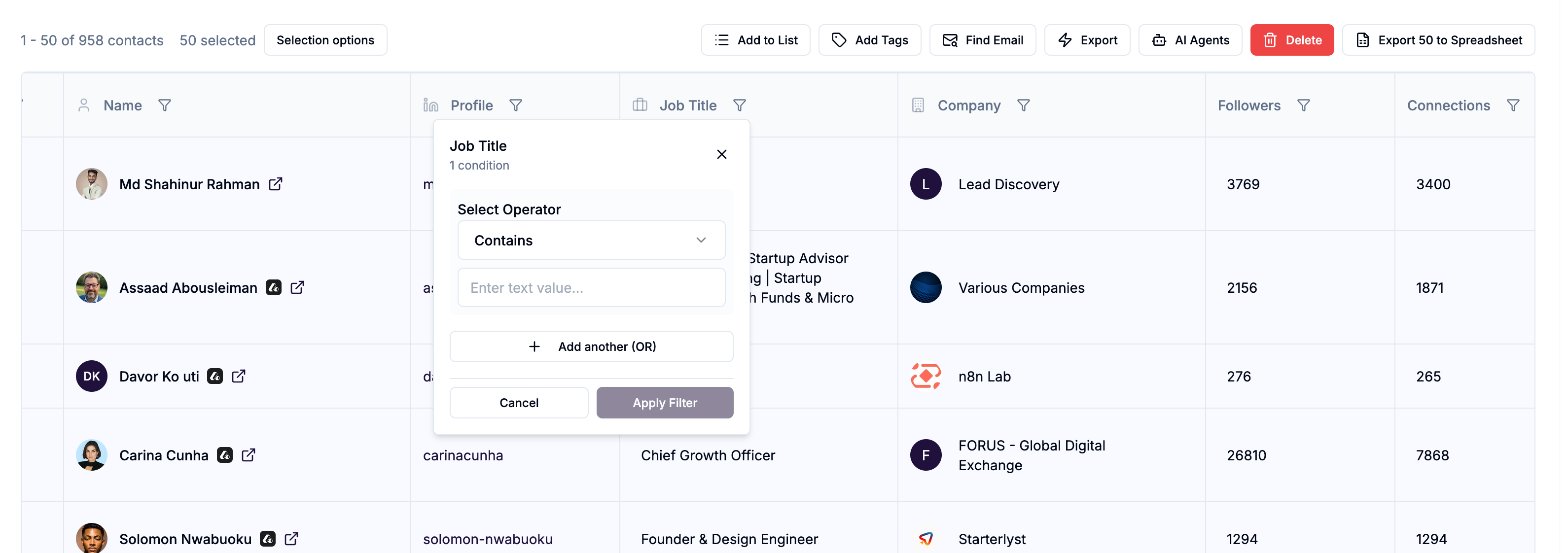
Most columns in the table have a filter icon in the header. Click it to open a quick filter popover for that column specifically — without opening the full filter sheet.
Useful for fast, single-column filtering while browsing the table.
Saving a view
Once you've set up a filter combination you'll use regularly, save it as a Saved View:
Configure your filters.
Click Saved Views in the top bar.
Select Save View and give it a name.
The view appears in your Saved Views list and can be applied instantly in future sessions.
Clearing filters
Click Clear Filters to reset all active filters and return to the full unfiltered contact list.