Pushing contacts to CRM and outreach tools
Once contacts are enriched, you can push them to any connected CRM or outreach platform directly from the Contacts manager. This works on selected contacts in bulk — up to 1,000 at a time.
Written By Kevin Lawrie
Last updated 6 months ago
How it works
Select one or more contacts using the checkboxes.
Click Export in the action bar.
Choose your destination from the dropdown.
Confirm and send.
The platform pushes the selected contacts to the chosen destination with their full enriched data. Each destination has its own batch limit (see below).
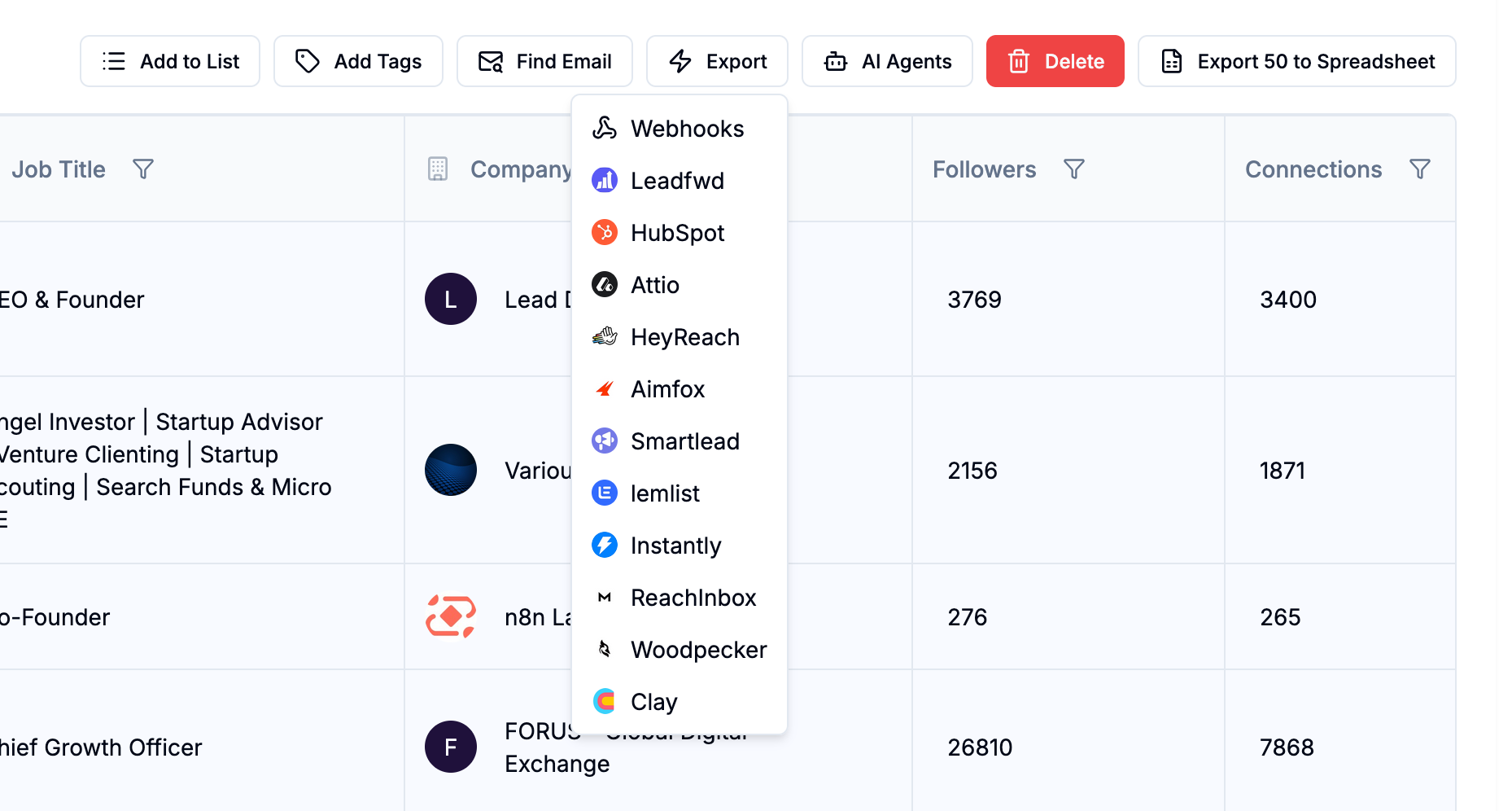
Available destinations
For destinations with a 150-contact batch limit, only the first 150 selected contacts will be sent per push. If you need to push more, filter your selection and push in batches.
Integration must be connected first
Destinations only appear in the Export dropdown if the integration is already connected in your account. If a destination you need isn't showing, go to Integrations in the left sidebar to connect it first.
Avoiding duplicate exports
The Export Status quick filter (top bar) lets you filter contacts by whether they've already been sent to a specific integration. Use Never Exported to find contacts that haven't been actioned yet, or filter by a specific integration to see who's already been pushed there.
This prevents accidentally pushing the same contact to the same destination twice.
💡 Tip: Build a Saved View combining "Never Exported" with your ICP filters — for example, never exported + job title contains "vp" + verified email. This gives you a ready-to-action list of your best contacts that haven't been pushed anywhere yet.
Automatic pushing via Signal integrations
Bulk pushing from the Contacts manager is a manual workflow. If you want contacts pushed to a CRM or sequence automatically as soon as they're enriched by a Signal, configure that in the Integrations step of the Signal wizard instead. Automatic pushing happens per-Signal and doesn't require manual selection.