Managing your team — inviting members and setting permissions
Add team members, assign roles, and control exactly what each person can access — from which contacts they can see to which integrations they can configure.
Written By Kevin Lawrie
Last updated 6 months ago
Inviting a team member
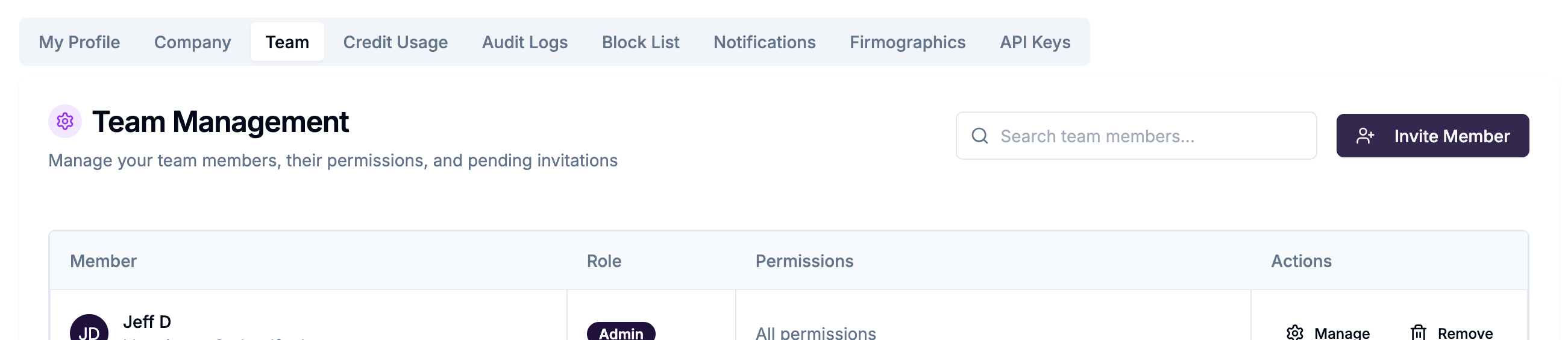
Go to Settings → Team (admin only).
Click Invite Member.
Enter their email address.
Select their role — Admin or User.
Click Send Invite.
They receive an email invitation to join your account. Once they accept, they appear in your team list.
Roles
Admins always have full access regardless of individual permission settings. Permissions only apply to Users.
Configuring permissions for a User
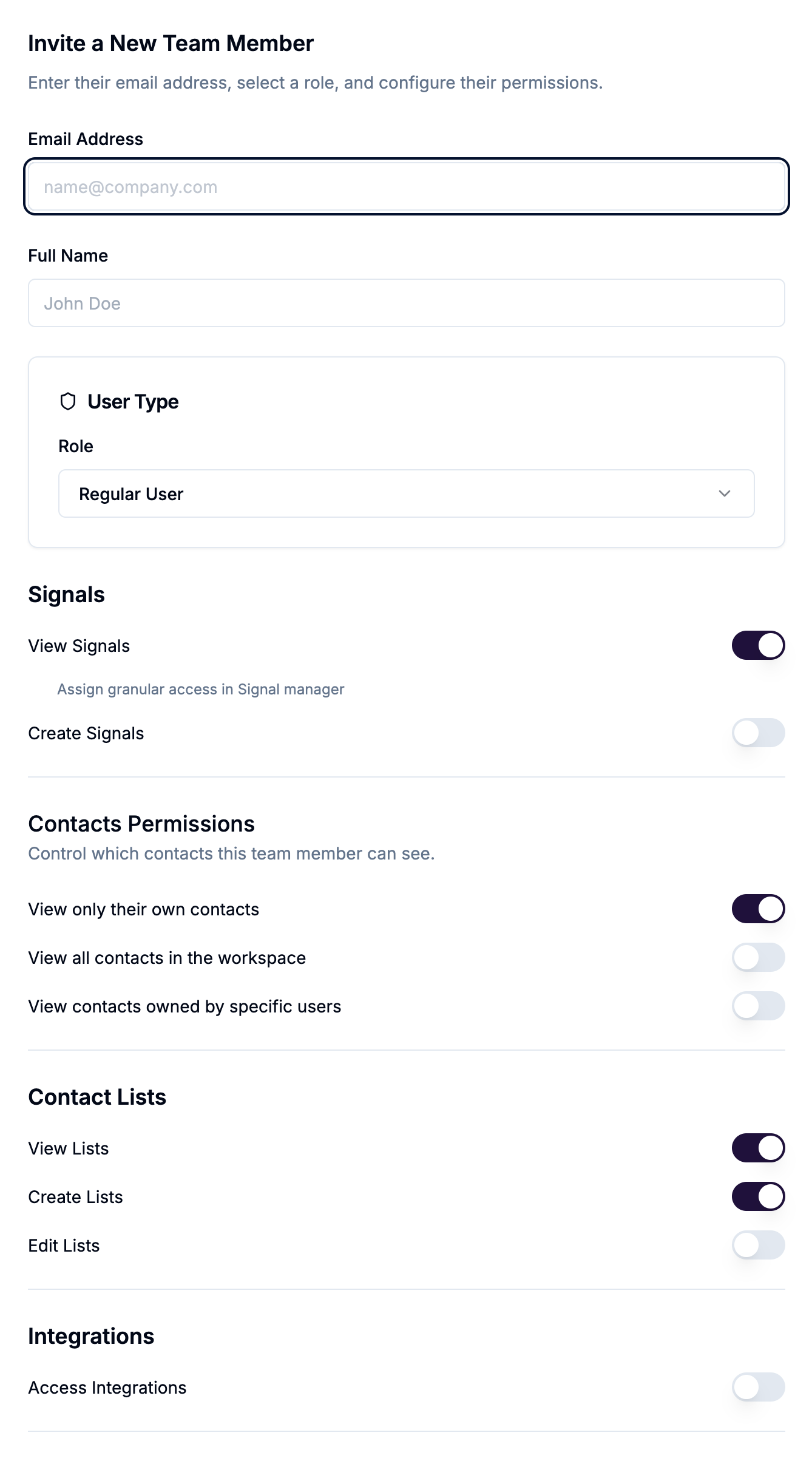
Click any team member's name to open their Permissions sheet. Configure each area independently.
Signals
Contacts
Choose one contact visibility mode per user:
The "view by owner" mode lets you build team structures where reps only see their own pipeline — or a manager sees their team's contacts but not other teams'.
Lists
Integrations
Turn this off for users who should be able to use Signals and contacts but shouldn't be able to connect or modify integrations.
Workspaces (agency accounts only)
Default permissions for new Users
When you invite someone as a User, they start with these defaults:
✅ Can view signals
✅ Can create lists
✅ Can view lists
❌ Cannot create or edit signals
❌ Cannot access integrations
❌ Cannot edit lists
👤 Contact visibility: own contacts only
Adjust as needed from the Permissions sheet before or after they accept their invitation.
Removing a team member
From the Team list, click the actions menu next to a member and select Remove. Their access is revoked immediately. Their contacts and signals remain in the account.
Admin-only settings tabs
Regardless of permissions configured, the following Settings tabs are only visible to Admins:
Company
Team
Firmographics
API Keys