Workspaces — managing agency client accounts
Workspaces let agency accounts create separate, isolated environments for each client — with their own Signals, contacts, team members, and credit balances. Available to accounts with agency mode enabled.
Written By Kevin Lawrie
Last updated 6 months ago
What workspaces are
Each workspace is a fully independent account environment. When you're inside a workspace, you're working entirely within that client's data — their Signals, their contacts, their integrations, their team. Nothing crosses between workspaces.
This makes workspaces the right solution for agencies managing social monitoring and lead generation on behalf of multiple clients. Each client's data stays separate, their credit usage is tracked independently, and you can grant team members access to specific client workspaces without giving them access to others.
Accessing workspaces
Go to Settings → Workspaces (admin only, agency accounts only).
If you don't see this tab, your account doesn't have agency mode enabled. Contact support to enable it.

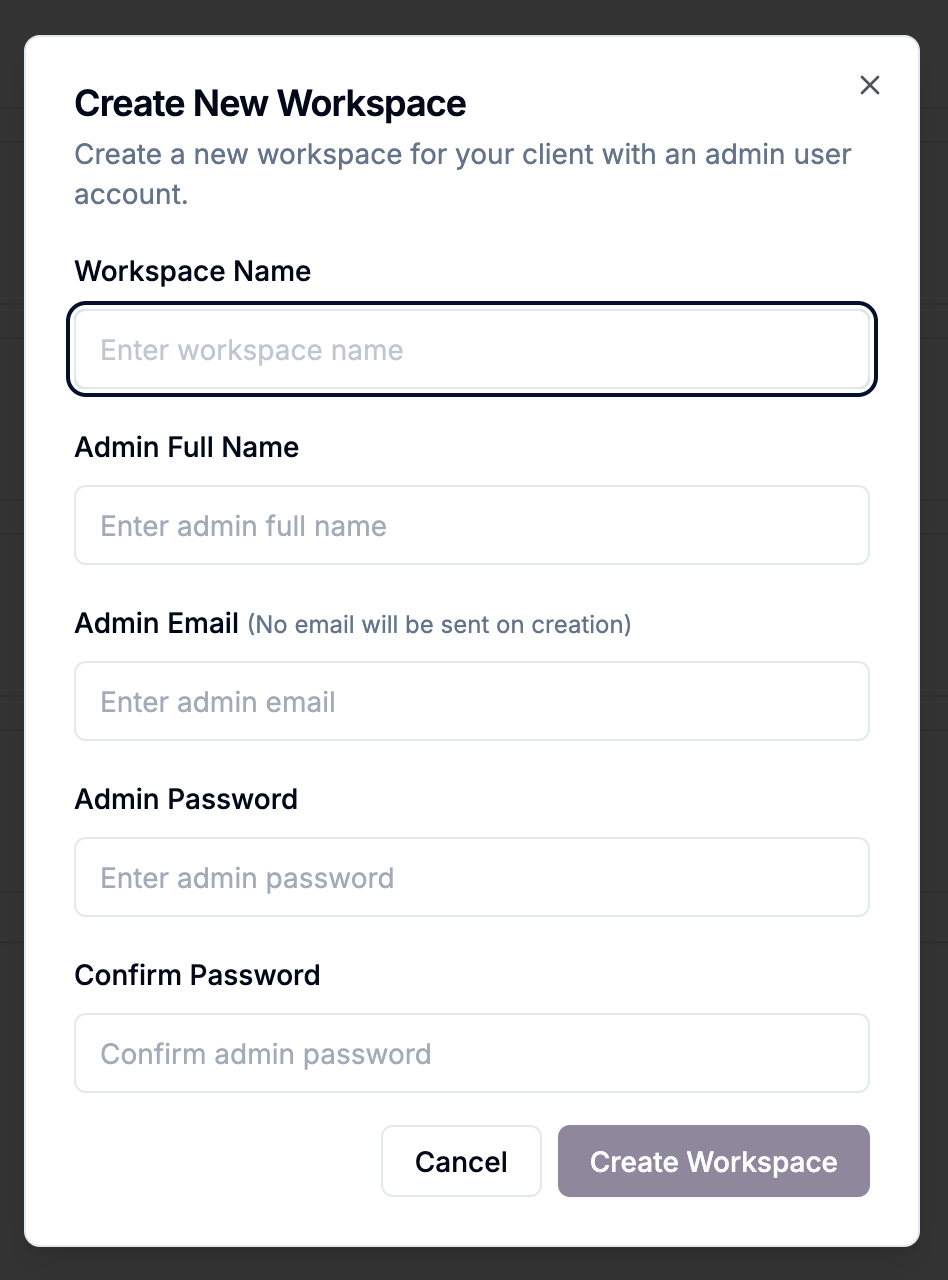
Creating a workspace
Click Create Workspace.
Enter a workspace name (typically your client's company name).
Save.
The new workspace appears in your list with its creation date, user count, and credit balance.
Switching into a workspace
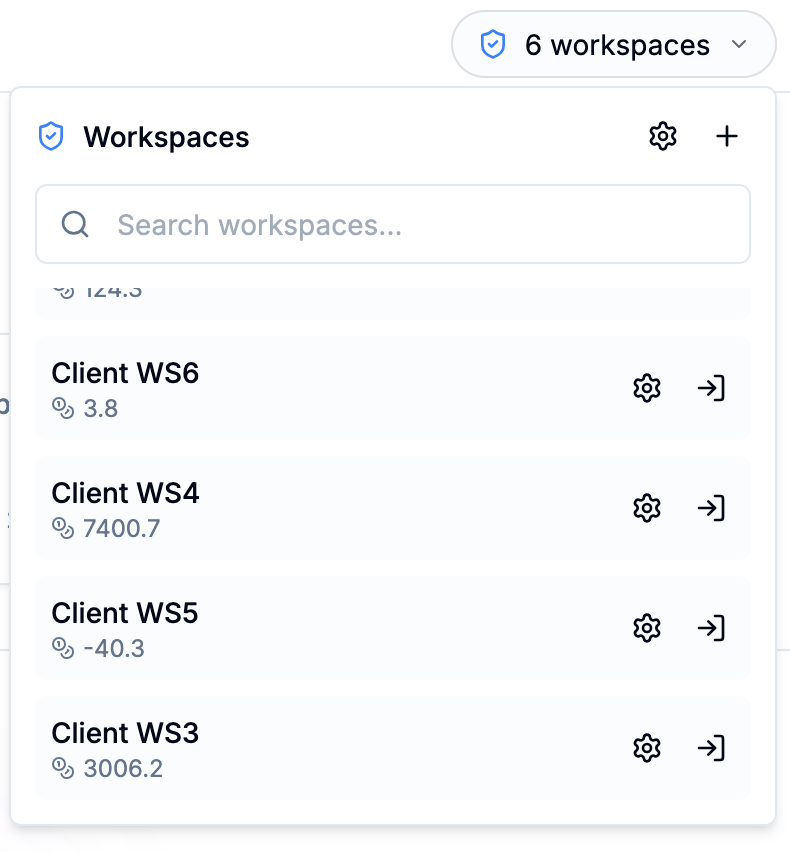
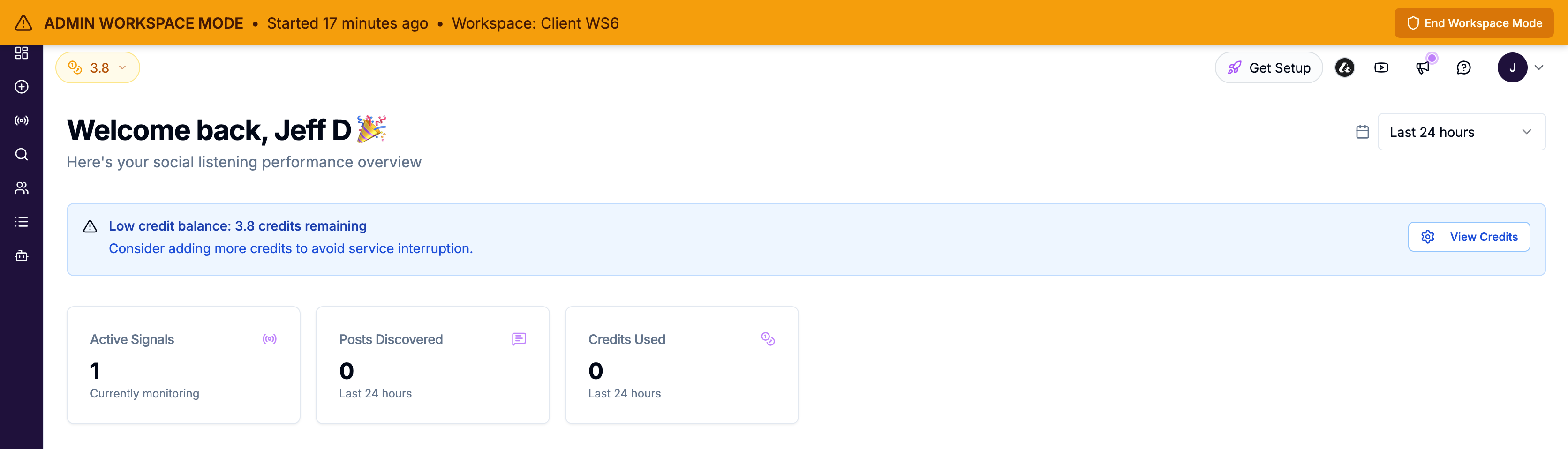
Click Access next to any workspace to switch into it. You'll be working entirely within that client's environment — their Signals, contacts, and settings. Switch back to your parent account using the workspace switcher in the navigation.
Managing credits for workspaces
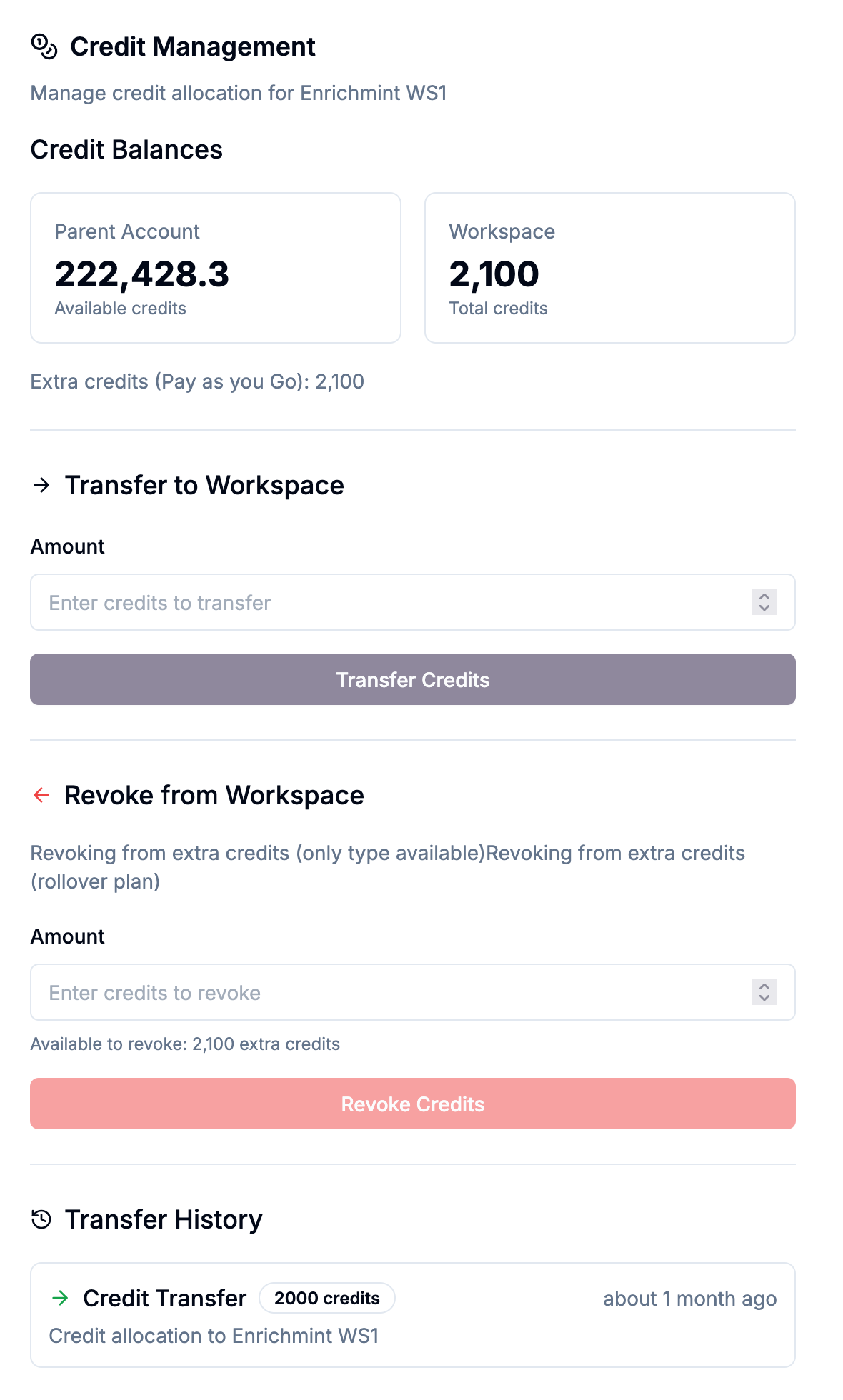
Credits are managed at the parent account level and allocated to workspaces as needed.
Transferring credits to a workspace
Click Manage Credits next to a workspace.
Enter the amount to transfer.
Confirm the transfer.
When transferring, the system uses your regular credits first, then extra credits if needed. Transferred credits go into the workspace's balance and are consumed from there when that workspace runs Signals or processes contacts.
Revoking credits from a workspace
Use the same Manage Credits panel to revoke credits back to the parent account. Specify whether you're revoking regular or extra credits based on what the workspace holds.
All credit transfers are logged for audit purposes.
Team access to workspaces
By default, team members don't have access to workspaces. You can grant workspace access per user in Settings → Team → [member] → Permissions:
Access all workspaces — the member can switch into any workspace
Access specific workspaces — the member can only switch into the workspaces you select
This lets you assign account managers to their specific client accounts without exposing other clients' data.
Workspace independence
Each workspace has its own:
Signals and Signal results
Contacts and Lists
Integrations (connected separately per workspace)
Team members
Credit balance
Settings (Block List, Notifications, Firmographics, etc.)
Changes made inside a workspace — creating Signals, enriching contacts, connecting integrations — have no effect on other workspaces or the parent account.