Finding emails and mobile numbers for enriched contacts
Once a contact has been enriched, you can automatically find and verify their email address and mobile number. This runs after enrichment and costs additional credits — but only when a valid result is found.
Written By Kevin Lawrie
Last updated 6 months ago
What this does
The Email and Mobile Finder block appears on the right side of the Configure step. It activates automatically once any of the three capture options — Authors, Reactions, or Comments — have Save Profile as Enriched Contact enabled.
It does not run on raw social data. It only runs on people who have already passed your filters and been saved as enriched contacts.
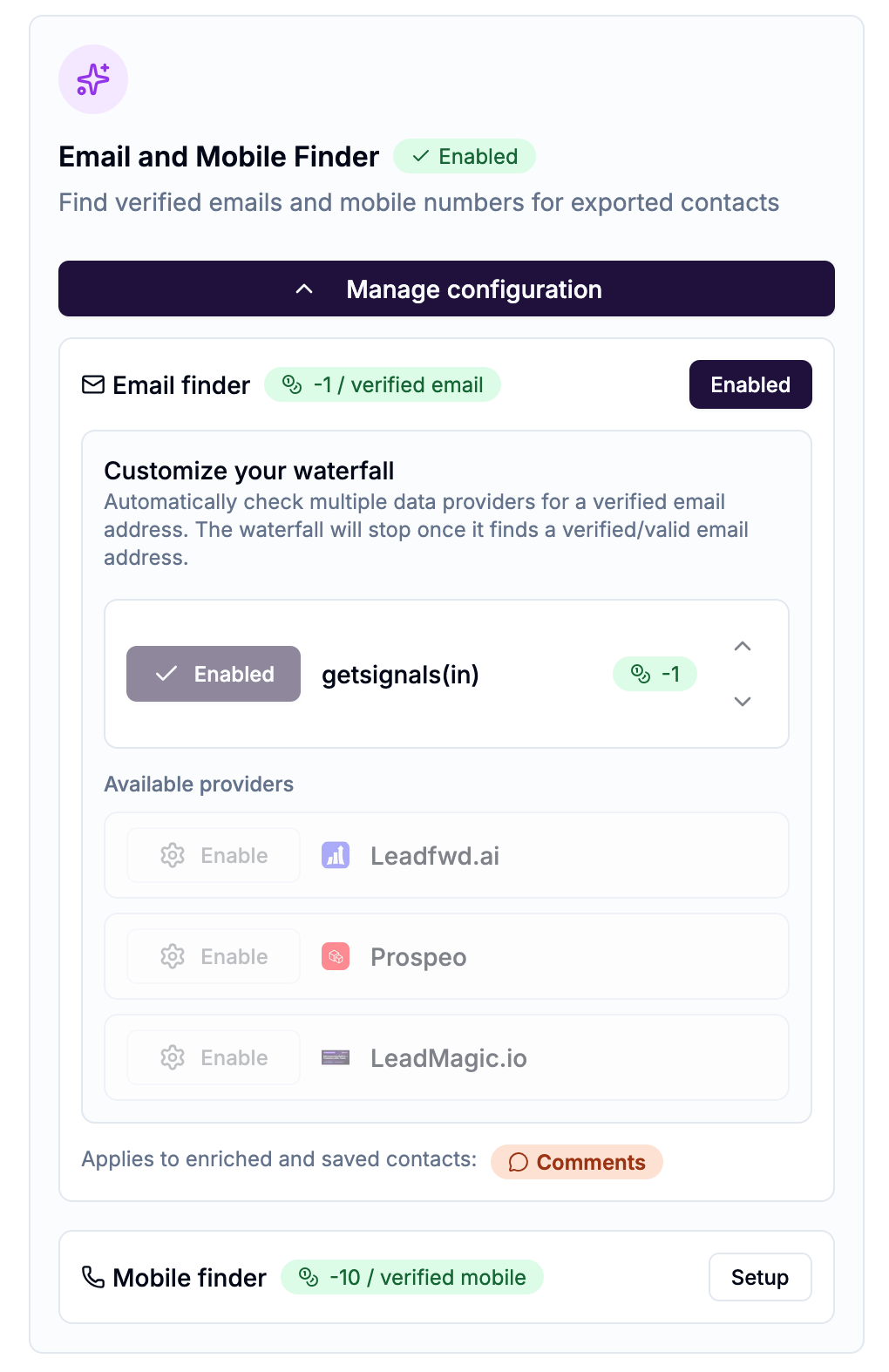
Email Finder
Searches for and verifies a professional email address for each enriched contact.
Cost: -1 credit per verified email found
If no verified email is found, no credit is charged.
How to enable it
Enable Save as Enriched Contact for either Post Authors, Reactions or Comments. The Email and Mobile Finder options will not be visible without an option to create an enriched contact enabled.
In the Configure step, find the Email and Mobile Finder block on the right side.
Click Enable and configure.
Toggle Email finder on.
Email finder provider sequence
The email finder uses multiple data providers in sequence — if the first provider doesn't find a verified result, it tries the next one, and so on. You can drag to reorder the sequence based on your preference or connected integrations.
Default sequence: Prospeo → LeadMagic → Leadfwd → getsignals(in)
💡 Tip: If you have a connected third-party email finder (Prospeo, LeadMagic, or Leadfwd), move it to the top of the sequence. This uses your existing subscription credits instead of platform credits, reducing your overall cost per contact.
At least one provider must remain active in the sequence at all times.
Mobile Finder
Searches for and verifies a mobile phone number for each enriched contact.
Cost: -10 credits per verified mobile number found
If no verified mobile is found, no credit is charged.
How to enable it
In the Email and Mobile Finder block, toggle Mobile finder on.
⚠️ Note: Mobile numbers are significantly harder to verify than emails and cost 10x more per result. Enable this only for high-value contact segments where a direct phone number is worth the credit cost.
Which contacts does this apply to?
The Email and Mobile Finder applies to all enriched contacts generated by the Signal — Authors, Reactors, and Commenters — as long as Save Profile as Enriched Contact is enabled for those sources.
The block shows data source badges indicating which contact sources it applies to (Authors, Reactions, Comments). These update automatically as you enable or disable the capture blocks.
Credit cost example
A Signal capturing 20 enriched contacts per run with email finder enabled (using platform credits):
If you have a connected Prospeo or LeadMagic account and move it to the top of the sequence, the email finder portion drops to 0 platform credits.