Assigning AI Agents to Signals
Assigning an agent to a Signal means it runs automatically every time that Signal processes new data — no manual intervention needed. This is where AI Agents become a fully automated part of your workflow.
Written By Kevin Lawrie
Last updated 6 months ago
Where to assign agents
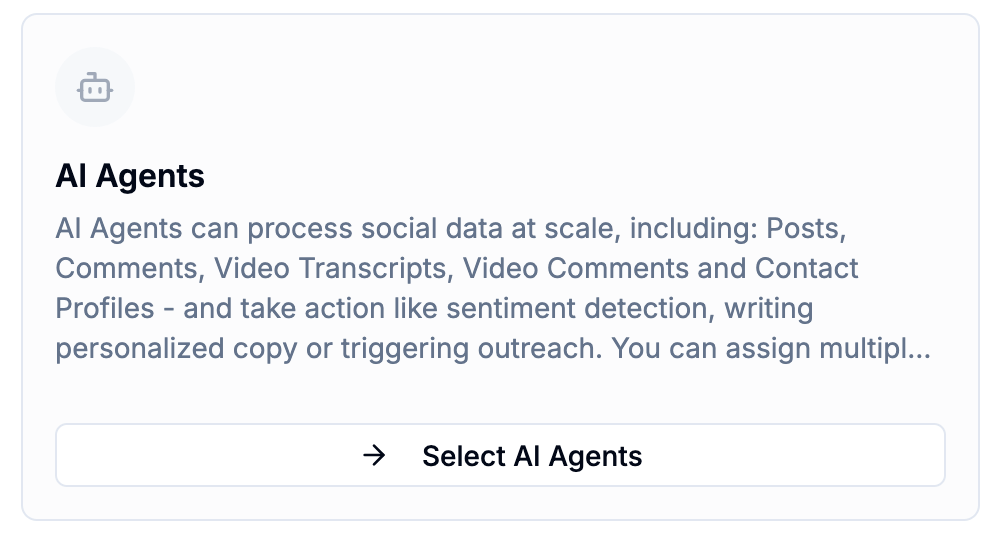
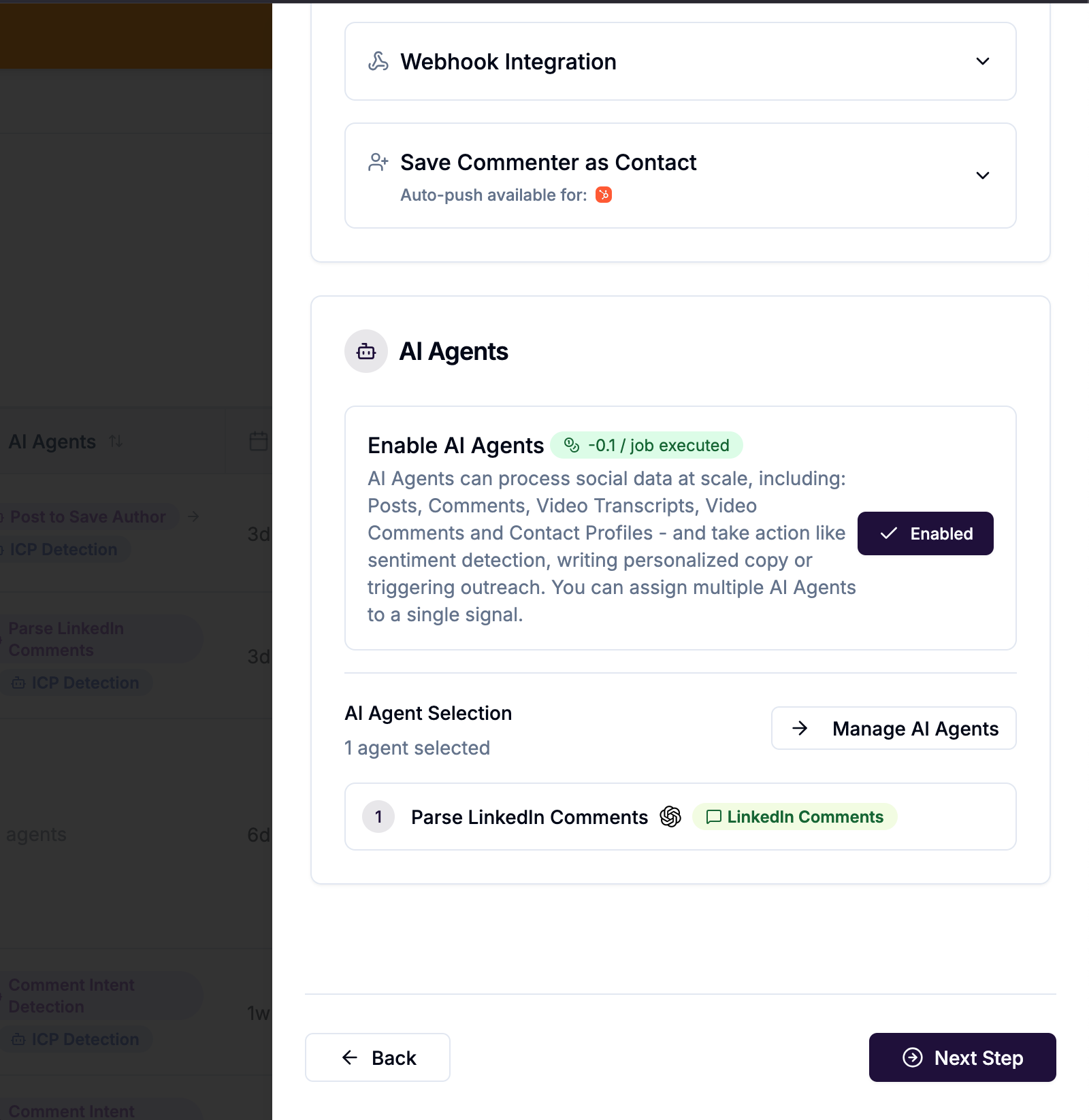
Open any Signal and go to the Configure step. The AI Agents block appears in the right column. It's always available — you don't need to enable any specific capture option to assign a post or comment agent.
For contact-targeting agents, the relevant capture option must be enabled first:
Contacts agent — requires at least one of: Capture Reactions (Save as Contact), Capture Comments (Save as Contact), or Capture Post Author enabled
LinkedIn Comments agent — requires Capture Comments enabled
Posts agent — always available on LinkedIn Signals
YouTube Videos agent — available on YouTube Signals
YouTube Comments agent — requires YouTube comment capture enabled
How to assign an agent
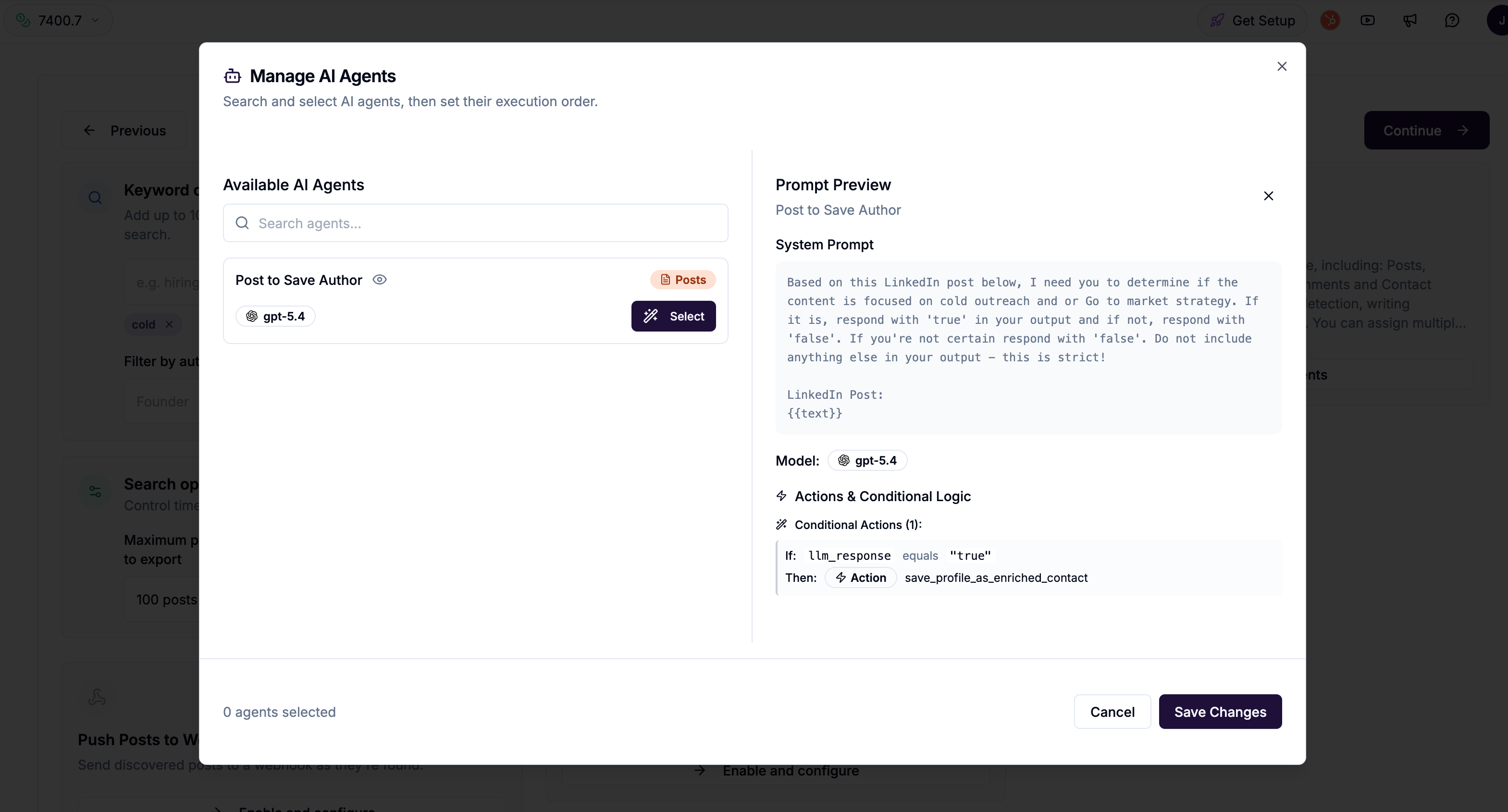
In the Configure step, find the AI Agents block on the right side.
Click Select AI Agents (or Manage AI Agents if agents are already assigned).
The agent selector opens with two panels:
Left: Available agents, filtered to those compatible with this Signal's data types. Search by name.
Right: Selected agents with their execution order.
Click an agent to add it to the right panel.
Use the up/down arrows to set the execution order.
Click Save Changes.
Execution order
When multiple agents are assigned to a Signal, they run in sequence — Agent 1 completes before Agent 2 starts, and so on.
Order matters when agents are designed to work together. A common pattern:
Agent 1 — Qualifier (Posts or Comments): Reads the content, outputs TRUE/FALSE. If FALSE → Discard. If TRUE → pass to Agent 2.
Agent 2 — Enricher (Posts or Comments): Saves the author or commenter as an enriched contact, finds email.
Agent 3 — Personaliser (Contacts): Reads the enriched contact profile, writes a cold email opener to a custom property.
Agent 4 — Router (Contacts): Checks ICP fit, adds to the right campaign.
Each agent in the sequence has already done its job by the time the next one runs.
💡 Tip: Keep sequences focused. Two or three well-designed agents chained together are more reliable than one agent trying to do everything.
Compatibility filtering
The agent selector only shows agents that are compatible with the data available from this Signal. If you've built a Contacts agent but haven't enabled any contact enrichment on the Signal, the Contacts agent won't appear — there's no contact data for it to process.
If you see the message "Enable export options to see compatible AI agents", go back to the capture blocks and enable at least one enrichment option first.
What happens when the Signal runs
Each time the Signal runs, new data is passed through the assigned agents in order. Agents only process items that are new since the last run — they don't reprocess previously seen posts or contacts.
If an agent fails on a specific item (LLM error, timeout, etc.), that item is logged as a failed job. You can retry failed jobs from the AI Agents list using the Retry Failed Jobs option.
Monitoring agent activity on a Signal
To see what an agent has done on a specific Signal, go to the Signal Results view. Individual posts, comments, and contacts show integration badges indicating which agents have processed them.
For a full activity log, go to AI Agents in the left sidebar, find the agent, and click Activity from its row actions menu.