Writing your AI Agent prompt — Step 2: Prompt
The prompt is the intelligence of your agent. You write it in plain language, inject live social data using variable tags, and design the output to be simple enough to drive reliable conditional rules.
Written By Kevin Lawrie
Last updated 6 months ago
How prompts work
Your prompt is sent to the LLM along with the live social data for each item being processed. The LLM reads both and returns a response. That response becomes the output your conditional rules act on.
The key to a well-designed agent is matching your prompt's output format to your conditional rules. If your prompt says "respond with only TRUE or FALSE", your rules can reliably match on true and false. Unpredictable or verbose outputs make rules fragile.
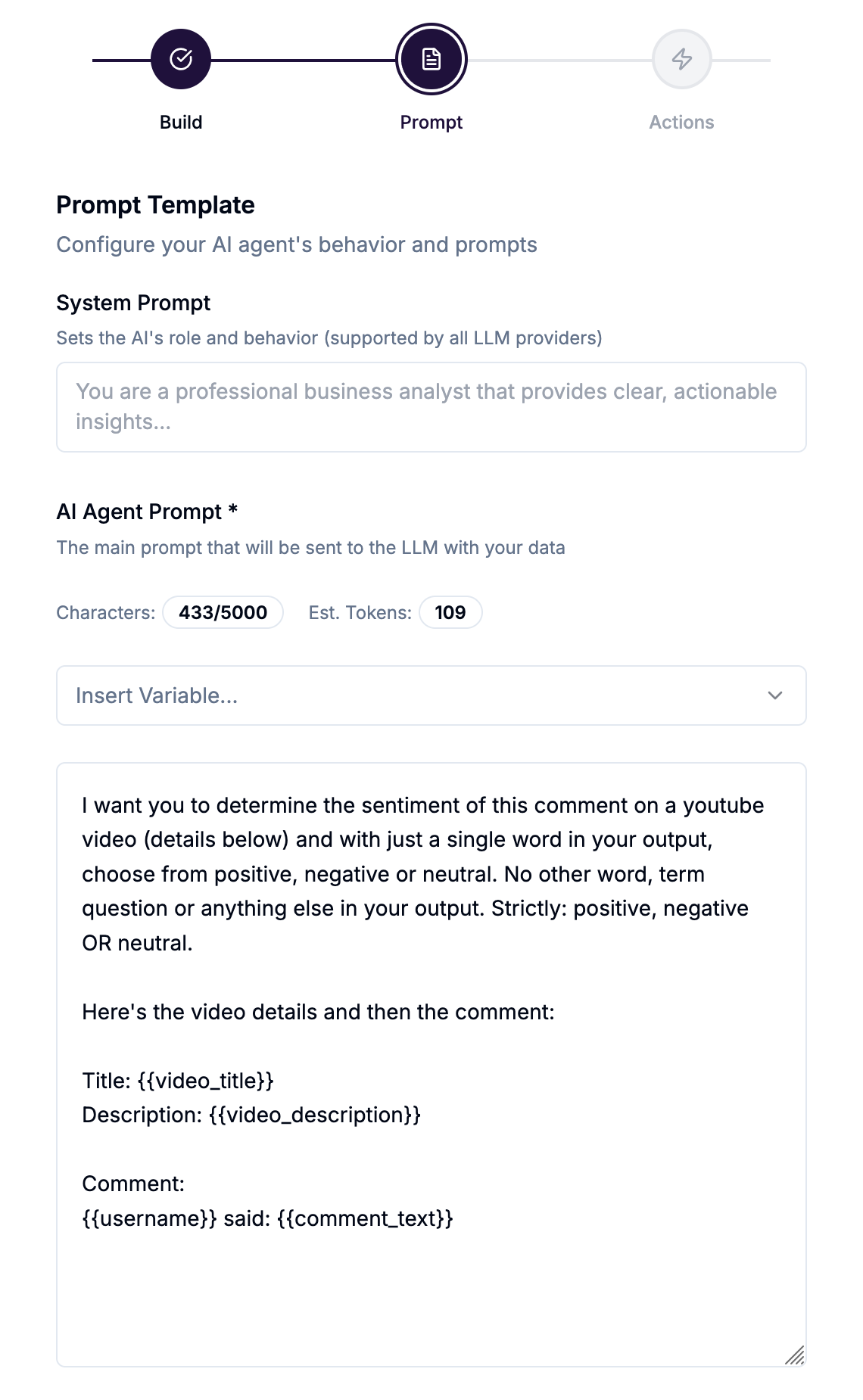
Using variable tags
Variables let you inject live data directly into your prompt. Use double curly braces: {{variable_name}}
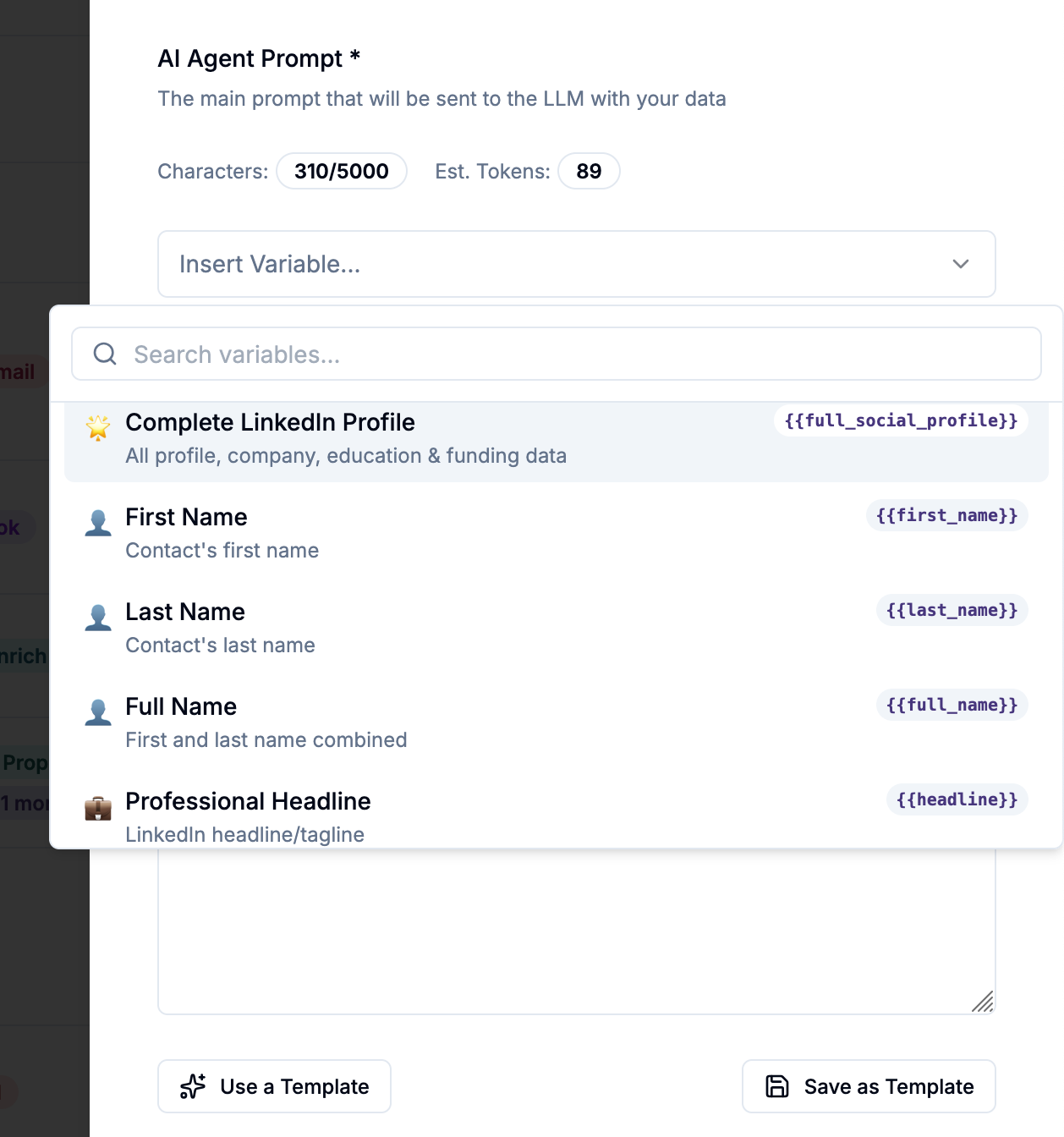
At runtime, each variable is replaced with the actual data for the item being processed. If a field has no value, it is replaced with [Not Available].
Example prompt using variables:
You are a B2B sales qualification assistant. Review this LinkedIn profile and determine whether this person matches our ICP. Name: {{full_name}} Job title: {{job_title}} Company: {{company_name}} Company size: {{company_staff_count_range}} Industry: {{company_industry}} Bio: {{bio_summary}} Our ICP is B2B SaaS companies with 50–500 employees in sales, marketing, or RevOps roles. Respond with only TRUE if this is an ICP match, or FALSE if not. The variable {{full_name}} gets replaced with the contact's actual name, {{job_title}} with their actual title, and so on — for every contact the agent processes.
💡 Tip: Use {{full_social_profile}} (Contacts data target only) to inject the complete LinkedIn profile in one block — all personal, company, education, and funding data. Useful when you want the model to have full context without listing every variable individually.
Designing your output
For classification agents (routing and gating)
Keep outputs as short and consistent as possible. One word or one short phrase.
Good classification outputs:
TRUEorFALSEBUYER INTENT,NOISE,PRODUCT QUESTION,COMPETITOR FRUSTRATIONPOSITIVE,NEGATIVE,COMPARISONICP MATCH,NOT A FIT
Tell the model explicitly what to output and nothing else:
Respond with only one of the following labels: BUYER INTENT, PRODUCT QUESTION, COMPETITOR FRUSTRATION, or NOISE. Do not explain your answer. Output the label only. For generative agents (producing content)
When the output itself is the deliverable — a cold email opener, a summary, an ICP score with reasoning — you can allow longer, richer responses. These outputs are saved to a custom contact property and used downstream in outreach tools.
Example:
You are a personalised outreach assistant. Review this LinkedIn profile and write a single sentence (max 20 words) that could open a cold email. Reference something specific from their recent post or bio. Make it feel genuine, not templated. Post they wrote: {{originating_post_text}} Their bio: {{bio_summary}} Their role: {{job_title}} at {{company_name}} Output only the opening sentence. Nothing else. This output gets saved to a custom property like ai_email_opener and mapped as a variable in your Instantly or Smartlead email template.
The {{firmographics}} variable
Available across all data targets. Injects your ICP and product description from Settings → Firmographics directly into the prompt.
This means you write your ICP definition once in Settings and reference it in any agent — no need to paste it into every prompt manually.
Here is our ideal customer profile and product description: {{firmographics}} Based on the above, evaluate whether this contact is a fit. Variable reference by data target
Contacts (65+ data properties you can merge)
Key variables: {{full_social_profile}}, {{full_name}}, {{job_title}}, {{company_name}}, {{company_industry}}, {{company_staff_count_range}}, {{bio_summary}}, {{headline}}, {{originating_post_text}}, {{my_comment_text}}, {{author_posts_count}}, {{author_posts_total_reactions}}
Posts (LinkedIn & Reddit)
Key variables: {{text}} (post content), {{first_name}}, {{last_name}}, {{headline}}, {{total_reaction_count}}, {{comments_count}}, {{posted_date}}
Reddit-specific: {{reddit_username}}, {{post_content}}, {{subreddit}}, {{upvotes}}
LinkedIn Comments
Key variables: {{comment_text}}, {{full_name}}, {{job_title}}, {{comment_likes}}, {{comment_date}}, {{post_content}} (the parent post), {{post_author_name}}
YouTube Videos
Key variables: {{video_title}}, {{video_description}}, {{transcript}}, {{channel_name}}, {{views}}, {{all_comments}} (full itemised list of saved comments — powerful for theme summaries)
YouTube Comments
Key variables: {{comment_text}}, {{username}}, {{comment_likes}}, {{video_title}}, {{transcript}}, {{ai_video_summary}} (output from a previous video-level agent — enables chaining)
All data targets
{{firmographics}} — your ICP definition from Settings
Using templates
Click Use a Template to browse saved prompt templates filtered to your agent's data target. Selecting one replaces your current prompt — use this as a starting point and customise from there.
Click Save as Template to save your current prompt for reuse across other agents. Templates are scoped by data target.
System prompt (advanced)
An optional system prompt can be added to override the default LLM behaviour. This is an advanced option — most agents work well without it. Use it when you need precise control over the model's persona or response format.
Common mistakes to avoid
Asking for too much in one prompt. If you need classification AND a generated output, consider two chained agents — one to classify, one to generate.
Not specifying output format. If you don't tell the model exactly what to return, it will explain its reasoning. Conditional rules won't match reliably.
Using too many variables. You don't need every available variable. Include only what's relevant to the decision. Fewer variables = faster, cheaper, more focused responses.
Temperature too high for classification. A temperature of 1.5 on a TRUE/FALSE agent will produce inconsistent outputs. Keep it low (0.1–0.3) for classification.