Configuring actions — Step 3: Actions
Actions are what your agent does with its output. Basic actions run every time. Conditional actions run only when the output matches a rule you define. Together they turn a classification or a piece of generated text into an automated workflow.
Written By Kevin Lawrie
Last updated 6 months ago
Basic actions
Basic actions run on every item the agent processes, regardless of output. Use them for things that should always happen — logging, tagging, writing output to a field.
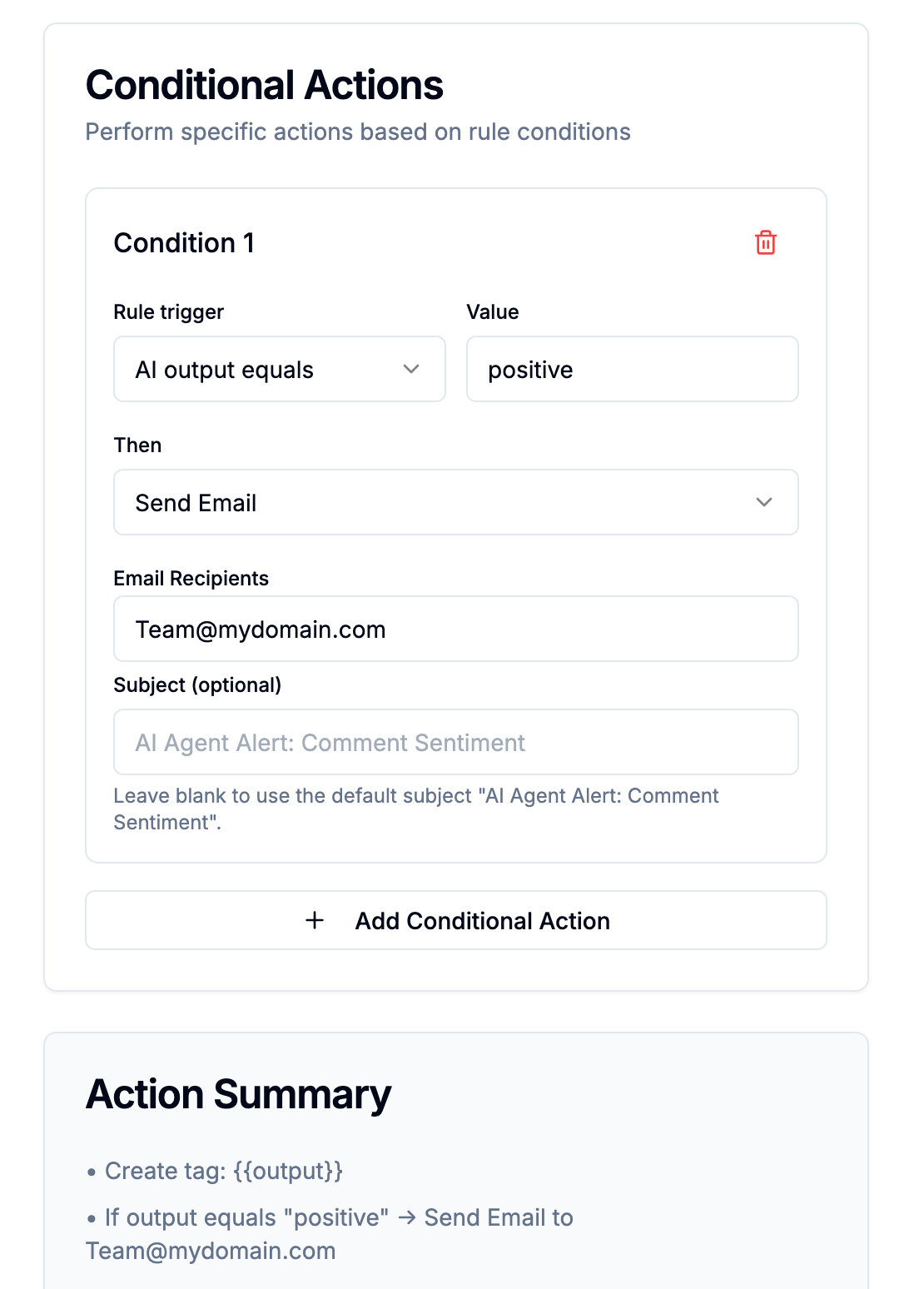
Create Tag from AI Output
Creates a tag on the contact or item using the agent's output. Use {{output}} in the tag name template to include the AI response.
Example tag template: Intent: {{output}} If the agent outputs BUYER INTENT, the tag Intent: BUYER INTENT is applied automatically.
Write Output to a Data Field Property
Saves the agent's output to a data field property for contacts or videos.
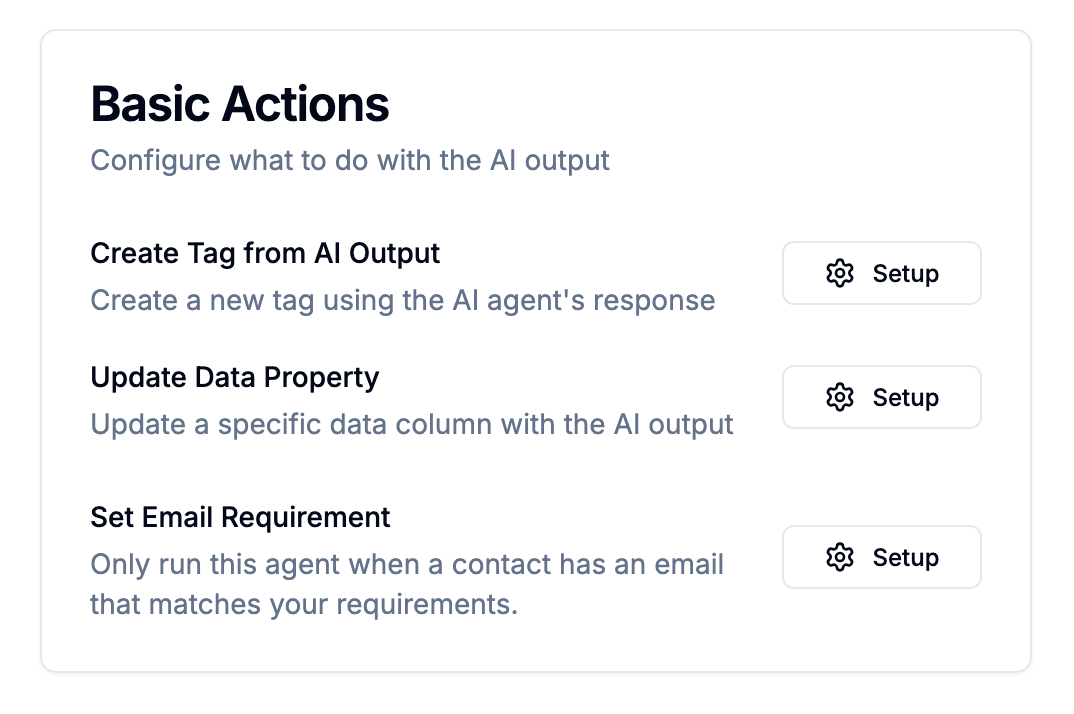
Options:
Video Summary — saves to the video's summary field
Comments Summary — saves to the comments summary field
Custom Field — saves to a field key you define (e.g.
sentiment_score)
Write Output to an Existing Data Property
Saves the agent's output to a contact property. Use this for generative agents — store a personalised email opener, an ICP score, or any custom output directly on the contact record.
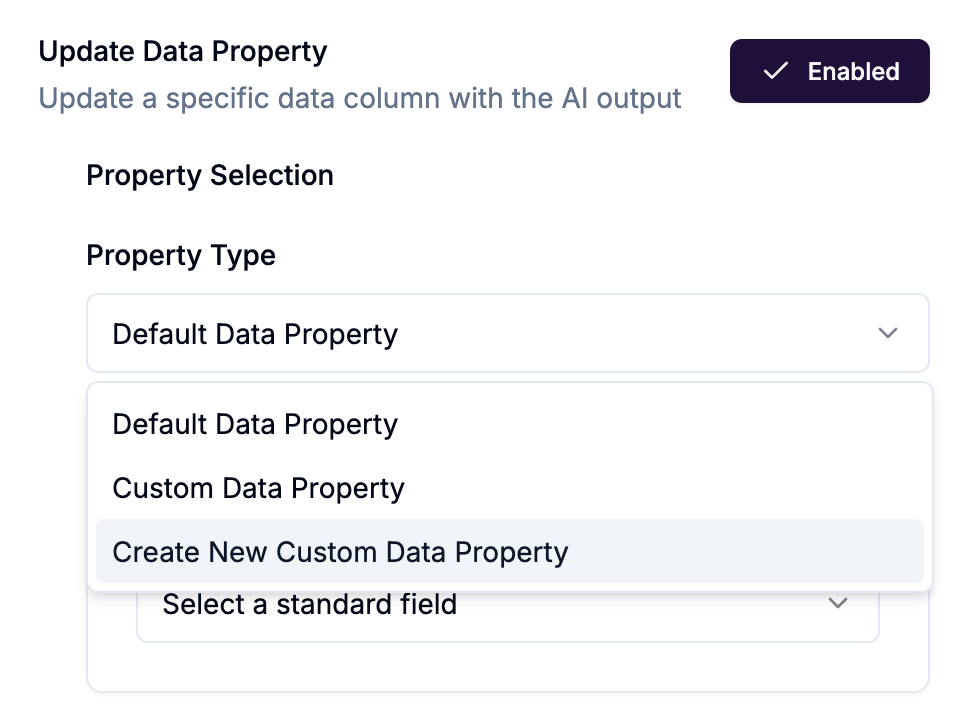
You can select an existing custom property or create a new one here:
Property name: lowercase, letters, numbers, underscores (e.g.
ai_email_opener,lead_score)Property type: Text, Number, True/False, or Date
Once saved to a custom property, the value can be mapped as a variable tag in connected outreach tools like Instantly, Smartlead, and Leadfwd.
Set Email Requirement (Contacts only)
Skips processing this contact entirely if they don't have an email on record. Choose Verified email or Any email. If the requirement isn't met, the agent does not run — saving the 0.1 credit job cost for contacts that can't be actioned anyway.
Conditional actions
Conditional actions run only when the agent's output matches a condition you define. This is where the automation lives.
Structure: If [output condition] → Then [action]
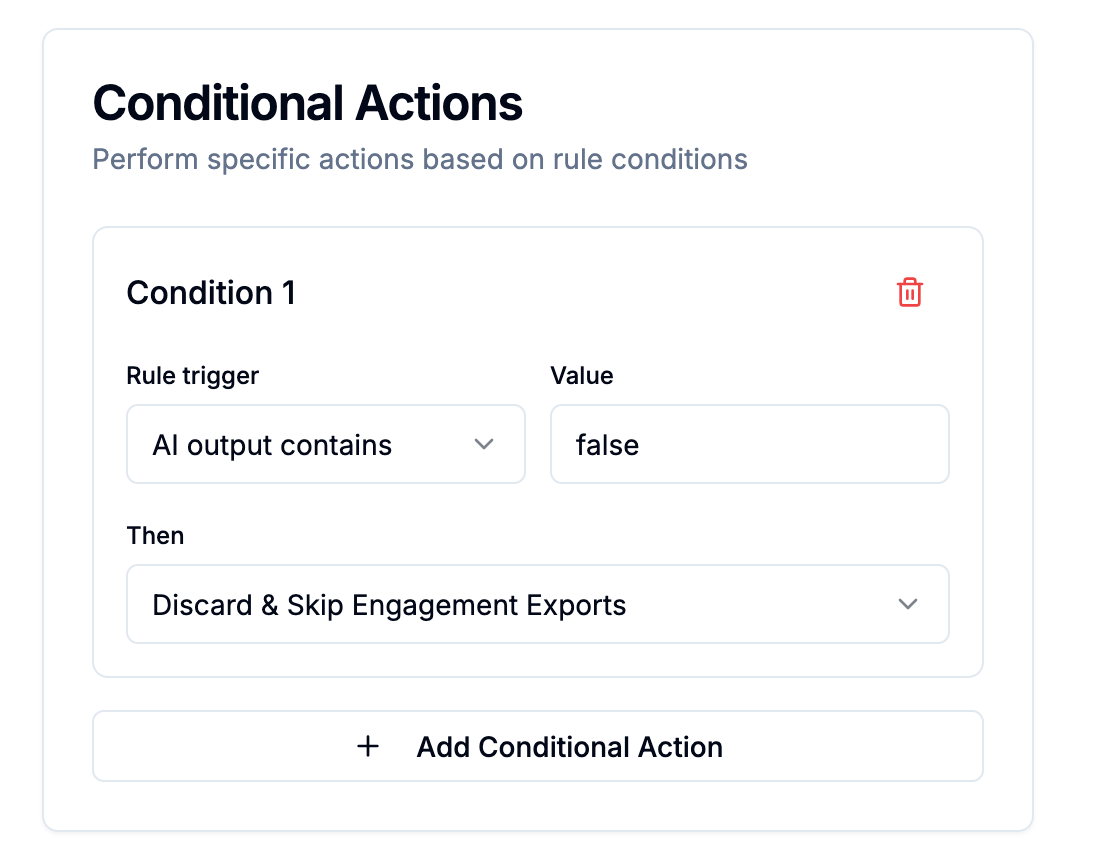
Setting the condition
Example:
Trigger: AI output equals
TRUEThen: Save as enriched contact → Find email → Add to Instantly campaign
The Discard action
Discard & Skip Engagement Exports is one of the most important actions available — especially for post and comment agents.
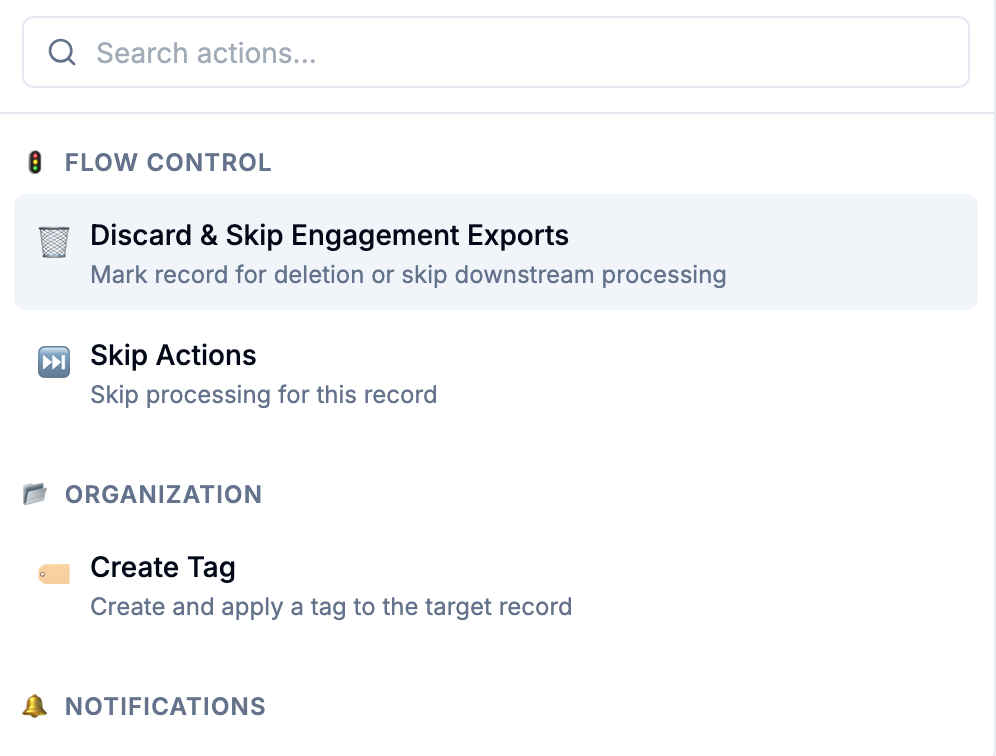
When an agent discards an item, it stops all further processing for that item. No enrichment runs. No reactions or comments from that post are exported. No credits are spent downstream.
This is how you protect your credit budget at scale. A post agent that discards irrelevant posts before their reactions and comments are processed can save significant credits — especially on high-volume keyword Signals where many posts won't be relevant to your ICP.
Example setup:
Agent targets: Posts
Prompt: "Does this post indicate the author is evaluating B2B sales tools? Reply TRUE or FALSE only."
If output equals
FALSE→ DiscardIf output equals
TRUE→ Save post author as enriched contact → Find email → Add to campaign
Only posts that pass the TRUE check ever generate enrichment activity.
Available conditional actions by data target
All data targets:
Skip (stop processing, keep the item)
Discard & Skip Engagement Exports (stop processing, remove item)
Create Tag
Send Email (specify recipients and optional subject)
Send to Slack (select channel)
Send to Webhook (select endpoint)
Send to AI Agent (chain to another agent — see [Chaining AI Agents])
Contacts only:
Add to List
Update Property
Enrich Email (waterfall email finder)
Enrich Mobile
Add to Leadfwd / HeyReach / Aimfox / Smartlead / Lemlist / Instantly / ReachInbox / Woodpecker campaign
Add to HubSpot CRM
Add to Attio CRM
💡 Why Contacts agents matter even after enrichment: When an agent targets Contacts, the 2-credit enrichment cost has already been spent. What the agent protects against is everything downstream — spending 1 credit finding an email for someone who isn't a fit, spending 10 credits finding a mobile number, and enrolling the wrong people into outreach campaigns. That last point has costs beyond credits: irrelevant contacts in your campaigns hurt sender reputation and drive down reply rates across everything you send. A Contacts agent that routes only true ICP fits to your email finder and campaign enrollment is protecting both your budget and your deliverability.
Posts and LinkedIn Comments only:
Save Profile as Enriched Contact (with options to find email, find mobile, push to AI Agent, push to HubSpot/Attio)
Save Profile as Enriched Contact (Posts and Comments)
This action is the bridge between raw social data and an enriched contact record — triggered conditionally by the agent's output.
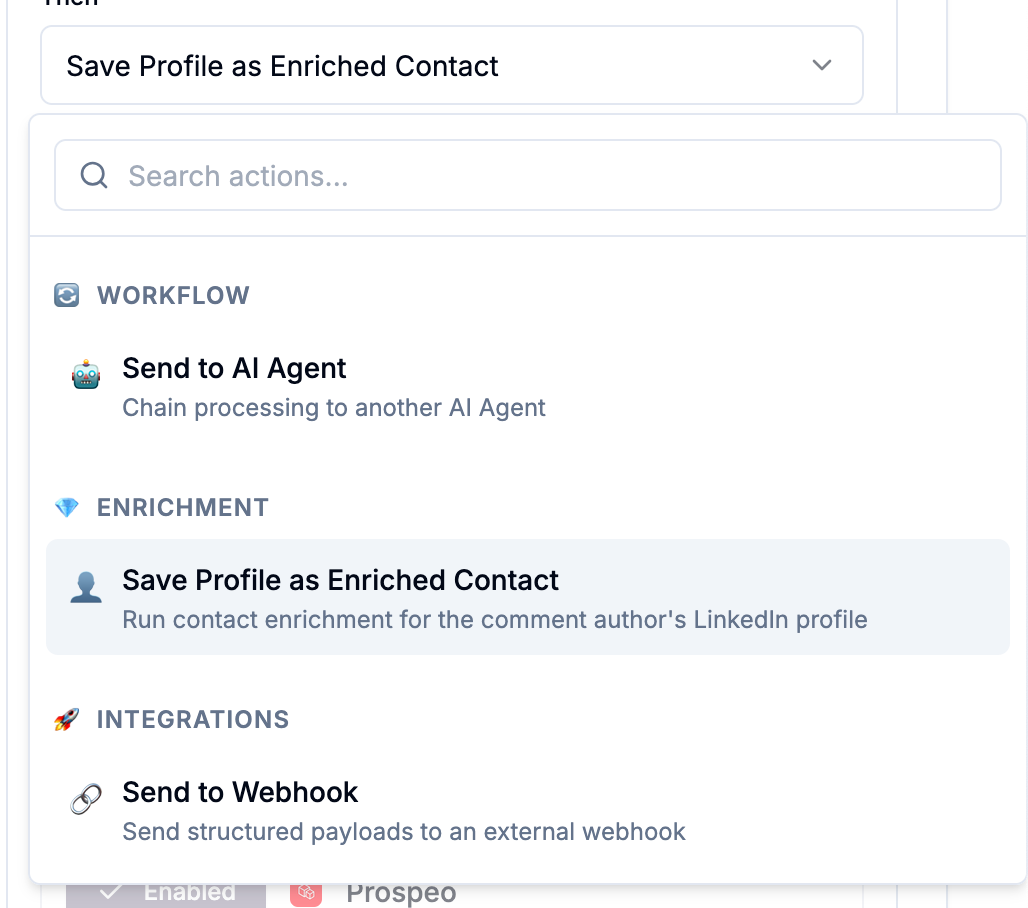
When configured on a Posts or LinkedIn Comments agent:
The post author (Posts) or the commenter (LinkedIn Comments) is enriched as a contact at -2 credits
Optionally: Email finder runs on that new contact
Optionally: Mobile finder runs
Optionally: The new contact is pushed to a contact-targeting AI Agent for further processing
Optionally: The new contact is pushed to HubSpot or Attio
This is the AI-powered alternative to the static capture filters documented in the Signal configure step. Instead of filtering by job title, the agent reads the actual content of the post or comment and makes a qualitative judgment before enriching.
Integration action configuration
HubSpot and Attio:
Assign to owner (optional)
Assign to list or segment (optional)
Enroll in sequence (optional)
Export verified emails only
Allow export without email
Campaign tools (HeyReach, Smartlead, Lemlist, Instantly, ReachInbox, Woodpecker, Aimfox):
Select campaign or list
Batch limit: 150 contacts per push
Adding multiple conditional rules
Click Add Conditional Action to add more rules. Rules are evaluated independently — multiple rules can fire from the same agent run if the output matches more than one condition.
Example — Brand Sentinel with three rules:
If output equals
POSITIVE→ Slack alert to AE channelIf output equals
NEGATIVE→ Slack alert to CS channelIf output equals
COMPARISON→ Slack alert to Marketing channel
Each rule fires independently when its condition is met.
Action summary
The bottom of the Actions step shows a summary card of everything you've configured — basic actions and all conditional rules. Review this before saving to make sure the full workflow is correct.