Creating an AI Agent — Step 1: Build
The Build step is where you define what your agent is, what data it processes, and which LLM powers it. Get these decisions right and the rest of the wizard follows naturally.
Written By Kevin Lawrie
Last updated 6 months ago
Getting started
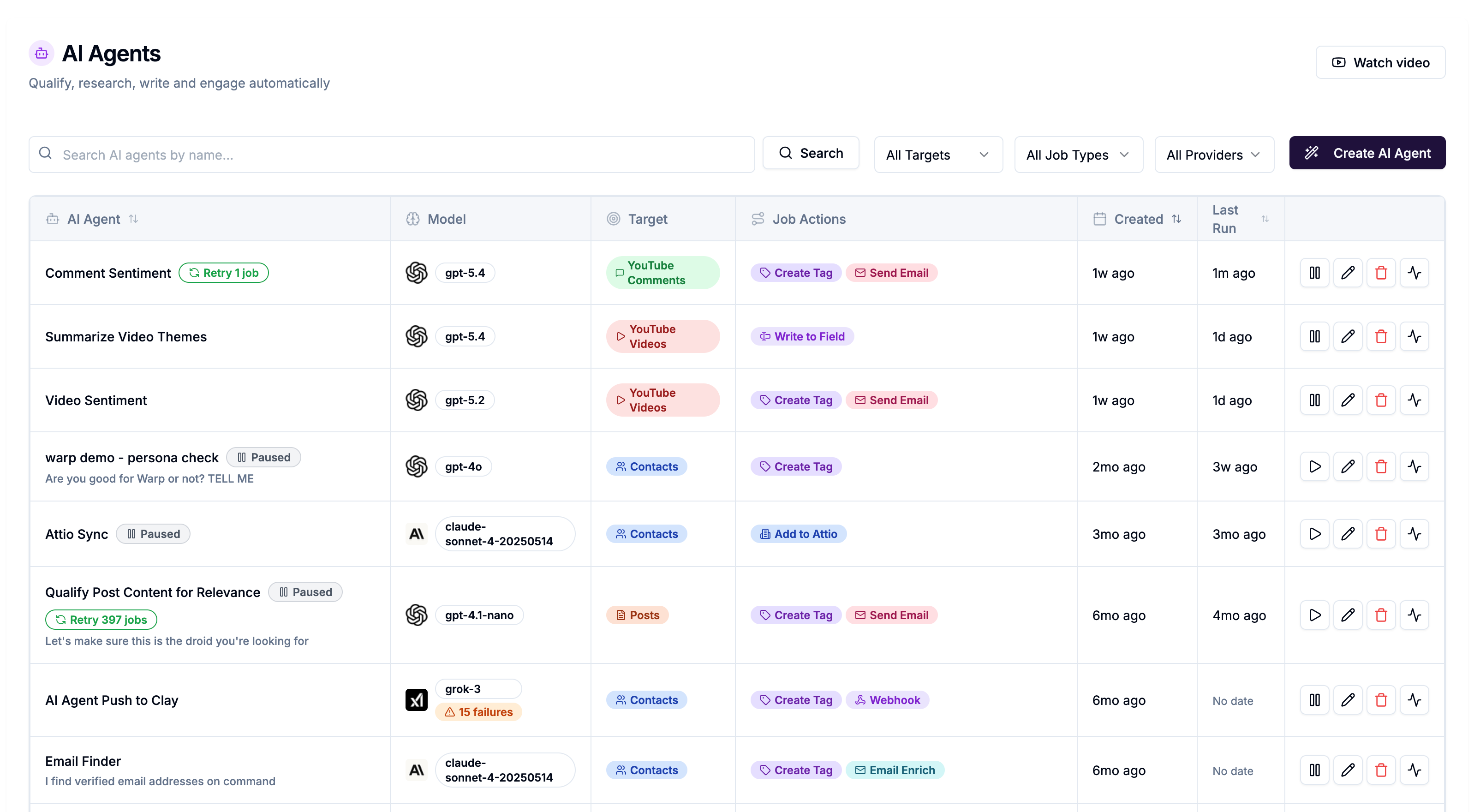
Go to AI Agents in the left sidebar and click Create AI Agent. The creation wizard opens with three steps: Build, Prompt, and Actions.
Agent Name and Description
Give your agent a clear, descriptive name — you'll assign multiple agents to Signals over time and need to tell them apart at a glance.
Good names:
"ICP Verifier — Contacts"
"Buyer Intent — LinkedIn Comments"
"Cold Email Opener — Contacts"
"YouTube Comment Sentiment"
The description is optional but useful for team accounts where others may be working with your agents.
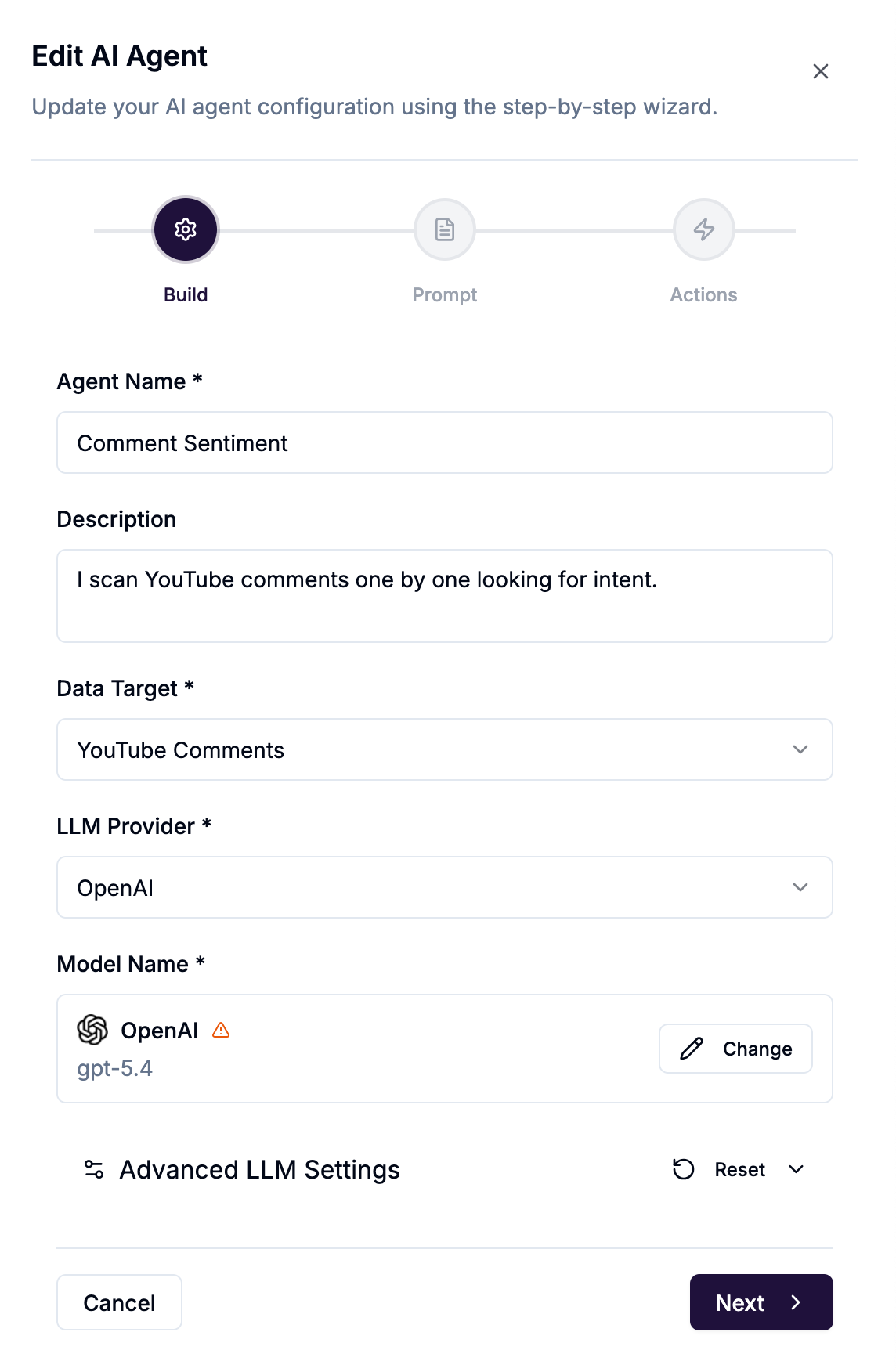
Data Target
This is the most important decision in the Build step. The data target determines:
What your agent reads (posts, comments, contact profiles, videos)
Which variables are available in your prompt
Which actions are available in your conditional rules
⚠️ Note: You cannot change the data target after creating an agent. If you need a different target, create a new agent.
LLM Provider and Model
AI Agents use your own LLM provider account — bring your own key (BYOK). Only providers you have connected in Integrations appear here.
Supported providers: OpenAI, Anthropic, Gemini, xAI, Perplexity
To connect a provider, go to Integrations → filter by AI & ML → click Configure on your chosen provider → enter your API key → Save.
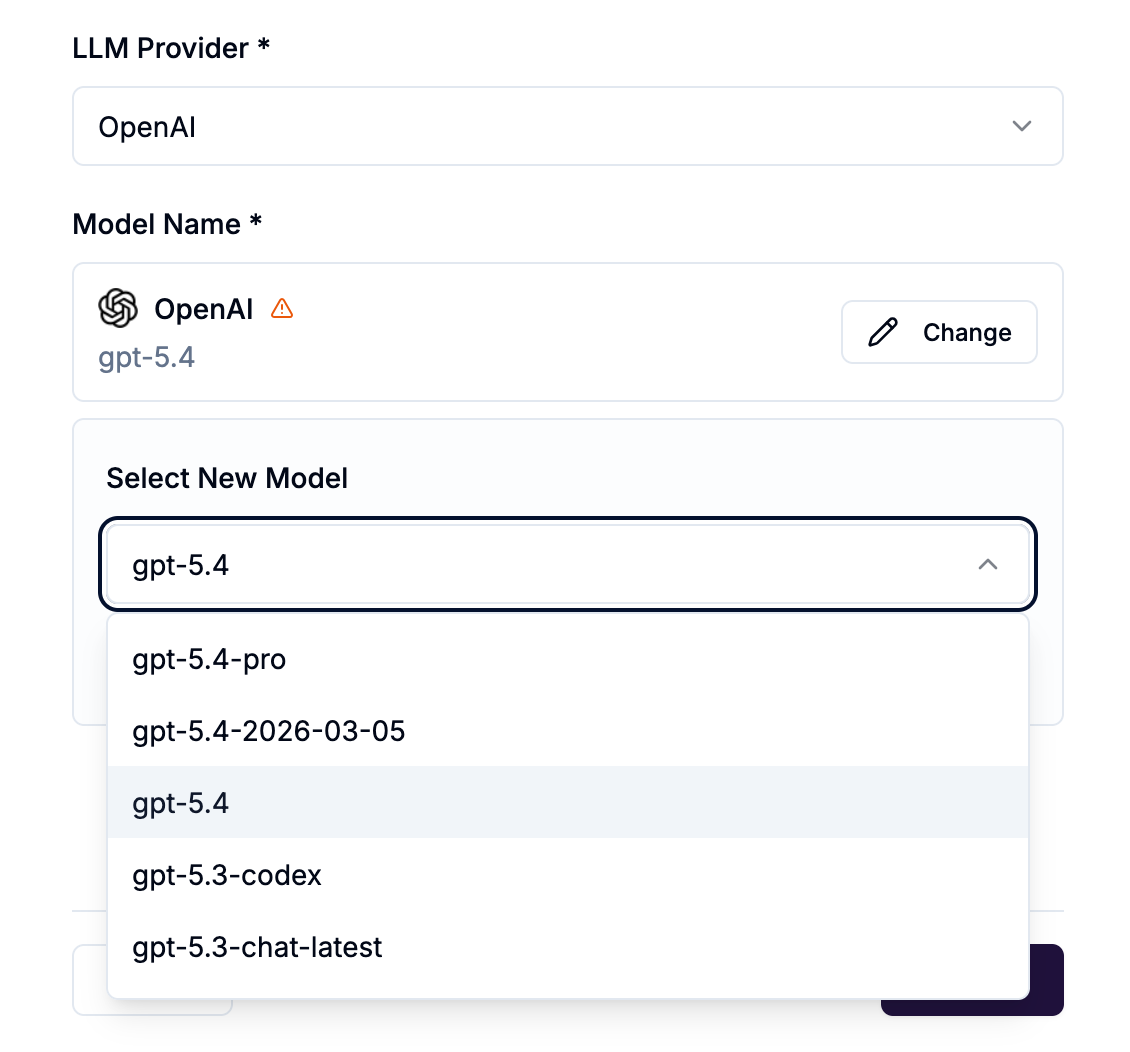
Choosing a model
You have full control over which model powers each agent. General guidance:
High-volume classification (TRUE/FALSE, category labels on posts or comments) — use a faster, cheaper model. You may be processing thousands of items per Signal run.
Nuanced analysis or generation (ICP scoring with reasoning, personalised copy) — use a more capable model where output quality matters more than cost per call.
LLM costs are charged directly by your provider and do not come from your platform credits. Platform cost is a flat -0.1 credits per agent job regardless of model.
Advanced LLM Settings
Click Advanced LLM Settings to expand optional configuration. These are for users who want fine-grained control over model behaviour. Defaults work well for most agents.
Click Reset to restore all advanced settings to defaults.
Saving and moving on
Once you've set the name, data target, provider, and model, click Continue to move to the Prompt step. You can return to the Build step at any time during creation without losing your work.